
7.2.
les rôles: Page d'onglet "Annonce
7.2.2.
Couleurs d'état pour l'index du catalogue - plinkgroups.cfg -> Bloc [nom de rôle] -> Clé "COLORCONDITIONTREE<numéro>"
|  |
| Précédent | Suivant |
![[Remarque]](https://webapi.partcommunity.com/service/help/latest/pages/fr/ecatalogsolutions/doc/images/note.png) | Remarque |
|---|---|
Les couleurs de statut pour l'index du catalogue [Status colors for catalog index] dépendent du rôle et doivent donc être définies séparément pour chaque rôle. | |
L'index du catalogue est affiché par défaut dans les couleurs vert/semi-transparent.
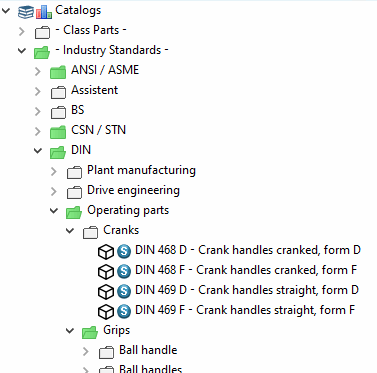
Vert est affiché si un projet contient au moins une ligne qui correspond à la condition sous PARTadmin -> Catégorie Rôles [Roles] -> Page d'onglet Général [General] -> Condition d'affichage pour la sélection des pièces [Display condition for parts selection] (=Key CONDITIONTREE), ou si un répertoire contient au moins un projet qui contient des pièces qui correspondent à la condition, sinon semi-transparent est affiché.
Les répertoires et les projets dans l'index du catalogue peuvent toutefois véhiculer beaucoup plus d'informations grâce à la polychromie: "Contient des pièces préférentielles", "Contient des pièces standard", "Déjà utilisé sur tous les sites", "Déjà utilisé sur deux sites", "Utilisé sur aucun site, mais avec un numéro ERP", etc.
Pour obtenir le marquage correspondant, des règles sont définies sous Couleurs d'état pour l'index du catalogue [Status colors for catalog index].
| Remarque |
|---|---|
Toute règle qui peut être déduite des informations des tableaux (informations sur le projet) est possible ! | |
![Résultat des couleurs d'état pour l'index du catalogue [Status colors for catalog index] dans PARTdataManager](https://webapi.partcommunity.com/service/help/latest/pages/fr/ecatalogsolutions/doc/resources/img/img_b5e3eb2043314628a82aead654f5092c.png)
Résultat des couleurs d'état pour l'index du catalogue [Status colors for catalog index] dans PARTdataManager
Réglage via le fichier de configuration
$CADENAS_SETUP/plinkgroups.cfg:
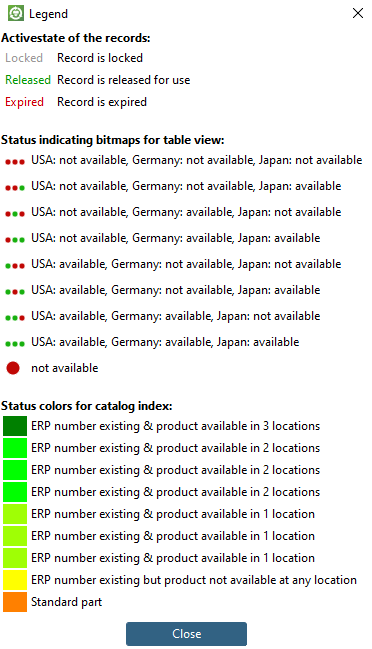
Bloc [<nom du rôle>], clé COLORCONDITIONTREE<NUMBER>, la première valeur contient la condition, la deuxième valeur contient la couleur RGB, la troisième valeur (optionnelle) contient une description qui sera affichée dans la boîte de dialogue de la légende [Legend].
Saisissez de préférence un terme générique comme description [Description]. Ce terme est automatiquement inscrit dans le tableau de traduction sur la page d'onglet Traductions [Translations]. Si vous cliquez sur l'icône Légende [Legend] dans PARTdataManager, la description ou le texte de traduction s'affiche.

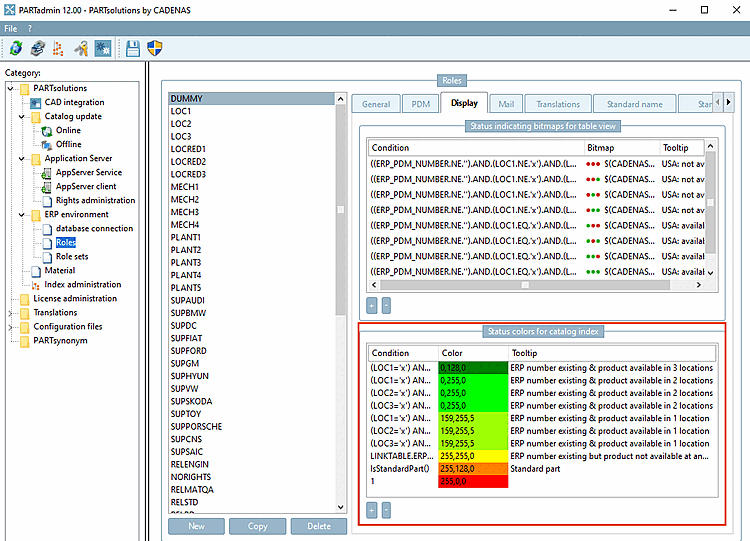
Réglage via l'interface utilisateur sous PARTadmin -> Catégorie Rôles [Roles] -> Page d'onglet Affichage [Display] -> Couleurs d'état pour l'index du catalogue [Status colors for catalog index]
| Remarque |
|---|---|
Pour utiliser les couleurs d'état dans l'index du catalogue, veuillez utiliser la syntaxe SQL. | |

[LOC1] COLORCONDITIONTREE0="(LOC1='x') AND (LOC2='x') AND (LOC3='x')","0","128","0","" COLORCONDITIONTREE1="(LOC1='x') AND (LOC2='x') AND (LOC3<>'x' OR LOC3 IS NULL)",
COLORCONDITIONTREE0="(LOC1='x') AND (LOC2='x') AND (LOC3='x')",
 "0","128","0",""
Dans cet exemple, les colonnes de site s'appellent "LOC1" à "LOC3". Si la pièce a été utilisée sur un site, la colonne a l'entrée "x".
Si la colonne "LOC1" ET la colonne "LOC2" ET la colonne "LOC3" contiennent chacune un 'x', alors la condition est remplie, c'est-à-dire que la pièce est disponible sur tous les sites. Les projets et les répertoires qui remplissent la condition sont affichés en vert foncé ("0", "128", "0").
COLORCONDITIONTREE7="LINKTABLE.ERP_PDM_NUMBER<>''","255","255","0",""
Wenn ein Teil eine ERP_PDM_NUMBER enthält, dann ist die Bedingung erfüllt. Es erhält die Farbe Jaune ("255","255","0").
COLORCONDITIONTREE8="IsStandardPart()","255","128","0",""
Wenn ein Teil nach der Classification standard ausgezeichnet ist, dann ist die Bedingung erfüllt. Es erhält die Farbe Orange ("255","128","0").
COLORCONDITIONTREE9="1","255","0","0",""
Bedingung "1" ist immer wahr. Diese Bedingung steht an letzter Stelle, hat also die geringste Priorität. Alle Verzeichnisse/Projekte, für die keine der voranstehenden Bedingungen erfüllt ist, erhalten die Farbe Rouge ("255","0","0").
Exemple 2 - Répertoires/projets verts et semi-transparents:
Siaucun réglage n'est effectué sous Couleurs d'état pour l'index du catalogue [Status colors for catalog index], les répertoires verts et semi-transparents sont affichés (voir ci-dessus ). Le vert est affiché si un projet contient au moins une ligne qui correspond à la condition sous Condition d'affichage pour la sélection de pièces [Display condition for parts selection],ou si un répertoire contient au moins un projet qui contient des pièces qui correspondent à la condition, sinon le semi-transparent est affiché.
Exemple 3 - Répertoires/projets verts et rouges:
Si le vert/rouge doit être affiché à la place du vert/semi-transparent, définissez le paramètre suivant sous l'onglet Affichage [Display] -> Zone de dialogue Couleurs d'état pour l'index du catalogue [Status colors for catalog index].
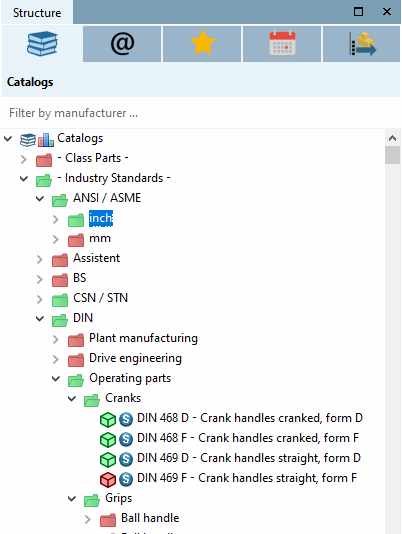
LINKTABLE.ERP_PDM_NUMBER<>'' | Farbe Grün
1                            | Farbe Rot
Bedeutung: Ist eine ERP_PDM_NUMBER vorhanden, dann wird Grün angezeigt. In allen übrigen Fällen wird Rot angezeigt.
Exemple 3 - Pièce standard en combinaison avec une autre condition:
MAT_NAME= IsStandardPart() AND 'STEEL'
![[Astuce]](https://webapi.partcommunity.com/service/help/latest/pages/fr/ecatalogsolutions/doc/images/tip.png) | Astuce |
|---|---|
Si vous souhaitez suivre les exemples, consultez pour cela les paramètres de l'instance de base de données PLDBDEMO dans les différents rôles. | |