|
In V9 Table variables have been optionally displayed under Search results if the directory level to be searched through contained common variables.
Now in V10 Table variables are displayed by default under Search results, namely not only for common variables but basically, which possibly results in larger table width (depending on search settings).
Table variables are shown in the Details and Table mode by default.

In the first case
 an additional column Summary is displayed.

When clicking on
the icon  , smaller preview images are displayed and the column
Summary is missing, so that
you can see more columns at a glance.
, smaller preview images are displayed and the column
Summary is missing, so that
you can see more columns at a glance.
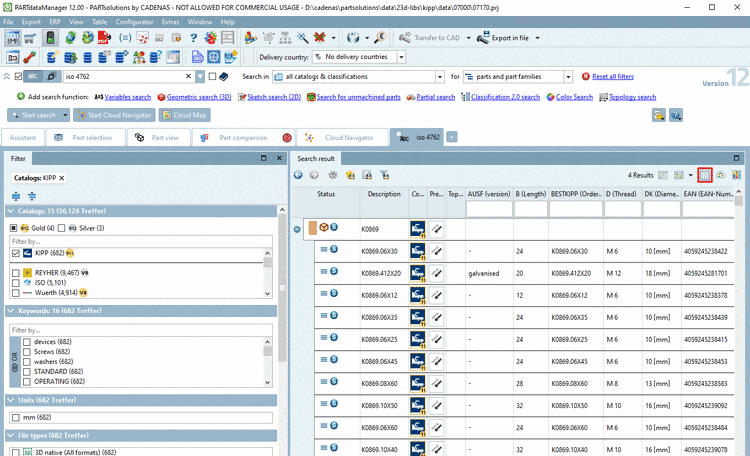
If the search covers a wider range (many catalogs or differing parts) then there are more differing variables so possibly fields remain empty. See following figure.

However, the table is dynamically adjusted if a filter is set (meaning a new search is performed). If a certain catalog is filtered some empty columns disappear at once. The same applies if a filter in the column header is used.
At the top of each column you can see an input field for filtering. Even if not all hits are displayed in the search results, the filter affects all hits and the display of table variables is adjusted.
You can filter a number of variables one by another, already entered values remain.

The syntax is the same as in the "Any" field at the topology search.
= != <= >= < > x-y
For example, you can enter >24 or 12-24:
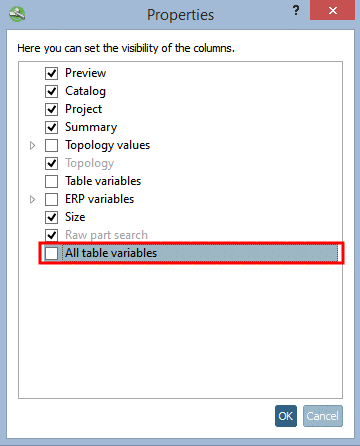
Table variables are enabled by default. In order to disable do the following: