
 |
With the Cloud Navigator you can perform a complex sequence of searches and always keep the overview.
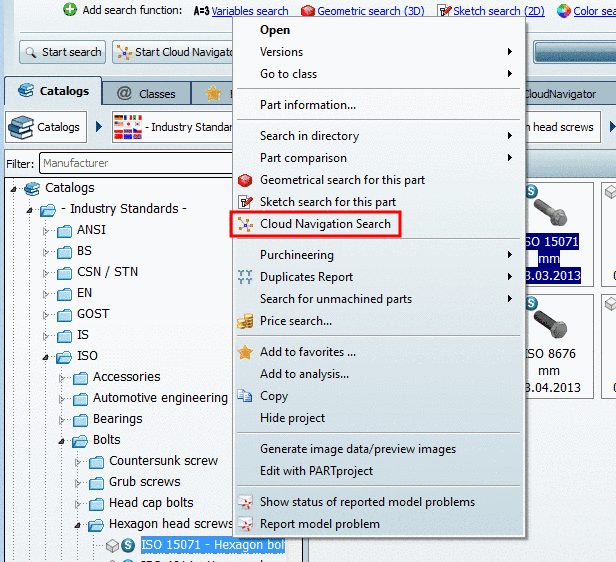
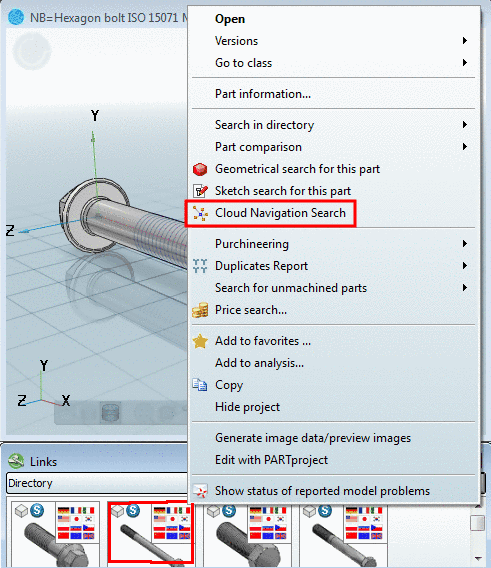
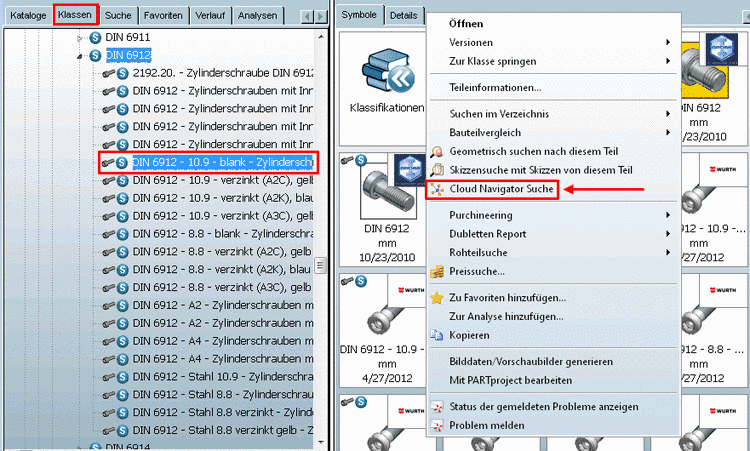
Start the search with click on the button or a context menu command (see below).
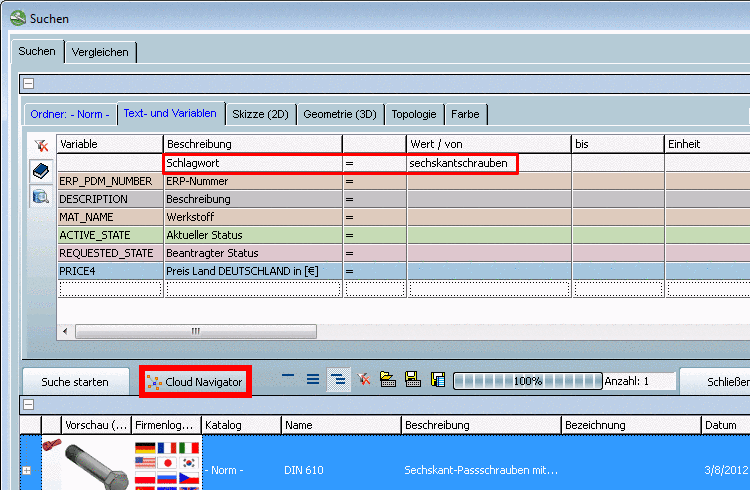
-> The Search Results are displayed in an own dialog box Cloud Navigator.

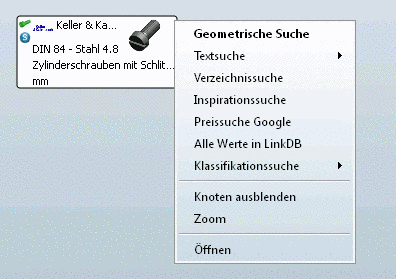
Via context menu of each node you can continue the search or further specify the search.
The following figure shows the result of a second search run, which has been performed with the Geometric Search.

Perform settings as usual on the Text and variables and/or Geometry (3D) and/or Sketch (2D) index page.
-> The line is transferred as root node with name and characteristic. Via context menu commands now you can start various searches.
on project level on all index pages (Catalogs, Classes, Search, Favorites, History, Analyses)
-> The line is transferred as root node with name. Via the context menu commands now you can start various searches (see above figure).


Example Classification Search:
Via Classification Search you can find all parts with the same classification. In the submenu you can see all available classifications of the currently selected part.
The following figure shows the call up of the Standards classification.

The result in the Cloud Navigator shows all found standard parts
(signalized by the respective icon  ) for all available supplier catalogs.

For comparison: You will get the same result on the Classes index page for DIN 6912, when you call up the Cloud Navigator Search.
![[Note]](https://webapi.partcommunity.com/service/help/latest/pages/fr/installation_ecatalogsolutions/doc/images/note.png)
In the Cloud Navigator you can perform further search runs based on a selected result part.