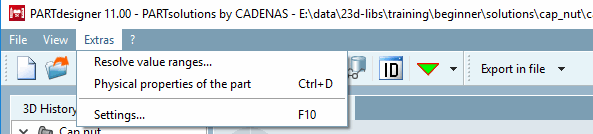
Avec Décomposer les plages de valeurs [Resolve value ranges...]... (PARTdesigner -> Menu Outils [Extras] ), vous décomposez les valeurs qui contiennent des plages de valeurs en valeurs individuelles.
![[Remarque]](https://webapi.partcommunity.com/service/help/latest/pages/fr/partsolutions_user/doc/images/note.png)
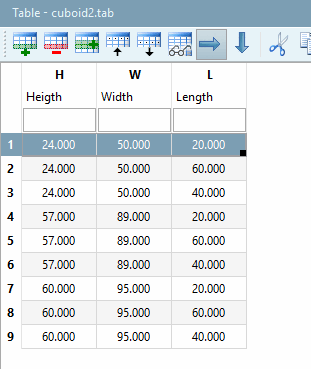
On dispose d'un tableau avec la variable de plage de valeurs "L", qui contient les valeurs "20,40,60".
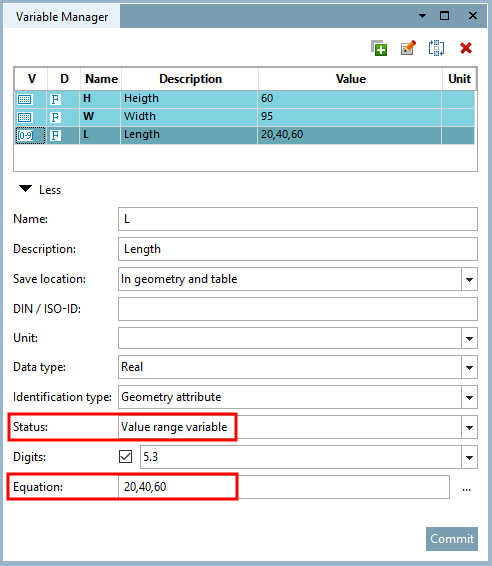
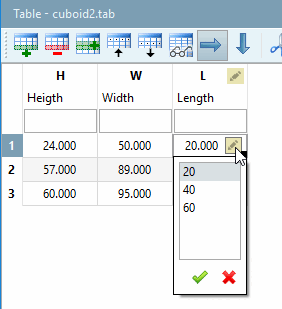
Pour affecter les trois valeurs de liste différentes à chacune des trois lignes existantes et créer ainsi un total de neuf valeurs individuelles, procédez comme suit :
Cliquez sur la commande Résoudre les plages de valeurs [Resolve value ranges].
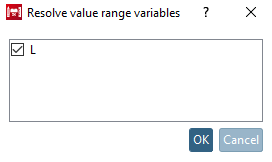
Dans la fenêtre Décomposer les variables de plage de valeurs [Resolve value range variables] cochez la variable [Variable] (ici uniquement "L") dont vous souhaitez résoudre la plage de valeurs et confirmez en cliquant sur .
Résultat: Le tableau avec plage de valeurs éclatée se présente alors comme suit.
!["L" dans le gestionnaire de variables : désormais en tant que "variable à valeurs fixes [Variable with fixed values]".](https://webapi.partcommunity.com/service/help/latest/pages/fr/partsolutions_user/doc/resources/img/img_4d0f75a4e4a246d38f63a58a0e0e0372.png)
"L" dans le gestionnaire de variables : désormais en tant que "variable à valeurs fixes [Variable with fixed values]".
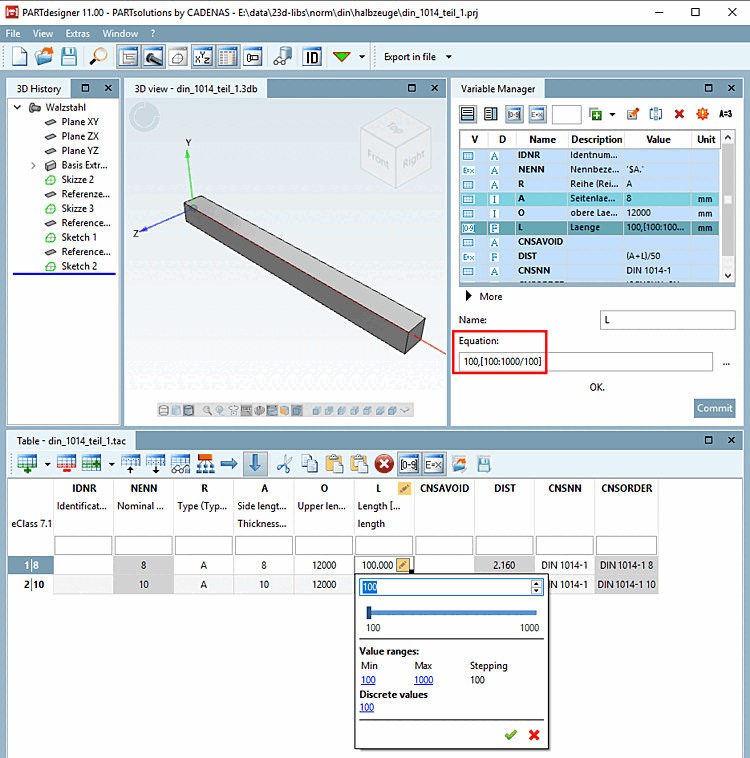
Cliquez sur la commande Résoudre les plages de valeurs [Resolve value ranges].
-> La boîte de dialogue Plage maximale [Maximum range] s'ouvre.
-> La boîte de dialogue Résoudre les variables de plage de valeurs [Resolve value range variables] s'ouvre.
Cochez la case de sélection des variables (ici uniquement "L") dont vous souhaitez résoudre la plage de valeurs et confirmez en cliquant sur .
Résultat : La résolution a été effectuée avec l'incrément défini de 100.
![Plage maximale [Maximum range]](https://webapi.partcommunity.com/service/help/latest/pages/fr/partsolutions_user/doc/resources/img/img_da3a85ce58fe451787b75d9732abc97d.png)
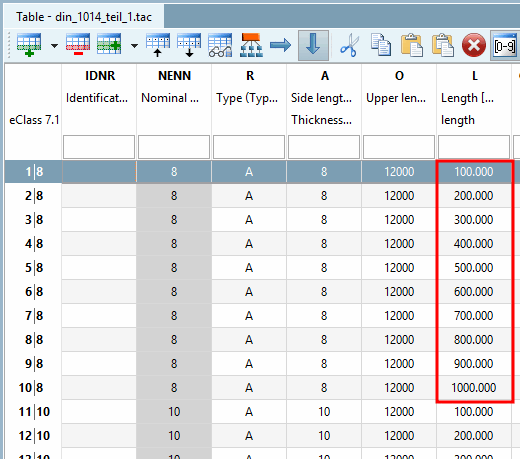
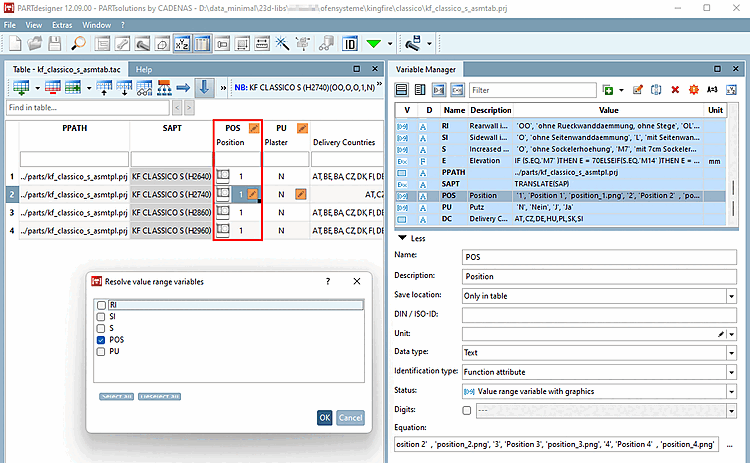
Avec la V12.9, il est désormais possible de résoudre les variables de plage de valeurs avec des graphiques sans perdre les graphiques.
Cliquez dans PARTdesigner > menu Outils [Extras] sur la commande Résoudre les plages de valeurs.... [Resolve value ranges...]
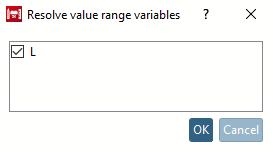
-> La boîte de dialogue Résoudre les variables de plage de valeurs [Resolve value range variables] s'ouvre.
Sélectionnez la variable de plage de valeurs souhaitée (qui contient les graphiques) et confirmez en cliquant sur .
-> La commande est exécutée immédiatement.
-> Pour que les modifications soient visibles dans PARTdesigner, celui-ci doit être redémarré.
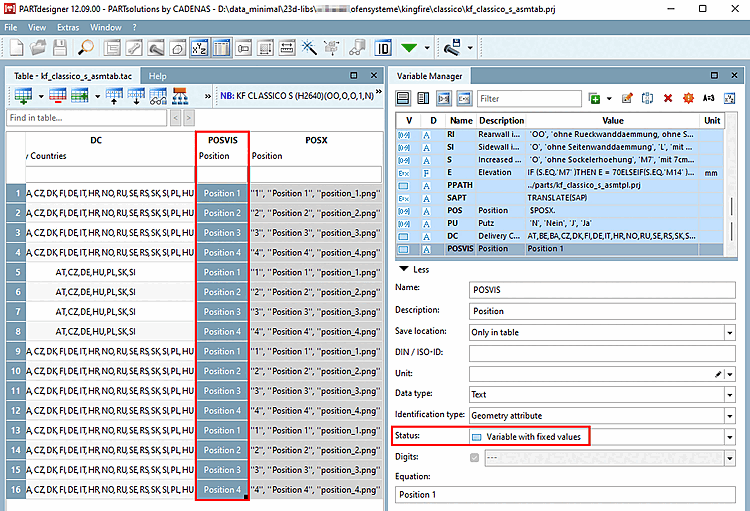
Une variable nommée [VARNAME]+"VIS" a été créée, qui contient le texte visible de la variable [VARNAME].
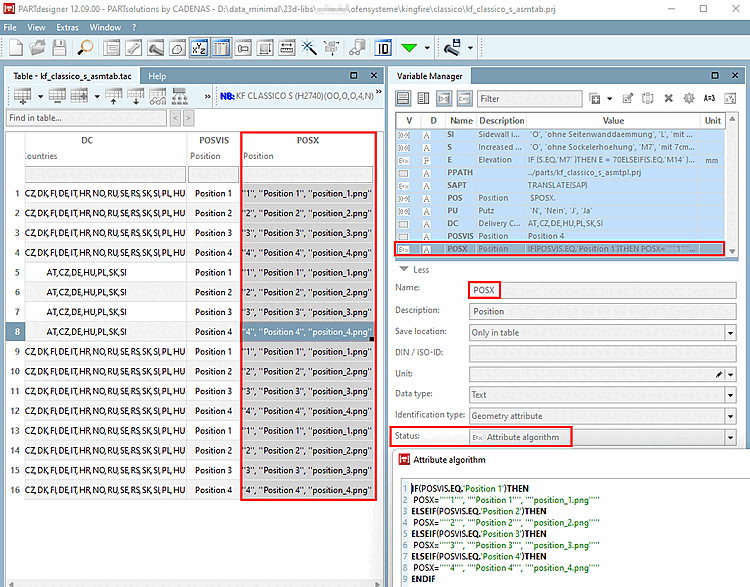
Une variable [VARNAME]+"X" a été créée avec un algorithme de caractéristiques qui contrôle l'attribution d'image correspondante à l'aide du texte visible.
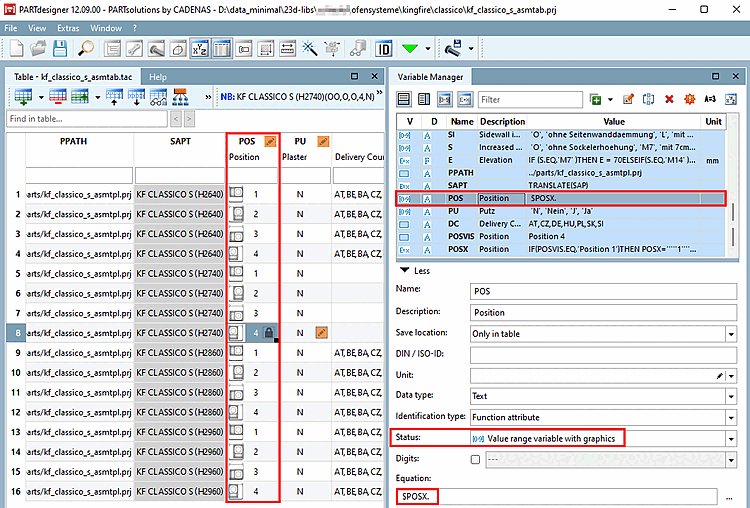
La variable résolue conserve le statut de variable de plage de valeurs avec des graphiques [Value range variable with graphics] pour afficher les images correspondantes dans la colonne [VARNAME].
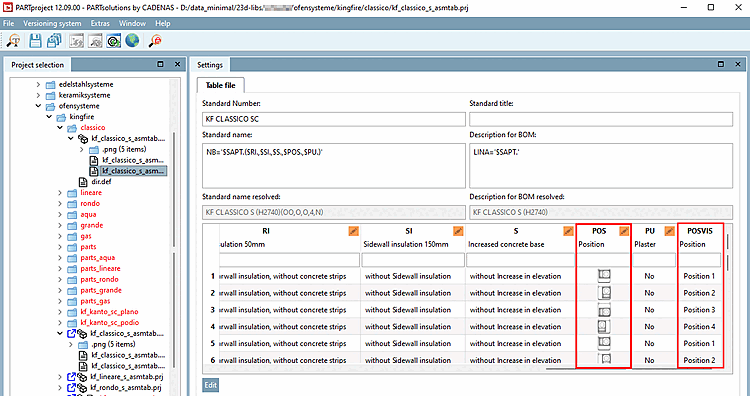
Les variables [VARNAME] et [VARNAME] + VIS sont également visibles dans PARTproject.