 |
In order to be able to work with ERP/PDM integration, a connection to the link database has to exist.
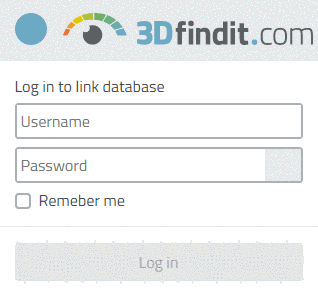
The login may happen automatically or manually. In the second case the following dialog will appear when starting.
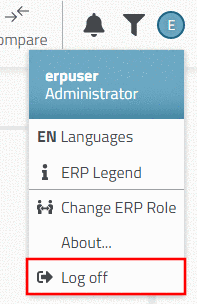
If you want to log in with another Username, click on
 Log off and then
log in again.
Log off and then
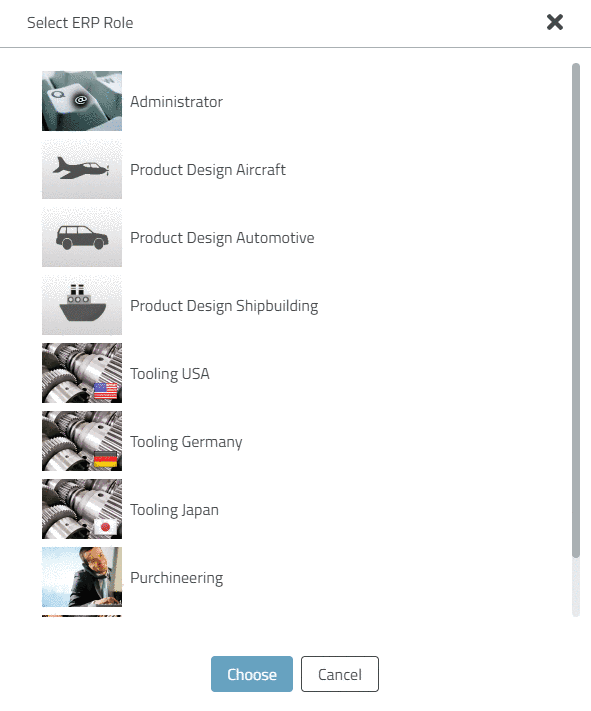
log in again.If there are different ERP roles available for a certain user, after the login the Select ERP Role dialog is opened.
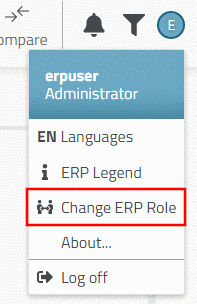
If the role shall be change during a session, in the login dialog, click on Change ERP Role.
-> The Select ERP Role dialog is opened again.
 /
/  Preferred ranges
off / on: After activation only
products containing preferred parts are displayed in the product
selection, in the table only rows with preferred parts.
Preferred ranges
off / on: After activation only
products containing preferred parts are displayed in the product
selection, in the table only rows with preferred parts.Why a preferred range filter? The use of parts already recorded in ERP/PDM reduces part diversity significantly.
Normally preferred ranges are defined by the existence of an ERP number. (Also any other definition is possible.) Details on this can be found under Section 4.7.3.1.2, “ Preferred ranges - plinkgroups.cfg -> Block [Role_name] -> Key "PREFRANGE" ” in PARTsolutions - Administration Manual.
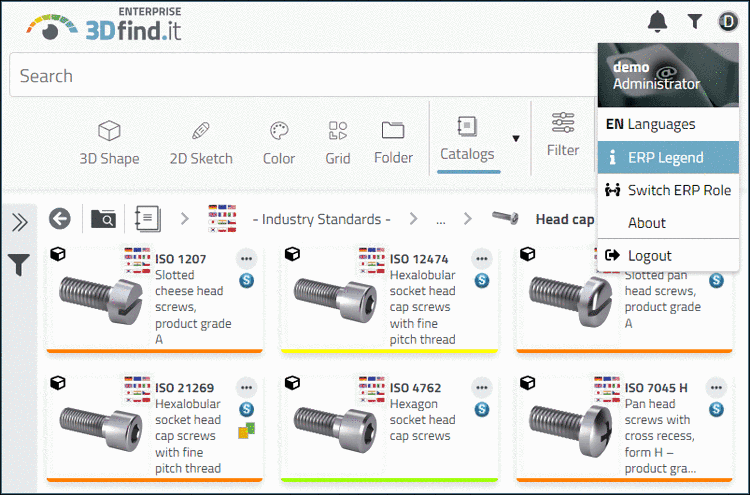
Products containing characteristics with ERP number are already marked in the product selection by color.
In this exemplary figure light green means that at least on characteristic is available at two locations..
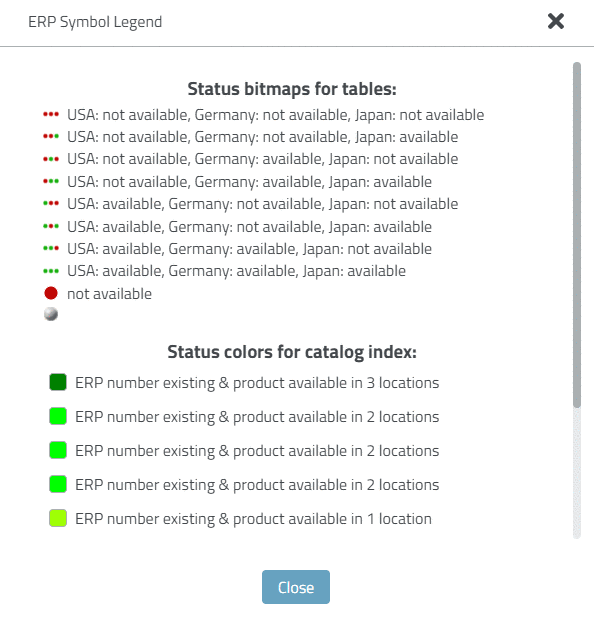
In the table, the icon for the ERP status will show at least on green point (
 ). Lines with a red point
  are hidden.
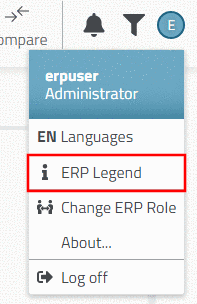
The exact meaning of icons and colors can be found in the
 ERP Legend.
The legend shows the meaning of the Status bitmaps in the table and the Status colors in the product selection.
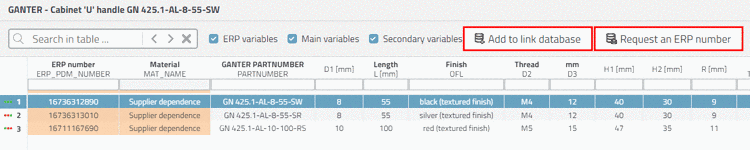
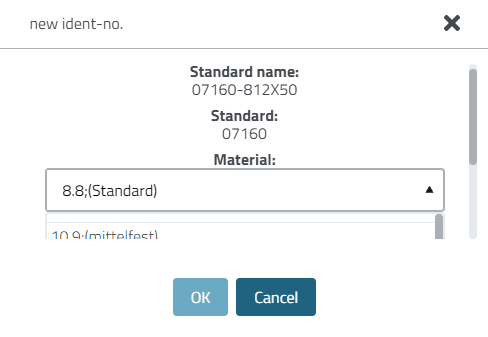
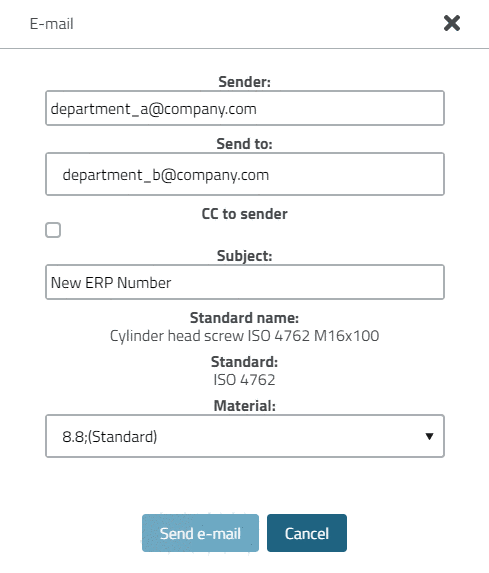
Add dataset to link database / Request ERP number:
Depending on the intended workflow an ERP number can be added or requested. Details on the configuration of the dialog new ident-no. can be found under Section 4.11, “ Basic design of "new ident-no." dialog box - erpcustom.cfg -> Block [USERDIALOG] ” in PARTsolutions - Administration Manual. Also an automatic assignment of the ERP number can be defined.
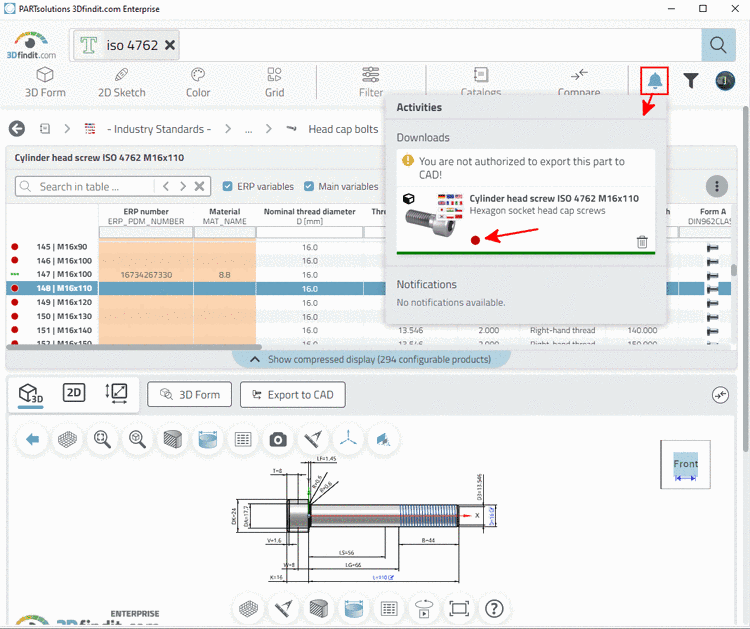
By default, the Export condition is defined in a way that exporting without ERP number is not possible. Details on this can be found under Section 4.7.3.1.7, “ Export condition - plinkgroups.cfg -> Block [Role_name] -> Key "EXPORTRESTRICTION" ” in PARTsolutions - Administration Manual.
When attempting to export a short notification is displayed.
Notifications can be opened via icon
 Notifications
anytime.
Notifications
anytime.Show/hide variable types (columns):
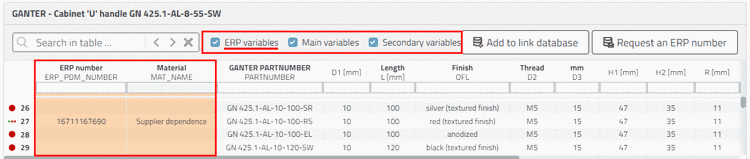
The different variable types (columns) can be shown or hidden by checkboxes:
ERP variables: Variables not managed in the characteristic attribute table, but in the link database (only relevant with ERP integration). This is about data coming from connected systems such as ERP/PDM, meaning e.g. ERP number, material, price, storage, release state, etc.
It can be configured which ERP columns shall be displayed. Details on this can be found under Section 4.7.3.1.6, “ Columns to be displayed - plinkgroups.cfg -> Block [Role_name] -> Key "VARSUSED / VARSHIDDEN" ” in PARTsolutions - Administration Manual.
Main variables: Variables occurring in NB and LINA are assigned to the group Main variables.
Secondary variables: Variables not occurring in NB and LINA are assigned to the group Secondary variables.

![[Note]](https://webapi.partcommunity.com/service/help/latest/pages/fr/partsolutions_user/doc/images/note.png)