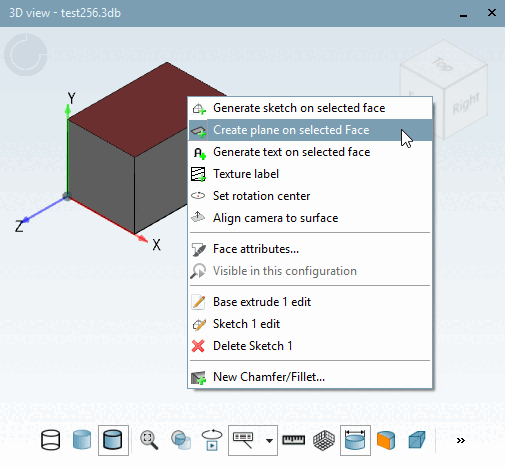
Sélectionnez un calque et cliquez sur la commande Créer un nouveau calque sur la surface sélectionnée [Create plane on selected Face] du menu contextuel.
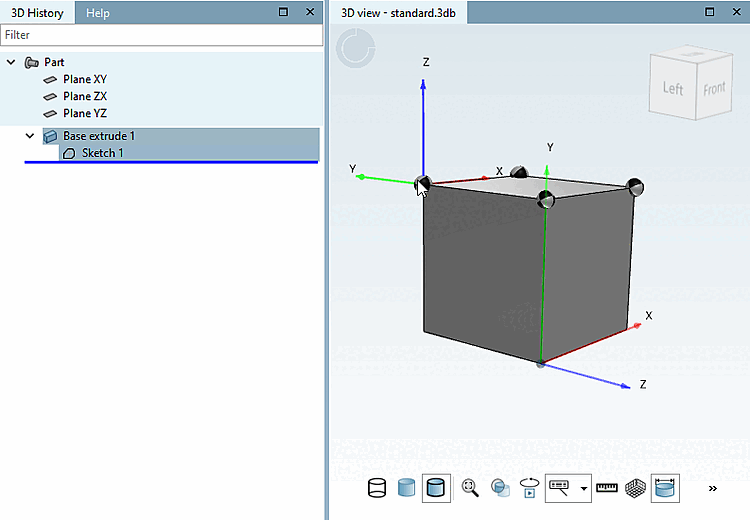
Sélectionnez un système de coordonnées en double-cliquant dessus.
Sous Position, vous pouvez déplacer le plan de valeurs X/Y et sous Orientation, vous pouvez le faire pivoter autour d'un axe [Axis] souhaité avec l' angle [Angle] défini.
Les axes suivants peuvent être sélectionnés :
Axe défini par l'utilisateur [Custom Axis]
Cette fonction permet de faire pivoter un plan d'un angle donné sur un axe librement défini. Comparer le plan avec la rotation [Plane with rotation].
Exemple : Le plan de référence est déplacé dans la direction de l'axe Y (pas celui du système de coordonnées global, mais celui du COS sélectionné. [voir figure ci-dessus]) avec la valeur de "-10" et on le fait pivoter de 45° autour de l'axe X (pas celui du système de coordonnées global, mais celui du système sélectionné [voir figure ci-dessus]).
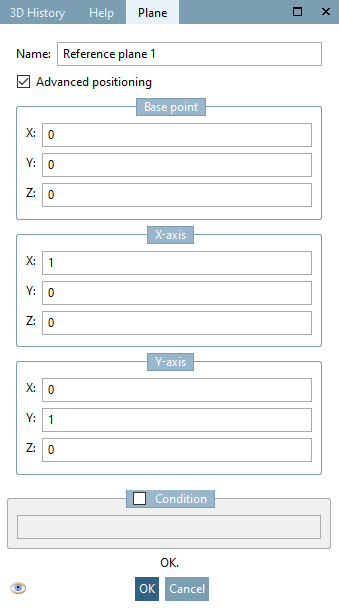
Dans la mesure où vous activez l'option sous Positionnement avancé [Advanced positioning], la boîte de dialogue se modifie comme suit :
Pour plus de détails à ce sujet, voir ci-dessus.
![[Remarque]](https://webapi.partcommunity.com/service/help/latest/pages/fr/partwarehouse/doc/images/note.png)
![Exemple : Le plan de référence est déplacé dans la direction de l'axe Y (pas celui du système de coordonnées global, mais celui du COS sélectionné. [voir figure ci-dessus]) avec la valeur de "-10" et on le fait pivoter de 45° autour de l'axe X (pas celui du système de coordonnées global, mais celui du système sélectionné [voir figure ci-dessus]).](https://webapi.partcommunity.com/service/help/latest/pages/fr/partwarehouse/doc/resources/img/img_a862da0de37a4f579e22bbde68ddb173.png)