

- 2.1.6.7.1. Mode d'affichage
- 2.1.6.7.2. Afficher/masquer les colonnes
- 2.1.6.7.3. Filtre
- 2.1.6.7.4. Icônes et messages d'information
- 2.1.6.7.5. Enregistrer les résultats de la recherche : dans les favoris / dans le fichier
- 2.1.6.7.6. Suggestions de correction en cas de fautes de frappe - "Vous vouliez dire"
- 2.1.6.7.7. Affiner / élargir la recherche - "Termes apparentés
- 2.1.6.7.8. Trier les lignes du tableau
- 2.1.6.7.9. Rechercher dans un nouvel onglet à partir du menu contextuel
- 2.1.6.7.10. Actions (commandes de menu contextuel / boutons)
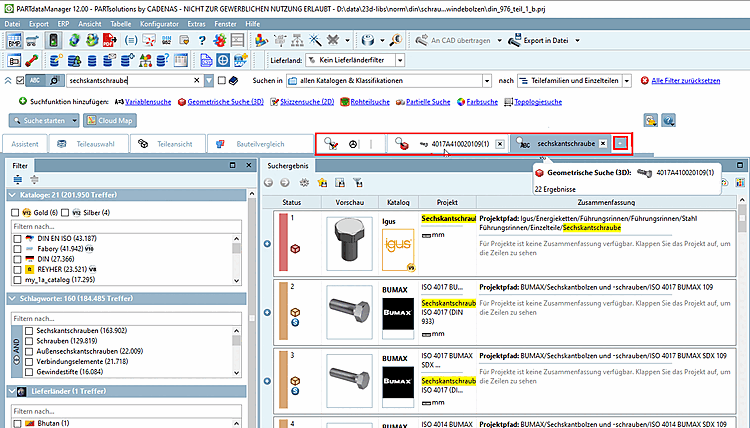
Les résultats de la recherche sont affichés sur leur propre page d'onglet.
Vous avez la possibilité d'ajouter des onglets supplémentaires pour les résultats de recherche, ce qui vous permet de passer de l'un à l'autre.
Afin de
Pour créer un nouvel onglet, cliquez sur le signe plus à droite des onglets
 . Les résultats de la prochaine recherche s’afficheront alors sur
sur cette page à onglet.
. Les résultats de la prochaine recherche s’afficheront alors sur
sur cette page à onglet.
Le libellé de l'onglet correspond au terme de recherche en cas de recherche plein texte et de recherche de variables, sinon le nom de la méthode de recherche est affiché.
Lorsque vous passez la souris sur un onglet, les détails de la recherche s'affichent dans l'info-bulle.
Dedans
Une session, les onglets restent en place. Si vous ne voyez pas les résultats de recherche,
Si vous avez besoin de plus, cliquez sur l’icône  dans l’onglet.
Lorsque tu cliques sur un onglet, tous les paramètres de la recherche concernée sont chargés.
![[Remarque]](https://webapi.partcommunity.com/service/help/latest/pages/fr/partwarehouse/doc/images/note.png) | Remarque |
|---|---|
Vous pouvez limiter davantage les résultats de la recherche, indépendamment de la méthode de recherche utilisée auparavant, dans la zone de dialogue Filtre. [Filter] Voir à ce sujet Section 2.1.6.4.2, « Filtre (recherche par facettes) ». | |