

Vous avez tout d'abord procédé à l'installation de PARTsolutions et souhaitez maintenant obtenir des licences sur les clients ou les postes individuels via un serveur de licences central.
Définissez un ordinateur comme serveur de licences.
un ordinateur séparé[5] (pour client/serveur et aussi pour poste de travail individuel)
Lancez le programme d'installation (licenseserver_12.xxx.msi) depuis cet ordinateur.
Contrat de licence pour utilisateur final
Acceptez les conditions du contrat de licence et cliquez sur .
Définissez le dossier dans lequel le logiciel doit être installé.
Le bouton permet de sélectionner un autre dossier que celui par défaut sur le disque dur.
Cliquez sur lorsque vous avez fait votre choix.
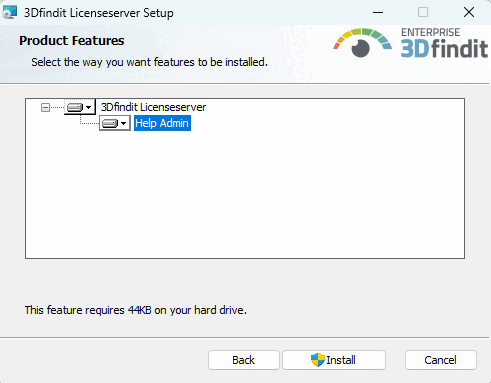
Démarrez le processus d'installation en cliquant sur .
Fermez l'installateur en cliquant sur .
![[Remarque]](https://webapi.partcommunity.com/service/help/latest/pages/fr/installation_ecatalogsolutions/doc/images/note.png)



Une fois l'installation du serveur de licences terminée, veuillez vérifier si le service requis est effectivement en cours d'exécution.
Dans le menu de démarrage de WINDOWS, ouvrez le répertoire Paramètres/Panneau de configuration/ Administration/Services.
-> Vous devriez maintenant y trouver le service Cadenas Licenseserver . Dans sa ligne, le statut doit être "En cours d'exécution" et le champ " Type de démarrage " doit être réglé sur " Type de démarrage ".

Si ces paramètres ne sont pas disponibles, double-cliquez sur le champ concerné et ajustez les entrées dans la fenêtre qui s'ouvre.
[5] Le serveur de licences peut également être l'un des clients. En tant que tel, il doit bien sûr être disponible en permanence (dans le réseau).