
Chapitre 8.
PARTtemplateDesigner - Créer des fiches techniques
8.1. Créer un modèle de A à Z |  |
| Précédent | Suivant |
Si
Si vous suivez ce petit exemple, vous avez déjà un premier
comment vous pouvez créer un modèle avec peu d’effort, qui peut ensuite être
par exemple dans le PARTdataManager via
la fonction de fiche technique PDF 3D est disponible.
Ce chapitre explique le processus dans son ensemble. Vous trouverez ensuite tous les détails dans les chapitres suivants.
![[Remarque]](https://webapi.partcommunity.com/service/help/latest/pages/fr/installation_ecatalogsolutions/doc/images/note.png)
Insérer au niveau du catalogue principal annuaire «
_templates».Démarrer PARTtemplateDesigner:
Démarrez le PARTtemplateDesigner sous
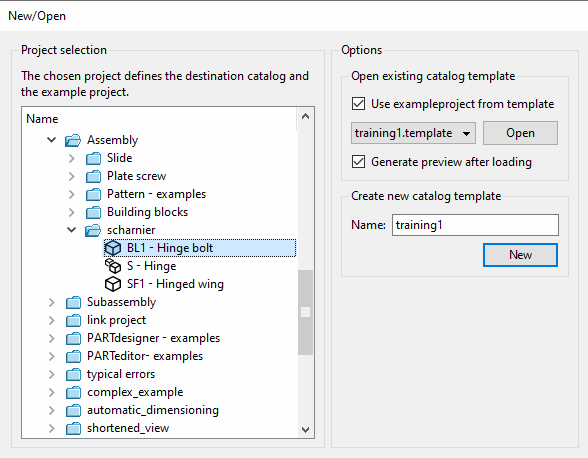
$CADENAS/bin/x86/64en double-cliquant au fichierptemplatedesigner.exe.-> La boîte de dialogue Nouveau/Ouvrir [New/Open] s'ouvre.
Vous pouvez également ouvrir la boîte de dialogue Nouveau/Ouvrir [New/Open] à tout moment via le menu Fichier [File] -> Nouveau [New].
Déterminez dans l'arborescence du répertoire le projet de test/projet d'exemple.
En choisissant un projet, le catalogue d'objectifs et le projet exemple sont déterminés. [The chosen project defines the destination catalog and the example project.]
Le projet test est utilisé pour les représentations lors de la création du modèle. Vous pouvez le modifier à tout moment.
Créer un nouveau modèle de catalogue [Create new catalog template] -> champ de saisie Nom [Name]
Attribuez un nom unique et cliquez sur .
Créez les éléments [Elements] souhaités.
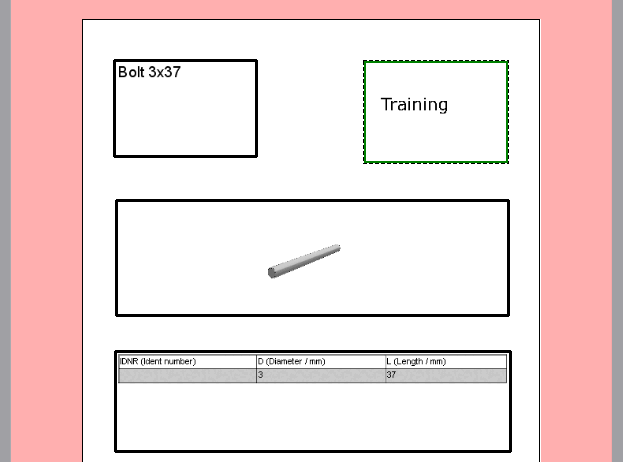
Si vous ne souhaitez obtenir ici qu'un aperçu du processus complet, créez par exemple rapidement comme ébauche uniquement les éléments suivants : texte [Text] (avec "$NB."), image [Image] (logo de l'entreprise), vue 3D [3D view] et tableau [Table].
Vous trouverez des explications détaillées sur tous les éléments sur Section 8.4, « "Éléments" Barre d'outils ».
Cliquez sur le bouton Enregistrer comme modèle de catalogue [Save as catalog template].
Cela crée le modèle dans le annuaire «
_templates». Une fois avec<name>.templateet une fois avec «<name>.ptdef». [115]Un fichier de configuration
media.cfgavec le contenu suivant dans le répertoire «_templates» doit automatiquement doit avoir été créé.[TMPLATETYPES] DIR=Verzeichnis PRJ=Projekt BOM=Stückliste PDF=Datenblatt-PDFSobald der Eintrag "PDF=Datenblatt-PDF" vorhanden ist, wird in PARTproject im Abschnitt Modèles [Templates] der Eintrag Fiche technique-PDF angezeigt.
Création du modèle de fiche de données PDF dans PARTproject:
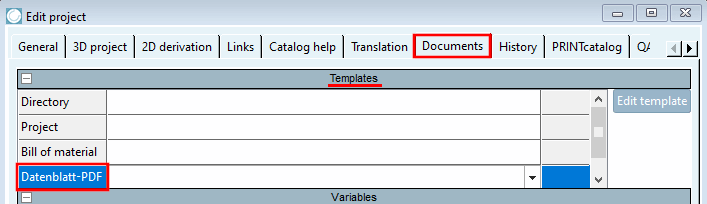
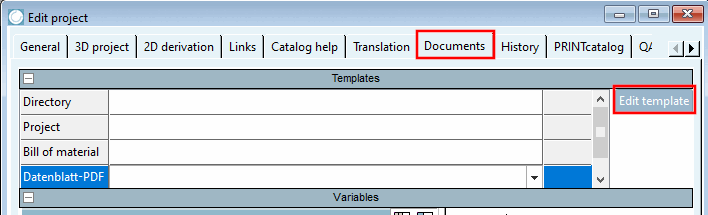
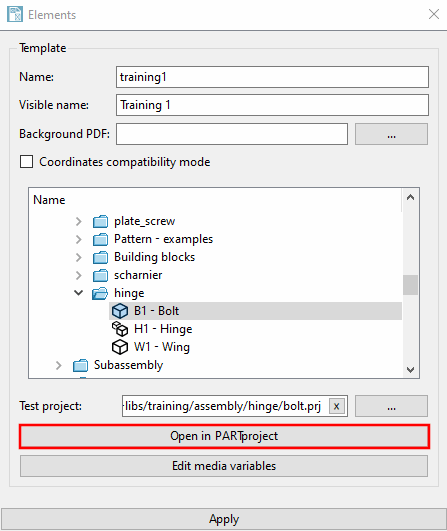
Pour cela, ouvrez le module PARTproject dans PARTtemplateDesigner via Paramètres [Settings] Menu -> Paramètres [Template configuration] du modèle [Template configuration] -> .
Sélectionnez l'onglet Documents.
Cliquez sur le bouton Modifier les modèles [Edit template].
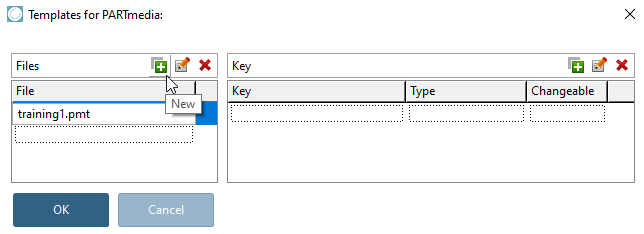
-> La fenêtre de dialogue Modèles pour PARTmedia [Templates for PARTmedia] s'ouvre.
Cliquez sur l’icône Nouveau [New]
 et entrez le
Nom du modèle[116] avec l’extension de fichier
et entrez le
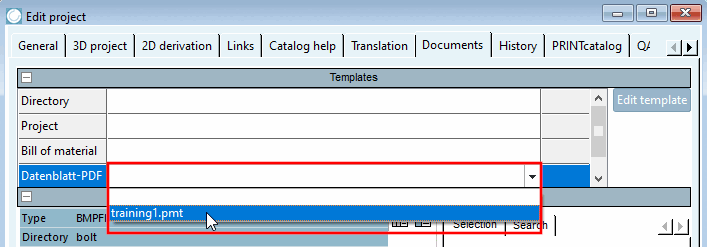
Nom du modèle[116] avec l’extension de fichier .pmt. Fermez le Boîte de dialogue.Dans la ligne Fiche de données-PDF, ouvrez la zone de liste et sélectionnez l'entrée que vous venez de définir.
-> Sélection dans la liste dans le répertoire « _templates », le fichier
<name>.pmt(ici dans le Exemple «training1.pmt»).
Tester dans le PARTdataManager:
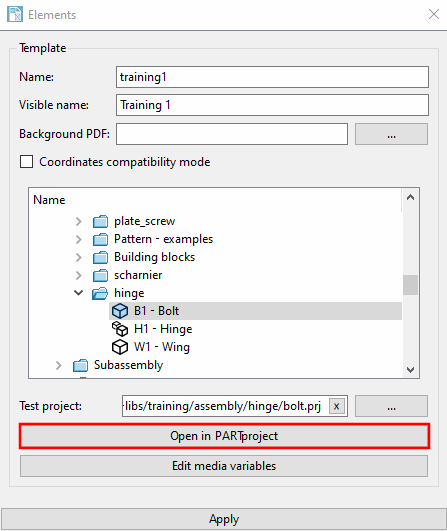
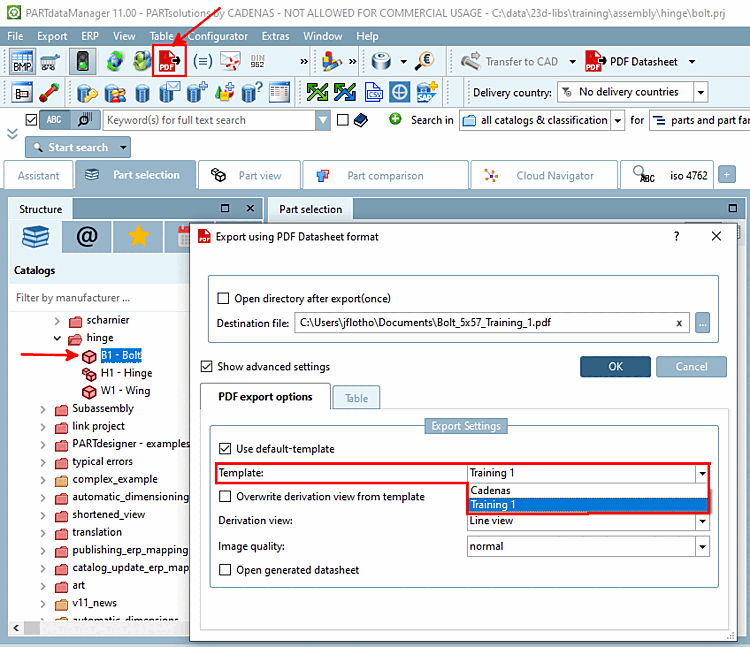
Sélectionne le projet de test [Test project] dans l'arborescence (ici dans l'exemple "B1 - axe de charnière").
Dans PARTdataManager, utilisez l’icône PDF Fiche technique
la boîte de dialogue Exporter dans le
Format de la fiche technique PDF.
Activez Afficher les paramètres avancés [Show advanced settings].
Sélectionnez le modèle créé dans la zone de liste sous le point Modèle.
Test : choisissez un autre projet.
-> Le modèle souhaité n'est pas affiché, car il n'est pour l'instant attribué qu'au projet de test [Test project].
Pour rendre le modèle disponible pour l'ensemble du catalogue, procédez comme suit :
Dans PARTtemplateDesigner, cliquez sur le bouton dans la boîte de dialogue des paramètres du modèle.
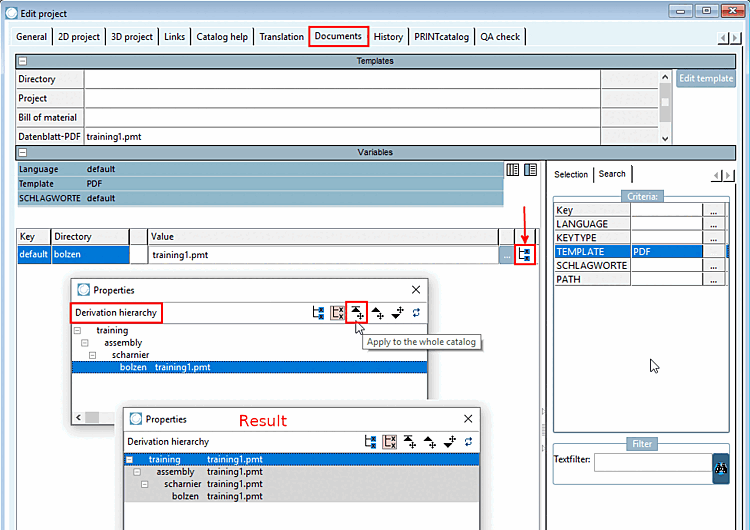
Dans PARTproject, sélectionnez l'onglet Documents.
À la fin de la ligne, cliquez sur l’icône pour la hiérarchie dérivée
 .
.Sélectionnez le projet de test "bolzen" et transmettez le modèle à l'élément racine du catalogue en utilisant Appliquer au répertoire supérieur [Apply to the whole catalog].
Sélectionnez l’élément racine du catalogue Dans l’arborescence de l’index, ouvrez à nouveau la hiérarchie de dérivation
puis cliquez sur Toutes les valeurs des enfants ayant la même valeur
Retirer [Remove all children with the same value]. Cela permet de s’assurer que les enfants
hériter de la valeur de l’élément racine du catalogue et ne
propres valeurs.-> L'élément racine du catalogue est maintenant rose et tous les enfants sont gris, ce qui signifie que le modèle est disponible et utilisé par tous les projets enfants.
Testez dans le PARTdataManager si le modèle est maintenant disponible pour tous les projets.
![[Astuce]](https://webapi.partcommunity.com/service/help/latest/pages/fr/installation_ecatalogsolutions/doc/images/tip.png)

![Paramètres du modèle [Template configuration]](https://webapi.partcommunity.com/service/help/latest/pages/fr/installation_ecatalogsolutions/doc/resources/img/img_d7797d88ccf94188bcedb50c6edc8925.png)

[115] Le fichier <name>.ptdef peut comporter deux
Les blocs contiennent :
Pour les catalogues qui sont actuellement utilisés pour la première fois Si vous utilisez une fiche technique, la deuxième information n’est pas valide.
La deuxième spécification peut être utilisée en option sont utilisés pour les présentoirs de catalogues qui ont à la fois une fiche technique selon l’ancien standard, ainsi qu’une selon la nouvelle norme.
[116] Exactement le nom que vous voulez dans le paramètres du modèle sous « Nom ».