|
![[Note]](https://webapi.partcommunity.com/service/help/latest/pages/fr/installation_ecatalogsolutions/doc/images/note.png) | Note |
|---|---|
Layout and available functions may slightly differ between Portals. Furthermore functions are possibly not available at all or in different ways, for example as list field or as tab. | |


|
In the page header you can find the language selection and functions to login to the portal. Furthermore an envelope icon
|

| Textual search (see Section 5.8.3.1, “How can I search for specific terms?”) |
| |
|
 All catalogs All catalogs
|

|
See Section 5.8.2, “Catalog display: Which filter possibilities are available?”. Depending on the available width displayed either with single buttons or as list field. |

|
Selection of
product groups until a concrete assembly On all directory levels the TagCloud displays. It shows most frequently used terms of selected product or directory. When clicking on a term a search is directly performed with respective term and the results are listed. The font size corresponds to frequency of terms.
|

|
See below. |

|
See below. |


|
| Textual search (see Section 5.8.3.1, “How can I search for specific terms?”) |
|
| |
|
| Filter with classifications: See Section 5.8.2, “Catalog display: Which filter possibilities are available?”. |

|
Navigation path: When searching the product groups, the navigation path is always displayed. When clicking on a single link you can change the level. See Section 5.8.4, “How do I recognize my position in directory levels and how can I switch to another?”. Catalog language: Catalog language and GUI language may be set differently. Catalog seal (if available): When clicking the seal respective information is displayed. Also see Section 5.8.2.5, “ Certified catalogs”. |

|
Table: Once a part is specified, the table is displayed. See Section 5.8.5, “How can I define the characteristic of the part?”. |

|
|

|
Before files can be generated under , the desired ones have to be specified. |

|
Request for quotation: Send request to catalog supplier concerning currently selected part. For details see Section 5.13.2, “How can I request costs and delivery date at supplier? ”. |

|
Generated parts available for download. See Section 5.12, “How can I import the selected CAD model into the CAD system?”. |
|
|
Tabs at the end of page (depending on portal)
|
|
|
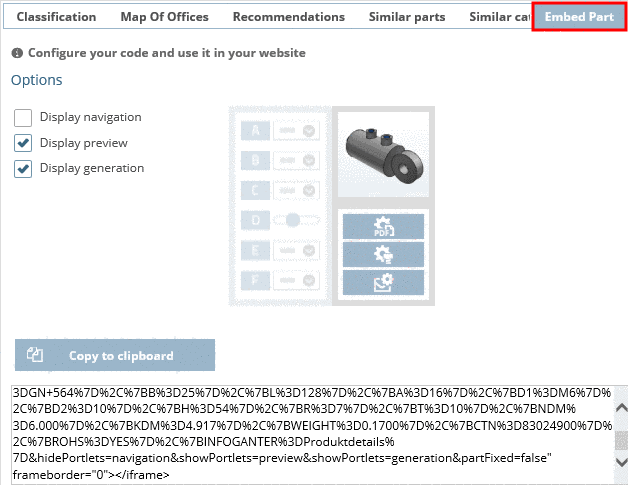
The user interface of some supplier portals slightly differs from OEM portals.