5.24.3.4.1. Créer des certificats côté client
5.24.3.4.1.3. Demande manuelle de certificat (sans modèle)
|  |
| Précédent | Suivant |
La demande manuelle de certificat peut également être effectuée sans modèle.
![[Remarque]](https://webapi.partcommunity.com/service/help/latest/pages/fr/installation_ecatalogsolutions/doc/images/note.png)
Dans certlm [Certificats - Ordinateur local], sous Mes certificats -> Certificats, sous Toutes les tâches -> Opérations avancées, cliquez sur Créer une demande personnalisée....
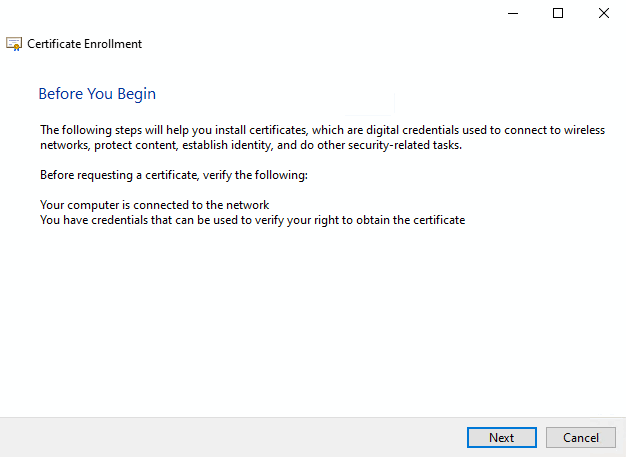
-> La boîte de dialogue Enregistrement du certificat -> Préparation s'ouvre.
Sélectionnez l'option Exigence personnalisée (si elle existe) et cliquez sur .
Dans la zone de liste, sélectionnez "(pas de modèle) Clé CNG" sous Modèle.
Sous Format d'exigence, sélectionnez PKCS #10.
-> La boîte de dialogue Enregistrement du certificat -> Informations sur le certificat s'ouvre.
Inscrivez les informations correspondantes comme sur Section 5.24.3.4.1.2, « Demande manuelle de certificat (avec modèle) ».
Page d'onglet Extensions: Ajoutez manuellement les utilisations de clés (comme sur Section 5.24.3.4.1.2, « Demande manuelle de certificat (avec modèle) » - mais elles y étaient présélectionnées).
Quittez la boîte de dialogue Propriétés du certificat en cliquant sur .
-> La boîte de dialogue Enregistrement du certificat -> Informations sur le certificat réapparaît.
-> La boîte de dialogue Où souhaitez-vous enregistrer la demande hors ligne ? s'affiche.
Déterminez le nom de fichier de la demande de certificat à générer et cliquez sur .
Envoyez maintenant le fichier
servercert.reqà l' l’administration afin qu’ils puissent traiter la demande avec l’autorité de certification de l’entreprise Signé.Vous recevrez en retour un certificat signé sous forme de fichier *.crt.
Importez à nouveau le certificat dans le magasin local sous Mes certificats > Certificats (en tant qu'administrateur).
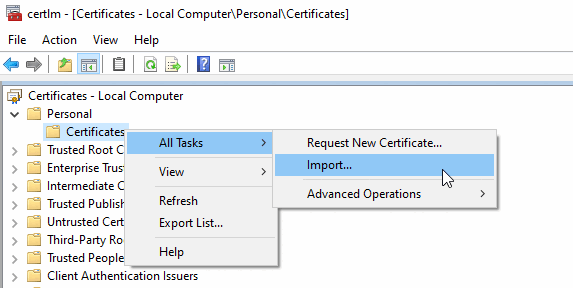
Pour ce faire, sélectionnez le certificat, ouvrez le menu contextuel et cliquez sur Installer le certificat ou, dans certlm, sous Mes certificats > Certificats, sur la commande de menu contextuel Toutes les tâches > Importer.
Après l'importation du certificat, la boîte de dialogue Informations sur le certificat devrait afficher "Vous possédez une clé privée pour ce certificat".