5.24.3.4.1. Create certificates on the customer side
5.24.3.4.1.3. Manual certificate application (without template)
|  |
| Prev | Next |
The manual certificate request can also be performed without template.
![[Note]](https://webapi.partcommunity.com/service/help/latest/pages/en/installation_ecatalogsolutions/doc/images/note.png)
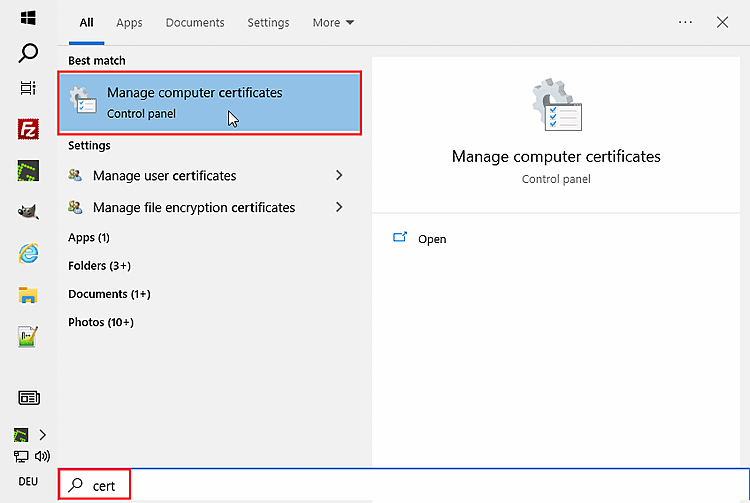
In certlm [Certificates - Local Computer] under My Certificates -> Certificates under All Tasks -> Advanced Tasks, click Create Custom Request....
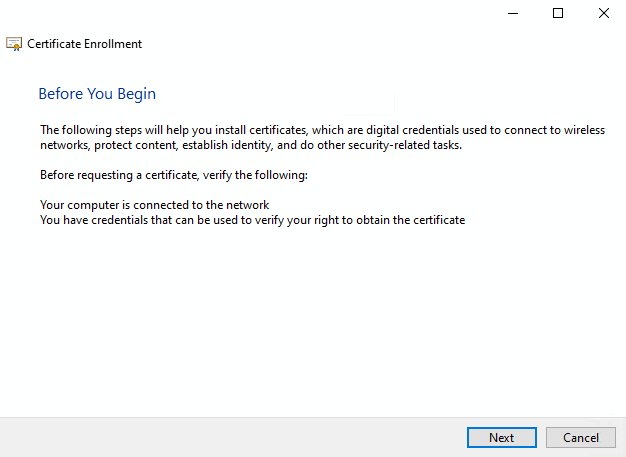
-> The Certificate registration -> Preparation dialog opens.
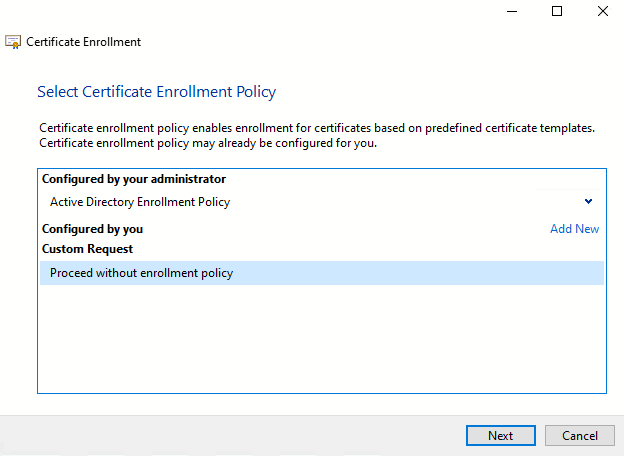
Select the Custom request option (if available) and click .
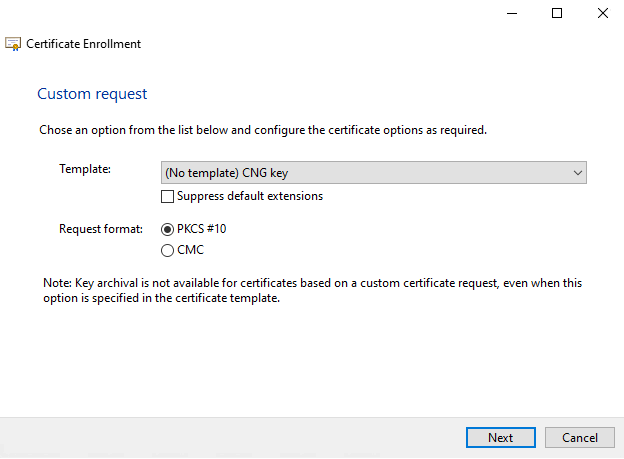
Select " (No template) CNG key " in the list field under Template.
Under Request format, select the option PKCS #10.
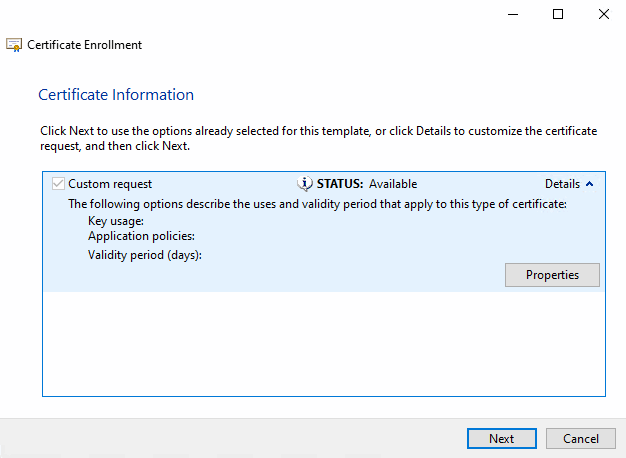
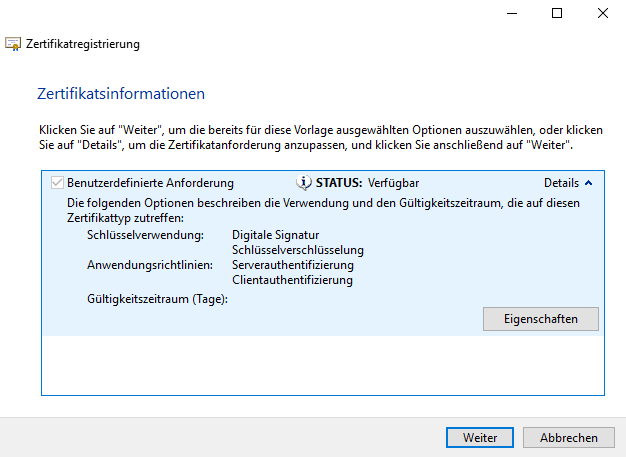
-> The Certificate registration -> Certificate information dialog opens.
Enter appropriate information as under Section 5.24.3.4.1.2, “Manual certificate application (with template) ”.
Extensions tab page: Manually add the key usages (as at Section 5.24.3.4.1.2, “Manual certificate application (with template) ” - although they were preselected there).
Close the Certificate properties dialog by clicking .
-> The Certificate Registration -> Certificate Information dialog appears again.
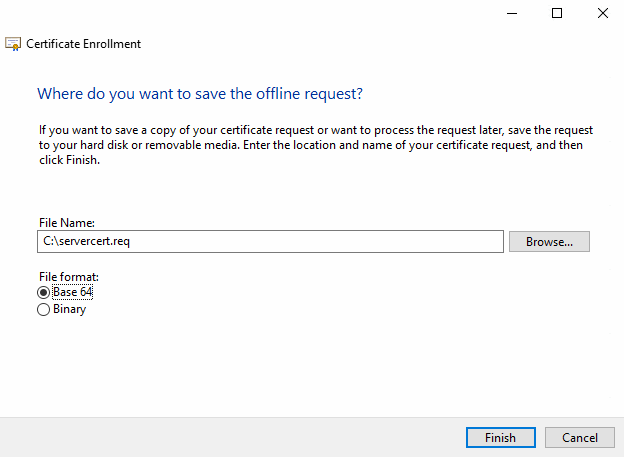
-> The dialog Where do you want to save the offline request? is displayed.
Specify the file name of the certificate request to be generated and click .
Now send the file
servercert.reqto the administration so that they can sign the request with the company CA.Import the certificate back into the local store under My certificates > Certificates (as admin).
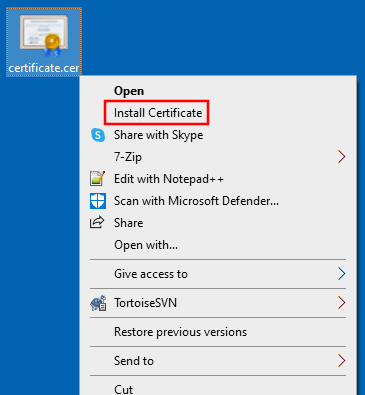
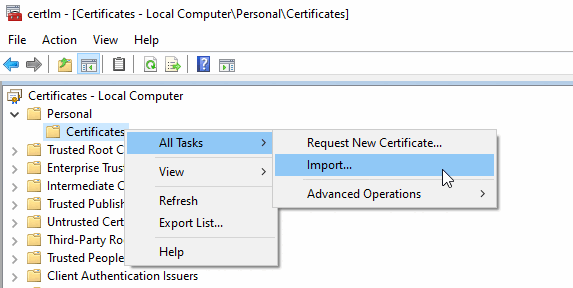
To do this, select the certificate, open the context menu and click on Install certificate or in certlm under My certificates > Certificates on the context menu command All tasks > Import.
After importing the certificate, the Certificate Information dialog should display "You have a private key for this certificate".