
2.1.6.4.3.
Recherche plein texte
2.1.6.4.3.2.
Recherche plein texte: options de recherche détaillées
|  |
| Précédent | Suivant |
- 2.1.6.4.3.2.1. Recherche avec un seul terme
- 2.1.6.4.3.2.2. singulier - pluriel
- 2.1.6.4.3.2.3. Plusieurs termes
- 2.1.6.4.3.2.4. Recherche avec une combinaison de termes et de valeurs de variables
- 2.1.6.4.3.2.5. Recherche uniquement avec des valeurs de variables
- 2.1.6.4.3.2.6. Recherche exacte {}
- 2.1.6.4.3.2.7. Recherche stricte!
- 2.1.6.4.3.2.8. Recherche de phrases "" (ordre précis des termes)
- 2.1.6.4.3.2.9. Recherche de caractères génériques *
- 2.1.6.4.3.2.10. Zéros de tête dans les numéros de pièces
- 2.1.6.4.3.2.11. Recherche de valeurs négatives
- 2.1.6.4.3.2.12. Recherche de numéros pour le domaine
- 2.1.6.4.3.2.13. Recherche de numéros avec des unités (explicites et implicites)
- 2.1.6.4.3.2.14. Opérateurs logiques
- 2.1.6.4.3.2.15. Mélange de AND et OR - Remplacement des parenthèses
- 2.1.6.4.3.2.16. Mesures topologiques de longueur
- 2.1.6.4.3.2.17. Options de recherche pour l'intégration ERP
- 2.1.6.4.3.2.18. Requête Wildcard pour tout le répertoire
- 2.1.6.4.3.2.19. Informations de fond
- 2.1.6.4.3.2.19.1. Fractionnement automatique des termes de recherche
- 2.1.6.4.3.2.19.2. Tolérance des séparations incorrectes dans les chaînes de caractères
- 2.1.6.4.3.2.19.3. Classement
- 2.1.6.4.3.2.19.4. Trouver des numéros de commande avec des espaces et des caractères spéciaux
- 2.1.6.4.3.2.19.5. Extraction de zéros des termes de recherche
- 2.1.6.4.3.2.19.6. Recherche de valeurs de champs de plage de valeurs
Vous pouvez effectuer une recherche plein texte [Full-text search] en utilisant uniquement des termes, uniquement des chiffres ou une combinaison des deux.
Si aucune variable n'est spécifiée, vous pouvez le faire ...
... dans la liste des résultats de recherche [Search results] (Pour plus de détails, voir Section 2.1.6.7, « Résultats de la recherche ». )
... dans la vue des pièces [Part view]. (Pour plus de détails, voir Section 2.1.7, « Vue des pièces ». )
Sous Rechercher dans [Search in], déterminez la zone de recherche.
Pour plus de détails, voir Section 2.1.6.1.1, « Chercher dans... : Où ? ».
Sous Rechercher, déterminez si la recherche doit porter sur des pièces individuelles ou des familles de pièces. Pour plus de détails, voir Section 2.1.6.3, « Recherche de pièces détachées | Familles de pièces et pièces détachées ».


Schraube
Le terme "vis" peut apparaître n'importe où, même sous forme de sous-chaîne. On trouve par exemple
Recherche avec désignation précise du type
DNC
Notion de nœud de classification
befestigungselement
Si des résultats sont obtenus dans une classification avec le terme de recherche, vous le reconnaissez à l'icône correspondante dans la liste des résultats.
En double-cliquant sur le résultat, vous voyez toutes les pièces classées de la même manière.
![[Astuce]](https://webapi.partcommunity.com/service/help/latest/pages/fr/installation_ecatalogsolutions/doc/images/tip.png)
Astuce Activez éventuellement l'option de paramétrage Ne pas afficher les classifications vides [Do not show empty classifications].
![[Remarque]](https://webapi.partcommunity.com/service/help/latest/pages/fr/installation_ecatalogsolutions/doc/images/note.png)


Les notions de nombre et de pluralité conduisent au même résultat.
Voir aussi Section 2.1.6.4.3.2.6, « Recherche exacte {} ».
Chaque terme doit apparaître quelque part dans le projet.
Schraube mit Schaft
Schaft Schraube
L'ordre joue un rôle dans la mesure où les correspondances exactes ont un poids plus important.
Zylinder Herstellername
Vous pouvez simplement reprendre le nom d'un fabricant dans le champ de saisie.
ou bien sélectionner un fabricant sous Rechercher dans [Search in]
ou utiliser le filtre du fabricant [Manufacturer filter] dans la fenêtre de docking Filtre.
![Rechercher dans [Search in] -> Sélection actuelle [Current selection]](https://webapi.partcommunity.com/service/help/latest/pages/fr/installation_ecatalogsolutions/doc/resources/img/img_8cf8f38a1357423c8055871053ceedd9.png)
![Filtre du fabricant [Manufacturer filter]](https://webapi.partcommunity.com/service/help/latest/pages/fr/installation_ecatalogsolutions/doc/resources/img/img_48279b0a9a504e0da02d56db2085fed0.png)
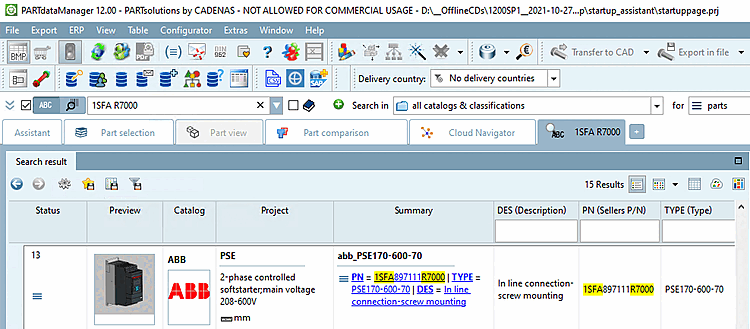
Si le filtrage est effectué avec des valeurs de variables, une icône correspondante apparaît dans le coin supérieur gauche du tableau de l 'affichage des pièces [Part view]. En cliquant sur l'icône, le filtre du tableau est annulé et vous pouvez voir toutes les lignes.

Une combinaison de plusieurs valeurs est parfois si spécifique qu'il est même possible de renoncer à l'indication de désignations.
63 320 10 75
Pour une recherche exacte, placez le terme de recherche entre accolades {}.
Condition à remplir: Le terme recherché doit apparaître exactement tel quel dans le résultat. Mais d'autres termes peuvent également apparaître dans le résultat. La recherche exacte ne tolère pas le stemming et la décomposition des mots.
{Schraube}
trouvera "vis" ou "équerre avec vis", mais pas "vis" ou "tournevis".
La syntaxe a été modifiée par rapport à la V11.
Syntaxe dans la V11 : exactdata=vis
Pour une meilleure compréhension, il convient de mentionner deux différences importantes entre la recherche de phrases et la recherche exacte:
Le stemming:[44]
"mit gebördelt Rohr"
trouve "avec tube à collet" (stemming toléré)
{mit gebördelt Rohr}Mots composés(principalement pertinents en allemand) :
"Schraube mit Mutter"
trouve aussi "vis à tête cylindrique avec écrou". (Le mot composé "vis à tête cylindrique" a été traité séparément en interne).
{Schraube mit Mutter}
Pour une recherche stricte [Strict search], placez un point d'exclamation ( !) à la fin du terme souhaité.
Condition à remplir: Le résultat ne doit contenir que ce qui a été saisi (à l'exception des espaces ou d'un séparateur tel que le point). La recherche stricte [Strict search] tolère le stemming[45].
Exécutez la recherche stricte [Strict search] uniquement en tant que recherche de variables.
WS=Steel
trouve aussi, par exemple, "Stainless steel".
Si vous souhaitez trouver uniquement "Steel", utilisez la recherche stricte [Strict search].
WS=Steel!
Si, par contre, vous ne souhaitez obtenir que des résultats avec "Stainless steel", c'est-à-dire exclure par exemple les résultats avec "Steel" seul, combinez la recherche par expression et la recherche stricte [Strict search].
WS="Stainless Steel"!


Pour une recherche par phrase (ordre précis des termes), placez le terme de recherche entier entre guillemets.
Condition à remplir: Tous les termes de recherche doivent être trouvés. Il ne doit rien manquer ni se trouver entre les deux. Il peut y avoir d'autres termes en dehors du terme de recherche. La recherche de phrases tolère le stemming[46] et la décomposition de mots composés.
"Schraube mit Mutter"
Sechskantschrauben mit
Muttern

Pour une meilleure compréhension, il convient de mentionner deux différences importantes entre la recherche de phrases et la recherche exacte:
"mit gebördelt Rohr"
trouve "avec tube à collet" (stemming toléré)
{mit gebördelt Rohr}Mots composés(principalement pertinents en allemand) :
"Schraube mit Mutter"
trouve aussi "vis à tête cylindrique avec écrou". (Le mot composé "vis à tête cylindrique" a été traité séparément en interne).
{Schraube mit Mutter}
Si vous ne connaissez que des parties d'une chaîne de chiffres, de lettres ou de combinaisons de chiffres et de lettres, vous pouvez utiliser la recherche par caractères génériques. La partie recherchée peut se trouver à n'importe quel endroit.
*A89*
on trouve par exemple 1SF A89 7102R7000.

Le fait que les positions inconnues se trouvent au début, à la fin ou au milieu n'a pas d'importance. Le nombre de caractères de remplacement utilisés est également libre.[47]
1SF*7102R70001SFA8*102R*000
Dans la V11, certaines positions pouvaient être remplacées par le caractère de remplacement ( ?). Ce caractère de remplacement fonctionne certes aussi dans la V12, mais le caractère de remplacement (*) est plus simple et plus flexible, car il peut représenter aucun, un ou plusieurs caractères.
1SFA8?
?102R?000
Si la partie inconnue est délimitée par des espaces, des séparateurs tels que le point ou des caractères d'un autre type (numérique/alphanumérique), le caractère de remplacement n'est pas nécessaire.
Les termes sont décomposés par défaut en sous-termes significatifs (sous-chaînes selon le dictionnaire).
Avec table, vous pouvez également trouver le plateau de table sans utiliser le caractère générique *.
Cependant, vous ne pouvez pas trouver ce que vous cherchez avec Tisc. Dans ce cas, vous devez utiliser la recherche par caractères génériques et chercher avec Tisc *.
Lors d'une recherche par caractères génériques, aucun stemming[48] est exécutée. *chraube ne trouve que schraube et pas schrauben. Si l'on veut trouver les deux, il faut indiquer *chraube*.
Une recherche par caractères génériques entraîne toujours une certaine perte de performance, mais cela dépend du nombre de résultats. Par exemple, une recherche de s* est nettement plus lente qu'une recherche de *vis. Si une recherche de s* est effectuée sur un très grand nombre de catalogues, il peut arriver que le PARTapplicationServer interrompe la recherche parce qu'elle coûterait trop cher en termes de performance. Dans ce cas, un message d'erreur du type : Recherche par caractères génériques trop générale. Limitez encore la recherche en indiquant des lettres ou des chiffres supplémentaires. [Wildcard search too general. Narrow down the search by specifying additional letters or numbers.]
Vous pouvez rechercher explicitement des valeurs négatives.
-5 oder WINKEL=-5
Il suffit de saisir la valeur négative sans syntaxe particulière. De cette manière, la recherche des nombres négatifs se fait avec la plus haute priorité.

Si
Vous recherchez uneplage de numéros et lancez la recherche
doit en fait être exécuté comme une recherche de nombre, vous devez utiliser le
Mettez la chaîne de recherche entre crochets, par exemple D=[10-14].
Si vous omettez les parenthèses, une recherche textuelle sera effectuée.
D=[10-12]
[10-20]
Les parenthèses angulaires sont déjà utilisées dans la recherche de numéros avec unités, de sorte que les deux options peuvent également être combinées.
D=[1-2 inch]
PARTdataManager : résultat en mm (une conversion en mm est automatiquement effectuée, de sorte que des résultats appropriés sont également trouvés ici)
PARTdataManager : résultat en mm (une conversion en mm est automatiquement effectuée, de sorte que des résultats appropriés sont également trouvés ici)
[10-20 mm]
30[mm]
[10 mm]





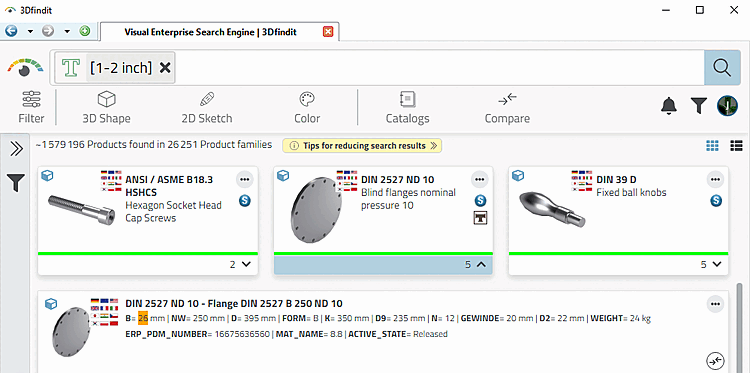
Les valeurs numériques sont dans leur unité de base indexé. Vous pouvez également spécifier une unité souhaitée comme opérateur de recherche entre crochets []. [49]
Il est possible de rechercher des valeurs en notation inch (par ex. 3 1/2 )
Une représentation de fraction est évaluée par défaut en pouces et une conversion en mm est automatiquement effectuée en arrière-plan, de sorte que les valeurs en mm sont également trouvées.
1/2
1 1/2
Si vous souhaitez effectuer une recherche explicite en mm avec une représentation fractionnaire, vous devez ajouter "mm" entre crochets.
1/2 [mm]
Si vous souhaitez rechercher explicitement des pouces avec une valeur décimale, vous devez ajouter "inch" entre crochets.
0.5 [inch]
Vous pouvez également rechercher inch en indiquant "de-à".
1/2 - 3/4
1 1/2 - 1 3/4
Pour les indications de à, l'unité peut être indiquée de la même manière après les valeurs.
1 1/2 [inch] - 1.75 [inch]
S'il n'y a pas d'indication explicite, le dernier jeton définit l'unité.
La recherche suivante donne donc quand même des résultats en pouces, car le nombre fractionnaire est automatiquement considéré comme un pouce.
1.5 - 1 3/4
Les valeurs en pouces pourraient également faire partie des numéros de commande, par exemple.

Lorsque vous effectuez des recherches avec des variables, vous pouvez utiliser des opérateurs de comparaison, pas seulement l'égalité réelle (=), mais tous les opérateurs mathématiques courants.
Sechskantschaube L>200
En outre, vous pouvez relier des termes et des valeurs numériques avec "AND" ou "OR" et exclure certains termes avec "NOT".
AND: tous les termes doivent être présents ou toutes les conditions doivent être remplies.
Exemples concernant l'opérateur AND
16.2 21 90
Sechskantschraube L = 400
Sechskantschraube AND L = 400
Sechskantschrauben AND >200
Il s'agit de rechercher des vis à tête hexagonale d'une valeur quelconque supérieure à 200.
Sechskantschraube L>=140 L<=160
oder
Sechskantschraube L>=140 AND L<=160
Sechskantschraube L = 120 AND D = 22
IDNR>=23012001 AND IDNR<=23012025
OR: il suffit qu'un terme soit présent ou qu'une seule condition soit remplie.
Recherché : un boulon à tête hexagonale avec soit M10x50 soit M10x60
Sechskantschraube (M10x50 OR M10x60)
Sechskantschraube M10x50 OR Sechskantschraube M10x60
Si, dans le premier cas, vous omettiez simplement les parenthèses, vous obtiendriez des résultats nettement moins clairs.
En anglais, on utilise parfois "bolt" et parfois "screw" pour désigner une vis.
head cap (bolt OR screw)
Recherché ISO 4762 ou ISO 12474
ISO (4762 OR 12474)
Ce que nous recherchons : Vis à tête cylindrique avec résistance 10.9 ou 12.9 (que les valeurs de résistance figurent dans la base de données des liens ou dans le tableau des caractéristiques, cela n'a pas d'importance).
Zylinderschraube (10.9 OR 12.9)
On recherche un composant avec indication de deux options de longueur différentes
Sechskantschraube (L=380 OR L=400)
On recherche une vis à tête cylindrique à denture multiple interne ou une vis à tête hexagonale dont le filetage s'étend approximativement jusqu'à la tête, et on doit en même temps trouver (dans la base de données des liens) une entrée "HiHo" ou "Hello".
(Zylinderschrauben mit Innenvielzahn) OR (Sechskantschraube Gewinde annähernd
 bis Kopf) (HiHo OR Hello)


Lors d'une recherche plein texte [Full-text search], la recherche ne porte pas seulement sur les valeurs des tableaux, mais aussi sur les mesures de longueur topologiques, ce qui est particulièrement avantageux pour les catalogues de pièces détachées, pour lesquels il manque souvent un tableau détaillé des caractéristiques.
Les résultats de la topologie sont affichés dans une colonne séparée Topologie [Topology] et sont marqués en jaune.
(Les alternatives sont surtout la recherche de topologie [Topology search] et la recherche géométrique (3D) [Geometric search (3D)] ).
L'utilisation de cette fonctionnalité requiert un index de recherche plein texte mis à jour et une entrée de config correspondante.
Dans le
Fichier de configuration partsol.cfg, bloc INDEX:LUCENE, clé TopologyCatalogs ajouter le
chemin d’accès au catalogue souhaité sous la forme suivante :[50]
cat/<catalog_name>
Pour plus de détails, voir Section 1.4.3.6.6.15, « Mise à jour de l'index de recherche plein texte (et de l'index de recherche géographique ) pour trouver des valeurs topologiques via la recherche plein texte » in ENTERPRISE 3Dfindit (Professional) - Administration.

Dans l' affichage des pièces [Part view], vous trouverez en plus la fenêtre de docking Informations topologiques [Topology information] avec une liste détaillée qui contient également le nombre d'occurrences respectives. Voir Section 2.1.7.9, « Fenêtre d'accueil "Informations sur la topologie ».

Exemple : recherche de "Cuboid 50". "Cuboid" est trouvé dans le tableau, "50" à l'aide de la topologie (même s'il n'y a pas de valeurs dans le tableau).
Explicite Recherche de topologie [Topology search]
Vous utilisez une recherche explicite de la topologie pour des recherches détaillées.
Si vous cherchez par exemple "3 trous de diamètre 5", activez pour cela la recherche de topologie [Topology search].
Voir à ce sujet le site Section 2.1.6.4.11, « Recherche de topologie ».
L'endroit où se trouve le terme de recherche n'a pas d'importance. La base de données des liens fait l'objet de la même recherche. Vous pouvez donc effectuer une recherche par numéro ERP, article, statut de validation, stock, etc.
12345 Stahl released
Avec une recherche par joker (*) dans le champ de saisie Recherche plein texte [Full-text search], tous les projets du répertoire configuré sous Rechercher dans [Search in] sont affichés.
C'est par exemple intéressant pour unerecherche Cloud Mapou encore pour exporter la liste des résultats de recherche d'un répertoire entier.

Résultats de la recherche dans un seul fichier
Économisez [Save search results in a file]
 :
:
Cliquer
Cliquez sur le bouton .

La fenêtre de dialogue correspondante s'ouvre. Vous pouvez y définir les colonnes souhaitées à exporter. Il est possible d'enregistrer tous les résultats de recherche du répertoire ou seulement ceux qui ont été sélectionnés.

Dans V12, le terme de recherche saisi est automatiquement décomposé en différents sous-termes, ce qui s'avère particulièrement utile en allemand, où les mots composés sont nombreux.
Par exemple, bague d'étanchéité à lèvres radi ales dans bague d'étanchéité à lèvres radiales
Des recherches sont effectuées pour toutes les compositions qui en résultent, ce qui s'avère très utile dans le présent exemple, car il existe quelques orthographes différentes d'un catalogue à l'autre.
Bague d'étanchéité de l'arbre radial
Une rotation des éléments individuels permet également d'obtenir les résultats souhaités.
Bague d'étanchéité pour arbres radiaux
Si l'ordre des termes était correct, même une recherche par phrase donnerait les résultats souhaités, c'est-à-dire par ex :
Dans V11, seuls les résultats correspondant exactement au texte de recherche ont été obtenus.
Une combinaison de lettres, de chiffres et de caractères est automatiquement décomposée en interne en ses éléments constitutifs en présence d'espaces, de séparateurs et de transitions entre types de caractères (numériques/alphanumériques), de sorte que des séparations divergentes sont tolérées à ces endroits.
89AB123.567
In diesem Fall wäre folgende Suche ebenso erfolgreich:
123 567
ABC1234DEF
ABC-1234-DEF
ABC 1234 DEF
a également été trouvé.[51]
Les mots au début d'un champ ont une valeur plus élevée (NN, NT et NB)
Dans les mots composés (ne concerne que l'allemand), le dernier élément a un poids plus important.
Par exemple, lors de la recherche de vis, le résultat vis à six pans est mieux pondéré que tournevis.
Lors d'une recherche avec plusieurs mots, les résultats avec des mots dans le même ordre ont un poids plus important.
Les correspondances exactes entre les mots ont un poids plus important.
Une recherche sur vis donne la priorité au mot vis sur vis à tête cylindrique.
C'est-à-dire que les résultats contenant le mot vis sont listés avant les rencontres avec vis à tête cylindrique dans les résultats de recherche.
Dans V11, une accumulation de mots identiques réduisait la pondération. Supprimé dans V12.
en V12, les numéros de commande contenant des espaces et des caractères spéciaux sont également trouvés, même si la recherche n'est pas tout à fait exacte.
Le numéro de commande suivant contient des espaces.
XVEWO NW 10 HL
Elle est désormais trouvée même si elle est saisie sans espace.
XVEWONW10HL
Si un terme de recherche contient également des zéros, la recherche est effectuée d'une part avec le terme de recherche, d'autre part également avec les zéros extraits. Si les deux méthodes donnent des résultats, les correspondances exactes ont un poids plus important et apparaissent donc plus haut dans la liste des résultats.


[44] Réduction de la forme du tronc, réduction de la forme normale des langues, par ex. singulier et pluriel
[45] Réduction de la forme du tronc, réduction de la forme normale des langues, par ex. singulier et pluriel
[46] la réduction de la forme du radical, la réduction de la forme normale des langues, par ex. singulier et pluriel
[47] Dans la V11, le caractère de remplacement (*) ne pouvait être utilisé qu'au début ou à la fin d'une chaîne de recherche.
[48] Réduction de la forme du tronc, réduction de la forme normale des langues, par ex. singulier et pluriel
[49] Fonctionne pour toutes les unités utilisées dans le
Fichier de configuration unitbase.cfg inclus
are.
[50] Le La tolérance est définie par fichier de configuration et n’est généralement pas changement. Voir $CADENAS_SETUP/partsol.cfg -> Block [FULLTEXTSEARCH] -> clé TopologyTolerance.
[51] Les caractères spéciaux autres que le trait d'union sont également traités de cette manière.