
4.5.3.
Installation de PARTapplicationServer
4.5.3.2. Configurer PARTapplicationServer en tant que service
|  |
| Précédent | Suivant |

Configurer PARTapplicationServer en tant que service présente l'avantage de le lancer automatiquement au démarrage de l'ordinateur serveur et d'utiliser les mécanismes de Windows pour surveiller la stabilité, comme par exemple le redémarrage en cas de crash (après une minute (peut être abaissé encore plus via le registre)).
Avec le
pappserver.exe -install vous pouvez utiliser la commande
Configurez le service via la console. [2] La [3]
![[Remarque]](https://webapi.partcommunity.com/service/help/latest/pages/fr/installation_ecatalogsolutions/doc/images/note.png) | Remarque |
|---|---|
Lors de la configuration, les droits administratifs correspondants doivent être donnés, tout comme lors de l'installation du serveur. | |
Une fois l'installation terminée, le service "PAPPSERVER" s'affiche sous Windows > Panneau de configuration > Outils d'administration > Services.

Si le service ne répond pas lorsqu'il est arrêté, cela peut être dû à l'exécution de "tâches" qui ne peuvent pas être arrêtées rapidement.

L'installateur crée un chemin UNC pour le service AppServer. Il se peut toutefois que celui-ci ne soit pas encore disponible au démarrage du service.
En outre, les chemins UNC sont plus lents que les partages et les chemins d'installation locaux.
Problème: si vous modifiez le fonctionnement de PARTapplicationServer pour un utilisateur spécifique, il se peut que l'accès à certaines informations soit bloqué.
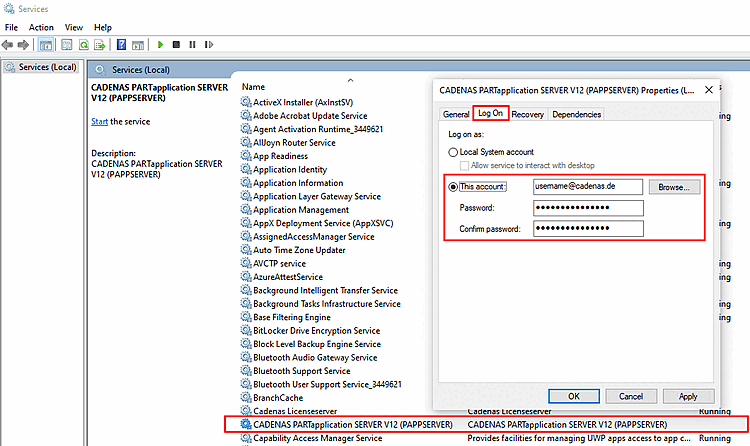
Exemple :

Solution: Ajoutez l'utilisateur sous > Computer Management > Local Users and Groups > Groupes > Performance Monitor Users.

Voir Section 5.24.3.4.3, « Configuration de l'AppServer » in ENTERPRISE 3Dfindit (Professional) - Administration