


 Annuler [Undo] et restaurer
  [Restore]
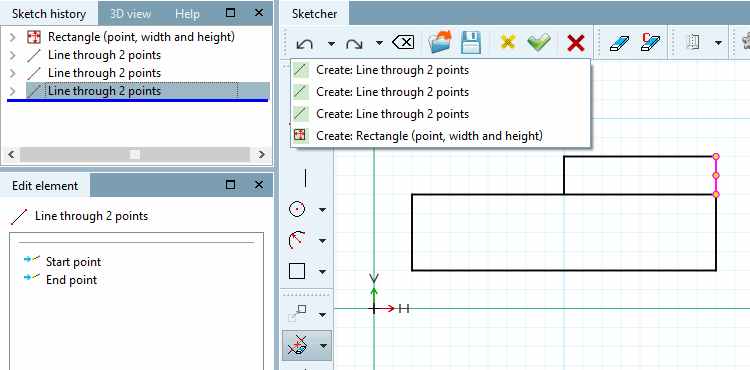
Dans les deux boutons, une zone de liste est intégrée, ce qui montre les étapes possibles. En cliquant sur un point de la liste, vous passez automatiquement à l'état correspondant, ce qui peut vous épargner des dizaines d'étapes individuelles. (La dernière étape est en haut.)
Information pour les clients existants : Dans le cadre du passage de la V11 à la V12, le bouton permettant d'annuler une étape individuelle a été modifié et une fonction Annuler [Undo] / Rétablir [Restore] a été ajoutée.
 étape de suppression [Delete step]
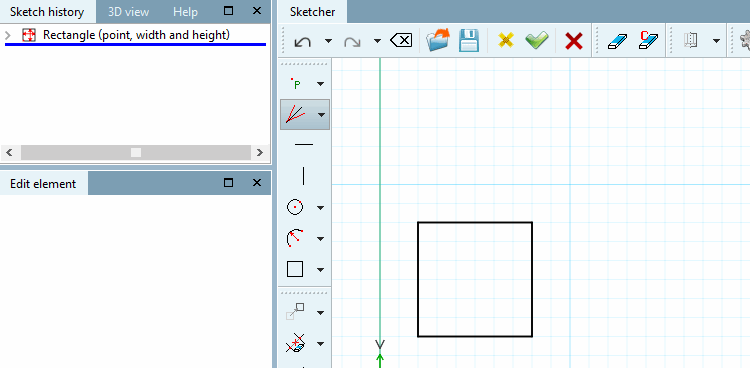
Supprime la dernière étape de construction créée de l' historique de l'esquisse [Sketch history] ou du dessin dans Sketcher.
![[Remarque]](https://webapi.partcommunity.com/service/help/latest/pages/fr/installation_ecatalogsolutions/doc/images/note.png)
Remarque Même si
' étape de suppression [Delete step] est supérieure à un
spécifique est exécuté, tous les éléments
éléments connectés qui ont la même fonctionnalité
(étape de construction dans l’historique de l’esquisse [Sketch history] ),
Trempé.
Si vous n’avez vraiment que le , vous devez supprimer
 élément [Delete element] ou le supprimer.
 Supprimer conditionnellement l’élément [Delete element with condition]
utiliser. Voir Section 7.9.3.3, « Supprimer
».
Supprimer conditionnellement l’élément [Delete element with condition]
utiliser. Voir Section 7.9.3.3, « Supprimer
».
Remarque Parfois,
' étape de suppression [Delete step] est désactivée
(grisé).
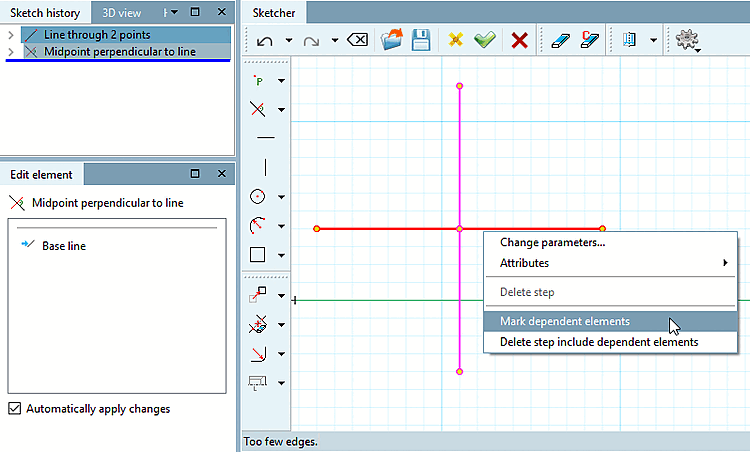
C'est le cas si des éléments dépendants sont également supprimés par l'action. Voir à ce sujet, à titre d'exemple, Fig. „La perpendiculaire centrale a été construite sur la base de l'horizontale.“.
Vous pouvez afficher les éléments de dessin dépendants en les sélectionnant. Sélectionnez l'élément de base avec le bouton de la souris et cliquez sur Marquer les éléments dépendants [Mark dependent elements].
-> Les éléments dépendants liés à la construction apparaissent alors en rose.
Importer
 esquisse [Import sketch]
Cette commande permet d'insérer une esquisse existante dans l'esquisse actuellement ouverte ou de remplacer l'esquisse existante. Ces esquisses peuvent avoir été créées soit
Sélectionnez le fichier souhaité dans la boîte de dialogue Sélectionner une esquisse.... [Choose sketch...]
Selon le type de fichier que vous choisissez, la fenêtre correspondante s'ouvre (voir Section 7.9.3.2.1, « Boîte de dialogue "" (fichiers *.dbs, *.skt ou *.hsk) ») ou Section 7.9.3.2.2, « Boîte de dialogue "Importation DXF" (fichier *.dxf) ».
 Réparer l’importation DXF [Repair DXF import]
Voir à ce sujet Section 7.9.3.2.2, « Boîte de dialogue "Importation DXF" (fichier *.dxf) ».
Enregistrer
 croquis [Save sketch] : Cliquez sur le bouton
La boîte de dialogue du même nom s’ouvre.
croquis [Save sketch] : Cliquez sur le bouton
La boîte de dialogue du même nom s’ouvre.
Ils peut enregistrer des modèles d’esquisse (*.hsk) et des dessins 2D (*.2db) et importer ultérieurement avec
Sketch [Import sketch]
(voir ci-dessus)
encore.
 Appliquer les modifications [Accept changes]
Les modifications effectuées depuis l'ouverture de l'esquisse sont enregistrées et l'esquisseur est fermé.
Si des erreurs se trouvent dans l'esquisse, l'avertissement suivant apparaît. Vous pouvez néanmoins quitter l'esquisse. L'esquisse est alors marquée comme esquisse d'aide et ne peut pas être encastrée.
Les arêtes se croisent ou se touchent. [Edges cut or intersect themselves.] [...] L'esquisse est alors marquée comme esquisse auxiliaire et ne peut pas être construite. [The sketch will be marked as construction sketch and can't be used.]
Si un modèle 3D a déjà été créé auparavant, il n'est pas possible de l'enregistrer. Corrigez l'erreur dans tous les cas.
 Ignorer les modifications [Discard changes]
Les modifications effectuées depuis l'ouverture de l'esquisse ne sont pas enregistrées.





![Boîte de dialogue "Enregistrer le sketch [Save sketch]](https://webapi.partcommunity.com/service/help/latest/pages/fr/installation_ecatalogsolutions/doc/resources/img/img_19028e60c5d14696ab215771ec29bbaf.png)
![Les arêtes se croisent ou se touchent. [Edges cut or intersect themselves.] [...] L'esquisse est alors marquée comme esquisse auxiliaire et ne peut pas être construite. [The sketch will be marked as construction sketch and can't be used.]](https://webapi.partcommunity.com/service/help/latest/pages/fr/installation_ecatalogsolutions/doc/resources/img/img_3daf90e735dd47ddaa12b718d7a35e4b.png)
![Des arêtes se coupent ou se touchent. [Edges cut or intersect themselves.]](https://webapi.partcommunity.com/service/help/latest/pages/fr/installation_ecatalogsolutions/doc/resources/img/img_ac62b9549d7845fd81fafd4acd9c3143.png)
