5.7.5.1.
les rôles: Page d'onglet "Généralités
5.7.5.1.9.
Autorisation générale d'exportation pour certains répertoires - plinkgroups.cfg -> Bloc [Role_name] -> Clé "EXPPRJTAB" / plinktemplates.cfg
|  |
| Précédent | Suivant |
![[Remarque]](https://webapi.partcommunity.com/service/help/latest/pages/fr/partsolutions_admin/doc/images/note.png) | Remarque |
|---|---|
La table d'exportation à utiliser [Use export table] dépend du rôle et doit donc être définie séparément pour chaque rôle. | |
Pourquoi utiliser des tables d'exportation ?
Par défaut, seuls les répertoires et les projets qui contiennent un ERP_PDM_NUMBER sont représentés en vert lors de l'intégration ERP. (Une entrée standard sous PARTadmin -> Catégorie Rôle [Role] -> Page d'onglet Général [General] -> Condition d'exportation [Export condition] est par exemple "ERP_PDM_NUMBER.NE.'').
L'utilisation de tables d'exportation permet de mettre n'importe quel répertoire ou projet sur "vert", de sorte que tous les contenus soient exportables - indépendamment de toute restriction d'exportation utilisée. Il peut s'agir par exemple de répertoires qui ne contiennent que des PDF, donc sans ERP_PDM_NUMBER, mais qui doivent tout de même être exportables.
Pour utiliser les tableaux d'exportation, procédez comme suit :
Condition préalable : vérifiez si la table "EXPORTTABLE" existe ; si ce n'est pas le cas, créez-la par scripting SQL.
/* EXPORTTABLE */
IF NOT EXISTS(SELECT name
              FROM sysobjects
              WHERE name = 'EXPORTTABLE')
  BEGIN
    create table dbo.EXPORTTABLE(
      EXPPRJTAB varchar(40) not null,
      PATH varchar(500) not null,
      primary key(EXPPRJTAB, PATH)
    );
    grant all on dbo.EXPORTTABLE to PUBLIC;
  END
Dans PARTlinkManager, sélectionnez la page d'onglet Tableaux d'exportation [Export tables] sous Menu Outils [Extras] -> Configurer l'environnement ERP [Configure ERP environment].
PARTlinkManager -> Menu Outils [Extras] -> Configurer l'environnement ERP [Configure ERP environment] -> Page d'onglet Tableaux d'exportation [Export tables]
Dans la zone Tableaux d'exportation [Export tables], cliquez sur le bouton Ajouter une entrée [Add entry] et saisissez le nom du tableau souhaité (ici EXPTAB à titre d'exemple).
Cliquez sur le bouton correspondant sous Entrées de tableau [Table entries] et ajoutez des projets ou des répertoires à l'aide de l'Explorateur Windows.
Ceux-ci sont affichés sous Chemin du projet [Project path] (ici par exemple "training").
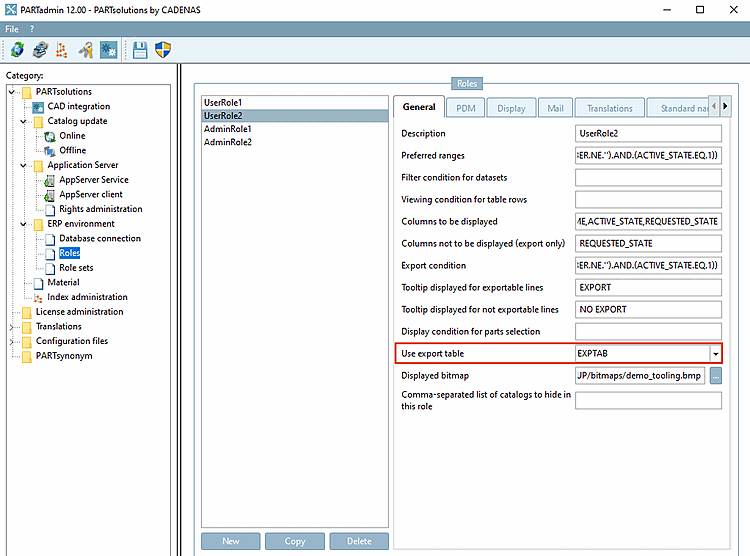
Passez maintenant à PARTadmin dans le rôle souhaité et saisissez dans le champ Table d'exportation à utiliser [Use export table] le nom de la table que vous avez ajouté précédemment.
![PARTlinkManager -> Menu Outils [Extras] -> Configurer l'environnement ERP [Configure ERP environment] -> Page d'onglet Tableaux d'exportation [Export tables]](https://webapi.partcommunity.com/service/help/latest/pages/fr/partsolutions_admin/doc/resources/img/img_9167d930e476465ebfc009b4b072103d.png)
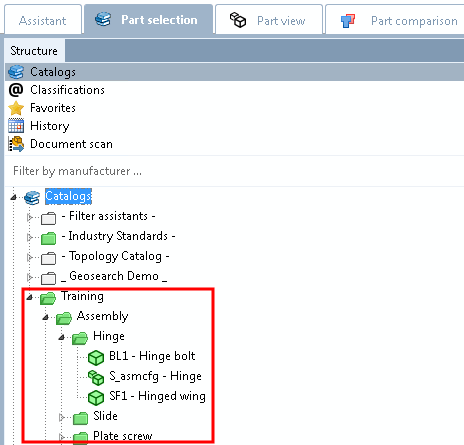
Maintenant, dans PARTdataManager, dans la sélection des pièces [Part selection], le catalogue "Training" est affiché en vert avec tous les sous-répertoires, bien qu'il ne contienne éventuellement aucune pièce avec ERP_PDM_NUMBER.