7.13.4. Créer un sous-assemblage
7.13.4.1. Fournir les composants nécessaires à la configuration |  |
| Précédent | Suivant |
Sous
training/subassembly/finishedEn plus de la configuration d’origine,traeger_schelle_asmcfg.prjun nouveau propre.Pour ce faire, cliquez sur la commande du menu contextuel sous
finishedNouveau projet [New project].-> La boîte de dialogue correspondante s'ouvre.
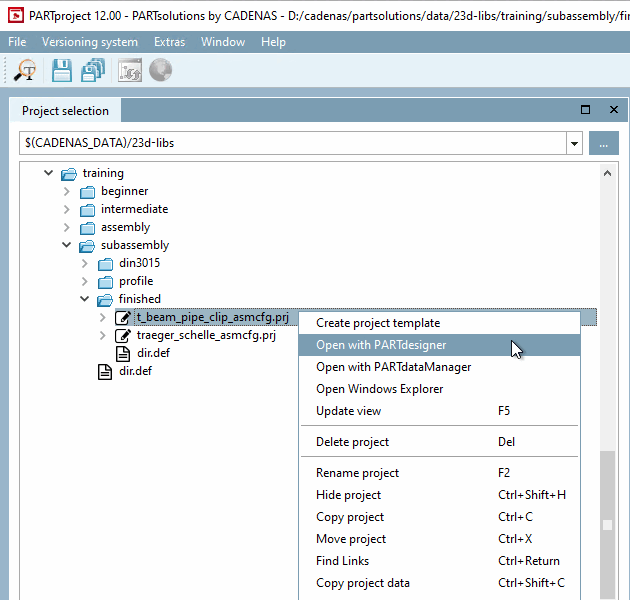
Cliquez sur Ouvrir avec PARTdesigner [Open with PARTdesigner].
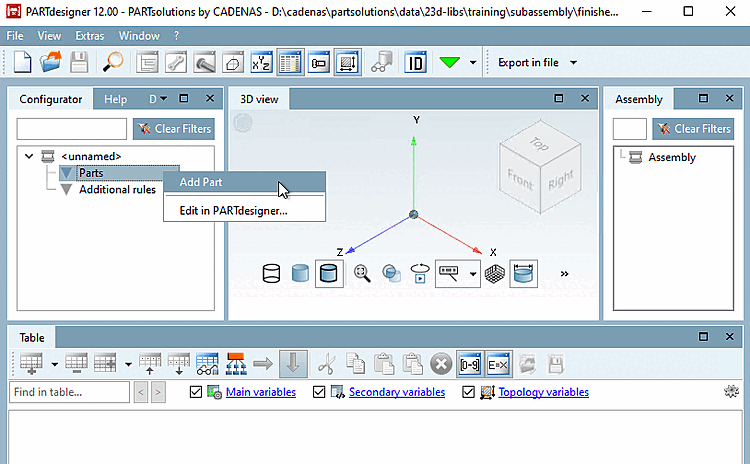
Cliquez sur Insérer une partie [Add Part].
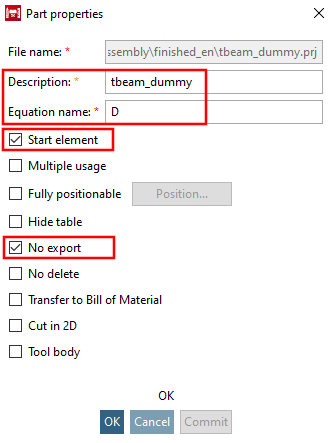
A partir du répertoire .../partsolutions/23d-libs/training/subassembly/profile, insérez la pièce de démarrage fictive et effectuez les entrées correspondantes sur la page de dialogue Propriétés de la pièce [Part properties].
A partir du répertoire .../partsolutions/23d-libs/training/subassembly/profile, insérez le fichier din_1025_s.prj (pièce individuelle "poutre") et effectuez les saisies correspondantes sur la page de dialogue Propriétés de la pièce [Part properties].
Dans le répertoire .../partsolutions/23d-libs/training/subassembly/din3015, sélectionnez le fichier din_3015_cfg.prj (assemblage "collier de serrage") et effectuez les entrées correspondantes dans la page de dialogue Propriétés de la pièce [Part properties].
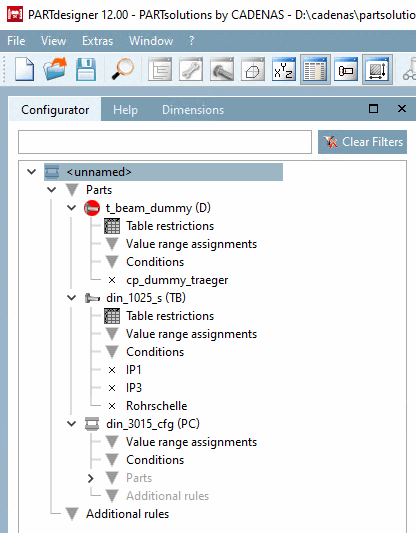
-> Maintenant, les composants Pièce de départ factice (D), Poutre en double T (T) et Collier de serrage (RS) sont affichés dans le configurateur [Configurator].
Enregistrez la configuration. La première fois, la boîte de dialogue Enregistrer le projet de configuration [Save configuration project] s'affiche.
Attribuez un nom au projet [Project name] et une abréviation [Short name].
Ces entrées sont en outre enregistrées dans PARTproject sous Paramètres [Settings] -> Général [General] -> Général [General] en tant que numéro de norme [Standard number] et titre de norme [Standard title].
Fenêtre d'accueil "Paramètres [Settings]" -> onglet "Général [General]" -> item "Général [General]".
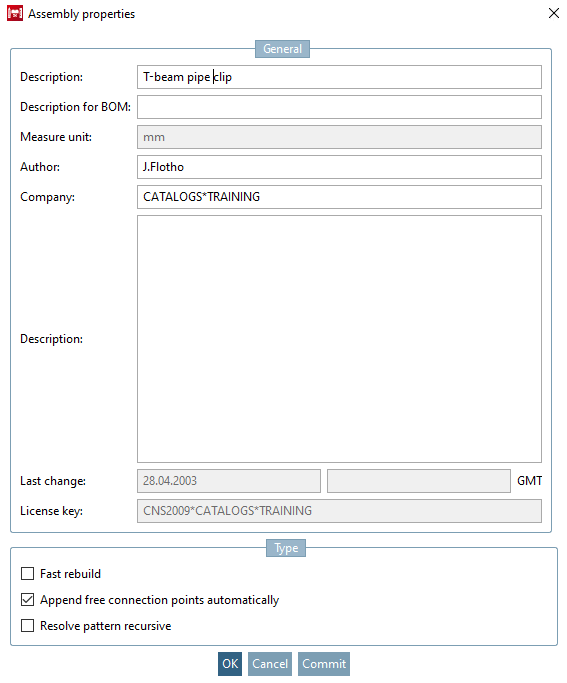
-> La boîte de dialogue Propriétés de l'assembly [Assembly properties] s'ouvre.
Activez l'option Ajouter automatiquement des points d'attache libres [Append free connection points automatically].
![Appel à projets : Nouveau projet [New project]](https://webapi.partcommunity.com/service/help/latest/pages/fr/partwarehouse/doc/resources/img/img_866ee218a16f4cb0b4ab8de4d3424c7f.png)
![Nouveau projet [New project] "traeger_schelle_test](https://webapi.partcommunity.com/service/help/latest/pages/fr/partwarehouse/doc/resources/img/img_eed42b4d87474f0dae72dd074d2e7910.png)
![[Remarque]](https://webapi.partcommunity.com/service/help/latest/pages/fr/partwarehouse/doc/images/note.png)
![Boîte de dialogue "Enregistrer le projet de configuration [Save configuration project]](https://webapi.partcommunity.com/service/help/latest/pages/fr/partwarehouse/doc/resources/img/img_b0abf6760850488eb22530ff2f23ca12.png)
![Fenêtre d'accueil "Paramètres [Settings]" -> onglet "Général [General]" -> item "Général [General]".](https://webapi.partcommunity.com/service/help/latest/pages/fr/partwarehouse/doc/resources/img/img_1b6c1e6f57ed452296e2da1c985b2c79.png)