Cette section explique les différents boutons de la barre d'outils 3D de la fenêtre 3D :

|
|
|
|
|
|
|
|
|
|
| |
|
|
La loupe permet d'observer les détails de la pièce.
|
|
|
L'animation (composant en rotation) est activée ou désactivée.
|
|
|
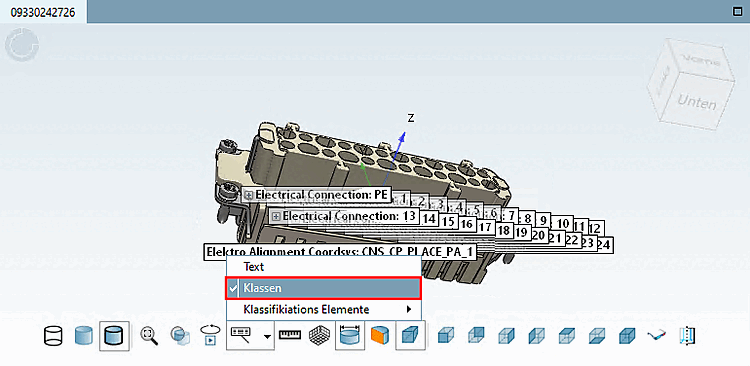
Afficher les textes et les classes [Show texts and classes] Le sous-menu contient les points suivants :
Les classes et les géométries auxiliaires ne sont pas affichées ensemble. Le cas échéant, l'autre fonction est désactivée. |
|
| |
|
|
Taille Voir [Show Dimensionings] Section 2.1.7.6.5, « Afficher les cotes ». Des vues qui dimension, que vous pouvez reconnaître dans la barre d’outils 3D par une icône avec ligne de cote . .
|
|
| |
|
|
Projection en perspective [Perspective projection], vue avant (Z) [Front view (Z)], vue arrière (-Z) [Rear view (-Z)], vue gauche (-X) [Left view (-X)], vue droite (X) [Right view (X)], vue haut (Y) [Top view (Y)], vue bas (-Y) [Bottom view (-Y)], vue isométrique [Isometric view] Si pour une vue
ont été créées par le fabricant et Afficher les dimensions [Show Dimensionings]
|
|
|
Représentation du composant en aperçu plastique 3D. L'effet tridimensionnel n'apparaît qu' avec l'utilisation de lunettes rouge-cyan ! La pièce sélectionnée est représentée alignée pour augmenter l'effet plastique. L'arrière-plan s'assombrit automatiquement. L'option Effet rouge/cyan est applicable indépendamment du mode de représentation (Lignes [Lines], Bords cachés [Hidden lines], Ombré [Shaded], etc.). |
|
|
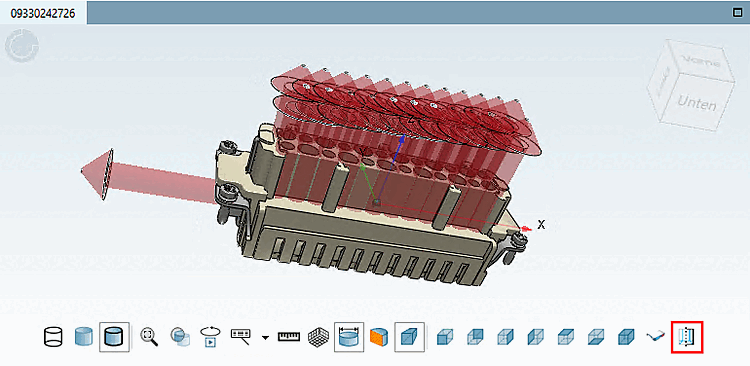
Afficher la géométrie auxiliaire [Show auxiliary geometry]
Les classes et les géométries auxiliaires ne sont pas affichées ensemble. Le cas échéant, l'autre fonction est désactivée. |





![Loupe [Magnifying glass] allumée](https://webapi.partcommunity.com/service/help/latest/pages/fr/partwarehouse/doc/resources/img/img_9fd3288d372a43e1981f74f2e87156d5.png)
![[Remarque]](https://webapi.partcommunity.com/service/help/latest/pages/fr/partwarehouse/doc/images/note.png)


![Texte [Text] visible](https://webapi.partcommunity.com/service/help/latest/pages/fr/partwarehouse/doc/resources/img/img_d199e46481b6470cbcd33b82b9e80dd6.png)