

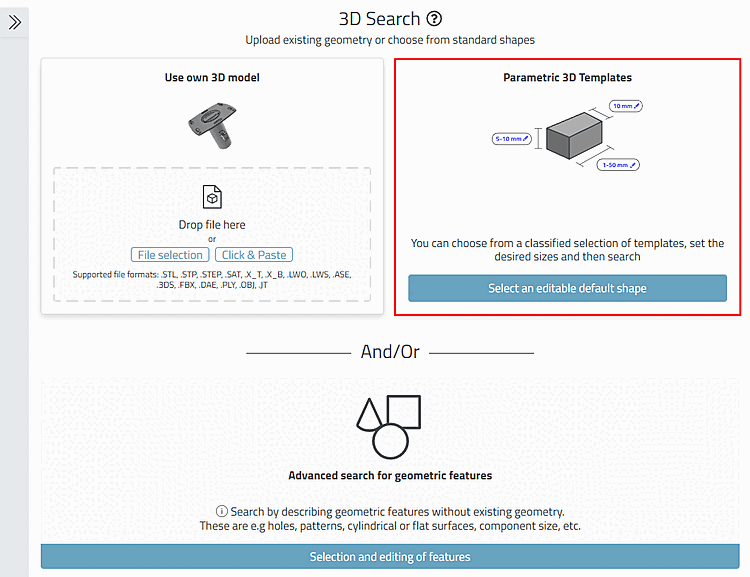
Trova i modelli utilizzando un modello parametrico.[30]
![[Nota]](https://webapi.partcommunity.com/service/help/latest/pages/it/installation_ecatalogsolutions/doc/images/note.png) | Nota |
|---|---|
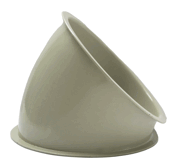
Di seguito è riportato un esempio di ricerca per la curva del tubo illustrata. È anche possibile guardare il video allegato: https://www-de.3dfindit.com/de/corporate/enterprise/finden-mit-der-3-d-rastersuche-beispiel-rohrbogen Questo vi fornirà una rapida panoramica. Potete trovare informazioni speciali nel documento qui. | |
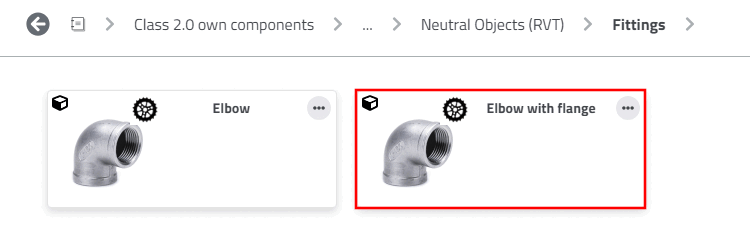
Selezionare un componente proprietario di Classe 2.0 (nell'esempio "Piegatura di un tubo con flangia").
Aprire la parte facendo doppio clic su di essa.
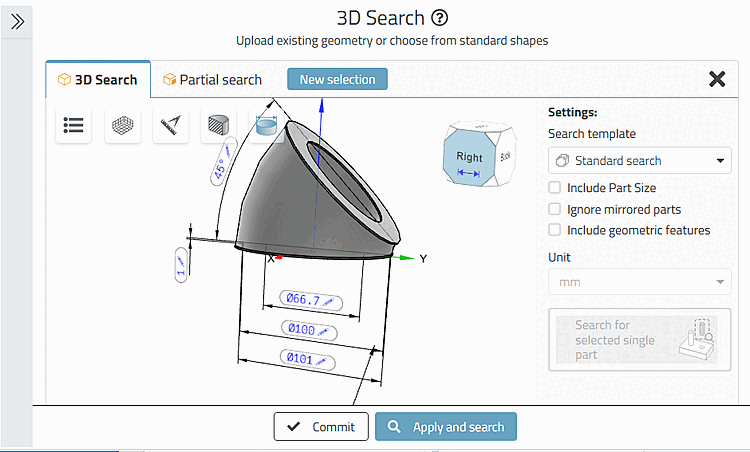
-> Si apre la finestra di dialogo delle impostazioni.
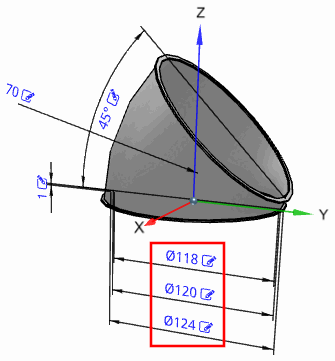
Regolare i valori delle variabili regolabili
 direttamente nell'anteprima 3D fino a quando il
modello per soddisfare le vostre esigenze.
direttamente nell'anteprima 3D fino a quando il
modello per soddisfare le vostre esigenze.Nell'esempio sono stati impostati 118, 120 e 124.
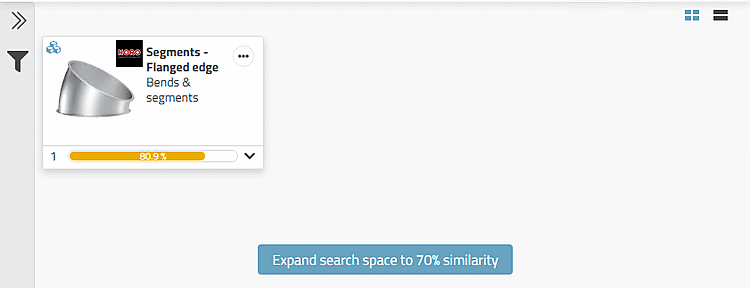
-> Vengono visualizzati i risultati della ricerca (se necessario, espandere l'ambito di ricerca).
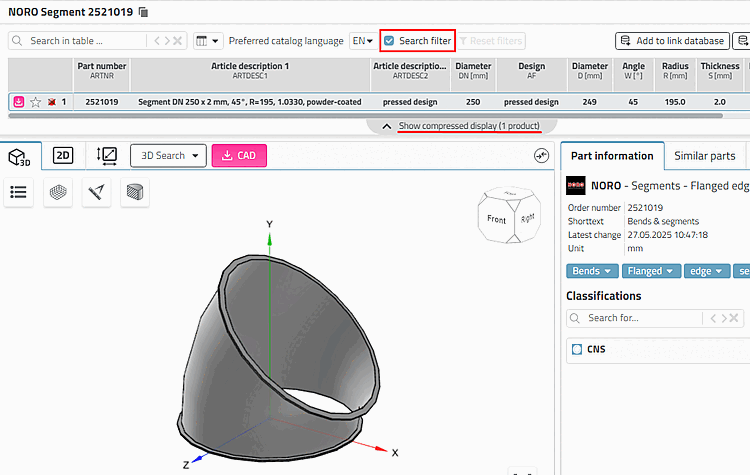
-> Il componente viene visualizzato con una dimensione diversa (poiché la dimensione adatta non è almeno indicizzata).
Disattivare l'opzione del filtro di ricerca [Search filter] per visualizzare la tabella completa e verificare se la dimensione appropriata è inclusa.
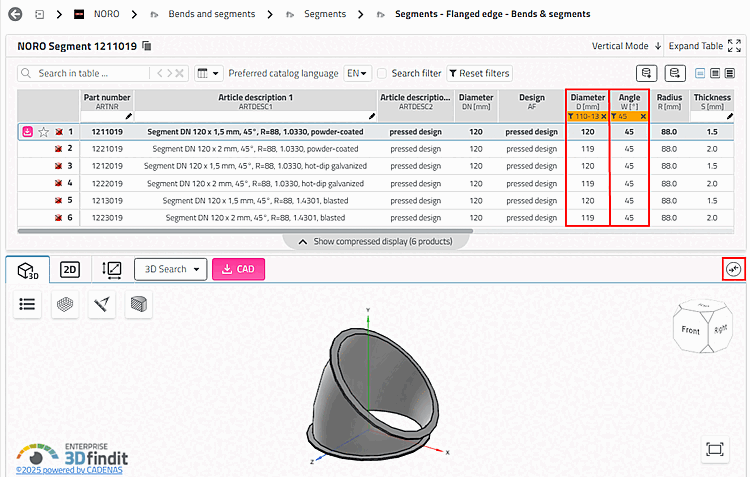
Filtrare la tabella per diametro e angolo. Inserire "Diametro 110-130" e "Angolo 45". (È possibile rimuovere nuovamente tutti i filtri della tabella facendo clic sul pulsante ).
La riga 1 contiene il risultato desiderato.
Seleziona la riga 1 e clicca sul Icona
 parte per confronto
. [Add part to compare]
parte per confronto
. [Add part to compare]
-> Il pezzo viene caricato nel confronto dei pezzi.
-> Questo è indicato dal numero nel pulsante di confronto [Compare] o dal numero che aumenta di un contatore.
Fare clic sul pulsante Confronta [Compare].
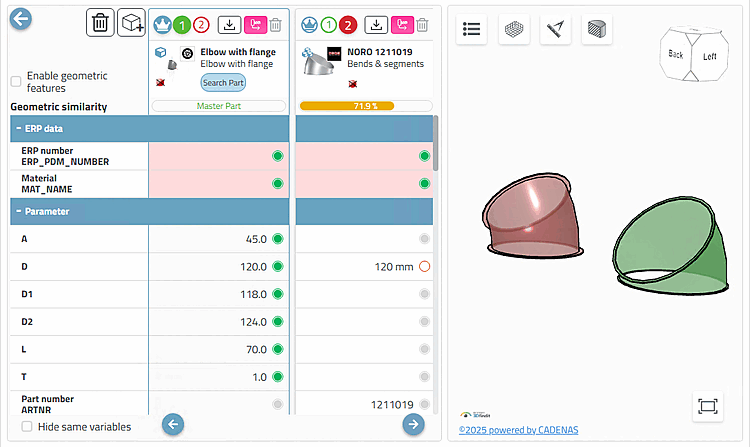
-> Si apre la finestra di confronto delle parti [Part compare].
-> Attivare l'opzione Usa la parte di ricerca corrente dall' [Use current search part from 3D Shape Search] opzione di ricerca di forme 3D [Use current search part from 3D Shape Search].
-> La parte di ricerca e la parte dei risultati vengono aperte a confronto.
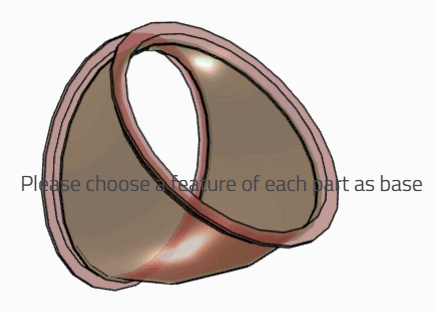
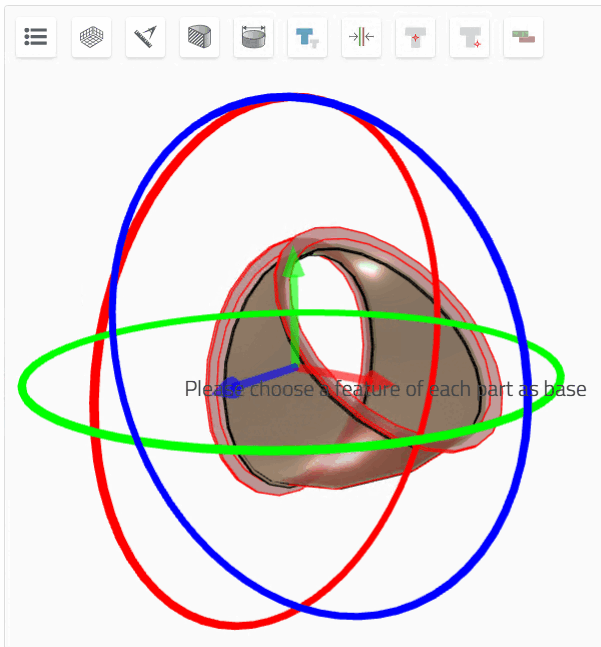
Fare clic sul pulsante Allineamento automatico [Automatic alignment] in Funzioni aggiuntive [Additional features] > Funzioni di confronto [Compare functions].
Se necessario, selezionare il pezzo in uno degli stati sovrapposti. Muovere e/o ruotare il pezzo utilizzando gli assi e i cerchi di rotazione.
È possibile confrontare le parti risultanti tra loro nello stesso modo.


![PARTADMIN -> Gestione indici [Index administration] -> Indice di ricerca geografica [Geometrical search index] -> Creazione/aggiornamento [Create/Update] -> Quota percentuale [Percental fraction]](https://webapi.partcommunity.com/service/help/latest/pages/it/installation_ecatalogsolutions/doc/resources/img/img_bcf08277a0e24b8da7331220e06bb0bc.png)



[30] È necessario installare la versione 2 .0 di Classifications. Vedere Sezione 1.8.1, “Supporto dei metodi di ricerca” in ENTERPRISE 3Dfindit (Professional) - Amministrazione.