
 |
User interface structure and search methods in PARTdataManager and Seamless integration have been adjusted mostly. Relearning is not necessary. Switching between both applications goes smoothly.
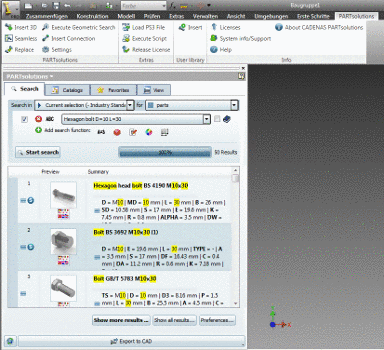

In order to
seamlessly integrate the Standard and supplier parts library into your CAD system, in the PARTsolutions menu click on the menu item
 Seamless or on the respective icon in
the toolbar.
Seamless or on the respective icon in
the toolbar.
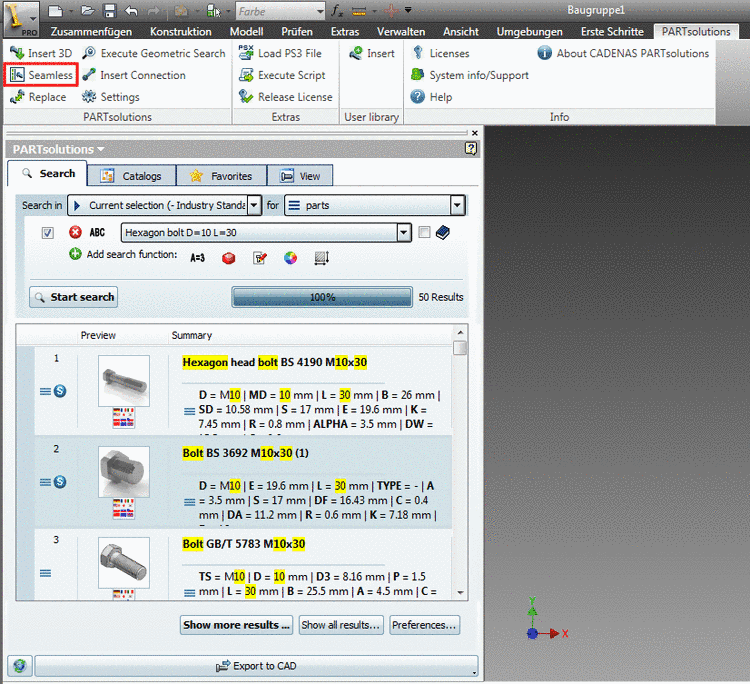
AutoCAD: Display mode: Single window and docking [if a part has been loaded before the start of Seamless]
CoCreate Modeling | Creo Elements/Direct Modeling: Display mode: Single window
Inventor: Display mode: Single window and docking [if a part has been loaded before the start of Seamless]
Pro/E Wildfire | Creo Elements/Direct Pro | Creo Parametric: Display mode: Single window and docking
With click on the
button Execute Geometric Search  the Seamless integration appears and the active CAD
part is loaded and automatically activated
the Seamless integration appears and the active CAD
part is loaded and automatically activated  in the search function Geometric search (3D). The respective preview
image is displayed.
in the search function Geometric search (3D). The respective preview
image is displayed.
You can find detailed information on this under Section 4.4.1.2, “CAD: Execute Geometric Search ”.
The Seamless dialog box is subdivided into four tabbed pages:



Find the desired part via Full-text search, Variables search, Geometric search (3D), Sketch search (2D), Color Search or Topology search.
Find the desired part via browsing through the directories of supplier catalogs, own part catalogs or classifications.
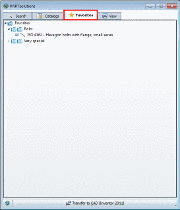
Transfer the desired part into your CAD system directly form your favorites.
Check or determine the correct characteristic via Variable values in the single list fields.
Check the part in the 3D view and create 2D derivations if needed.
On all tabbed pages you can find the Export to CAD command below
In the following sections the Seamless dialog box is explained in detail.