|
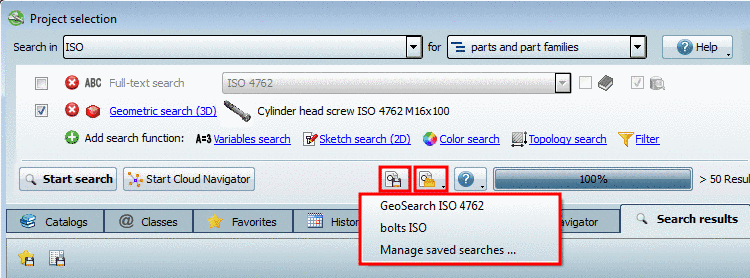
The new search in V9.06 cleans up with the three places, where search actions could have been performed and brings them together at one central place.
In the following you can find an overview on all associated changes:


The Full-text search is opened and activated at program start by default. You can directly enter a term or numerical value in the input field.
Other search functions can simply be added.
You can see all search parameters at a glance, as they are displayed in form of a (graphical) summary.
Example: Full-text search and Color Search are added and activated in the list of search functions, thus are used at the next search run. The Sketch search (2D) is added, but deactivated. All other methods are not added.
Follow the links in order to receive detailed information on the single search methods:
Section 3.1.6.4.3, “ Full-text search ” in PARTsolutions - User manual
Section 3.1.6.4.5, “ Variables search ” in PARTsolutions - User manual
Section 3.1.6.4.6, “ Geometric search (3D) ” in PARTsolutions - User manual
Section 3.1.6.4.7, “ Sketch search (2D) ” in PARTsolutions - User manual
Section 3.1.6.4.8, “ Color Search ” in PARTsolutions - User manual
Section 3.1.6.4.12, “ Topology search ” in PARTsolutions - User manual
Search for parts or parts and part families
The important setting for "Search for parts or parts and part families" is directly accessible. The setting is also used for the Cloud Navigation Search [see below].)
You can find details under Section 3.1.6.3, “ Search for Parts | Part families and Parts ” in PARTsolutions - User manual.


Especially when complicated settings are used, you can save time with using search templates.
You can find details under Section 3.1.6.5, “ Search templates: Save / load ” in PARTsolutions - User manual.
Search results - Change symbol size
Change symbol size directly in the search results section. You do not have to manage this via Extras -> Preferences.
Save search results in favorites or in file
The search detected parts which you want to use more times?
Then select all or single lines (selection via Ctrl key) and save them under your favorites.
Perhaps you want to pass the search results along and/or process in an external program?
Then save the search results (with the desired information from the table) in a text file.
You can find the commands in form of two icons top left over the search results.
You can find details under Section 3.1.6.7.5, “ Save search results: in favorites / in file” in PARTsolutions - User manual.