2.5.1.1.1.  Sketch search (2D): "Draw polygonal chain" and "Draw circular arc"

There are two new functions in the Sketch search (2D). Furthermore now points of construction are displayed as snap points. So different elements can exactly be joined (e.g. at a polyline) or aligned (e.g. centers of circels).
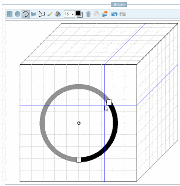
Draw circular arc

Strg: Only allow multiple of 15° in relation to coordinate axes

Shift: Only allow multiple of 15° in relation to starting angle

Alt: Ignore snaps

i: Invert direction

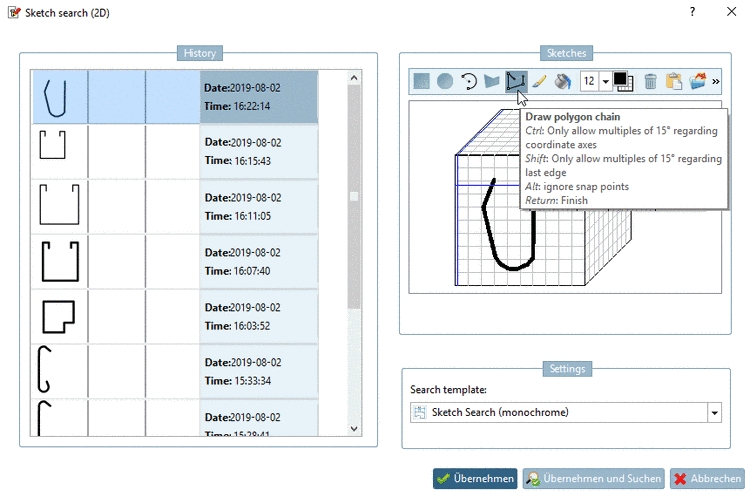
Draw polygonal chain

Ctrl: Only allow multiple of 15° concerning coordinate axes

Shift: Allow only multiple of 15° concerning last line

Alt: Ignore snaps

Return: Terminate polyline

[Note]Note

At polygonal chains, each starting and end point of a single line is displayed as snap point.

Example: Snaps in a polygonal chain

Example: Snaps in a polygonal chain

At circular arcs, center of circle and starting and end point of the arc are displayed as snap points.

Example: Snaps in a circular arc

Example: Snaps in a circular arc

Once the cursor comes close to a snap point it is displayed. If you really want to select a point very close to the snap, you can turn off snapping via Alt key.

Example circular arc

Click on the desired center. Draw a circle. Click on the starting point of desired circular arc.

Click on the desired center. Draw a circle. Click on the starting point of desired circular arc.

Movement to the right or left. Click on the end point of circular arc.

Movement to the right or left. Click on the end point of circular arc.

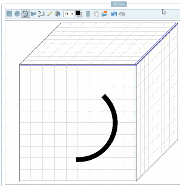
Circular arc is displayed. (Movement has been made to the right.)

Circular arc is displayed. (Movement has been made to the right.)

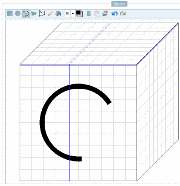
Other half of circular arc. (Movement has been made to the left.)

Other half of circular arc. (Movement has been made to the left.)

[Note]Note

The first moment of movement is decisive for the direction of the circular arc. Should you want to change the direction afterwards, click Ctrl +i.

Example full circle with centered circle
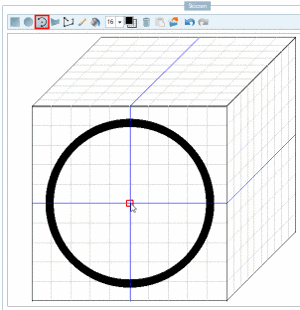
For a centered second circle, the snap point in the center of circle is selected

For a centered second circle, the snap point in the center of circle is selected

Second circle exactly centered

Second circle exactly centered

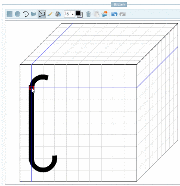
Example of polygonal chain

Polygonal chain

Polygonal chain

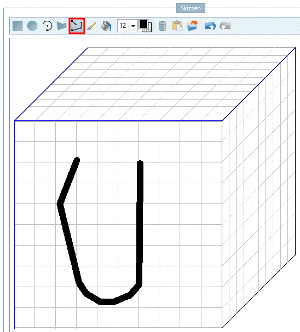
Polygonal chain result

Polygonal chain result

Example: Combination of circular arc and polygonal chain
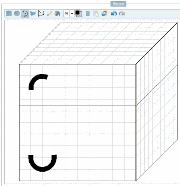
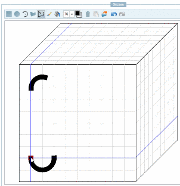
Two circular arcs shall be joined with a polygonal chain.

Two circular arcs shall be joined with a polygonal chain.

Snap point selected as starting point of the polygonal chain

Snap point selected as starting point of the polygonal chain

Using Ctrl and snap point the connecting line succeeds easily.

Using Ctrl and snap point the connecting line succeeds easily.

Still two more lines at the free end of circular arc...

Still two more lines at the free end of circular arc...

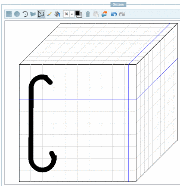
Result