7.6.3. Comandi multipli 7.6.3.2.
Disattivare/attivare la funzione/fase di progettazione
|  |
| Indietro | Avanti |
A volte è opportuno disattivare temporaneamente alcune fasi di costruzione (ad esempio, uno o più schizzi [Estrusione base / Estrusione taglio] o modelli, foratura, ecc.
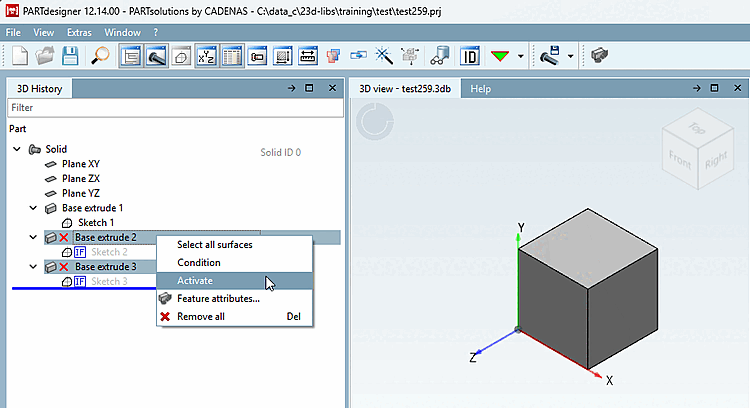
A tale scopo, utilizzare la funzione Disattiva [Deactivate] / Attiva [Activate]. È possibile applicare questa funzione a un singolo schizzo o a più schizzi contemporaneamente.
Esistono due opzioni quando si utilizza la disattivazione [Deactivate]:
Quando si attiva, funziona al contrario.
L'"estrusione di base" nascosta viene visualizzata con un
l'icona corrispondente  contrassegnata.
Schizzi
con condizione sono contrassegnate di default con l'icona IF  .
.
![[Nota]](https://webapi.partcommunity.com/service/help/latest/pages/it/partsolutions_user/doc/images/note.png) | Nota |
|---|---|
Quella
La nuova funzionalità è completamente compatibile con le versioni precedenti, solo l'icona
| |
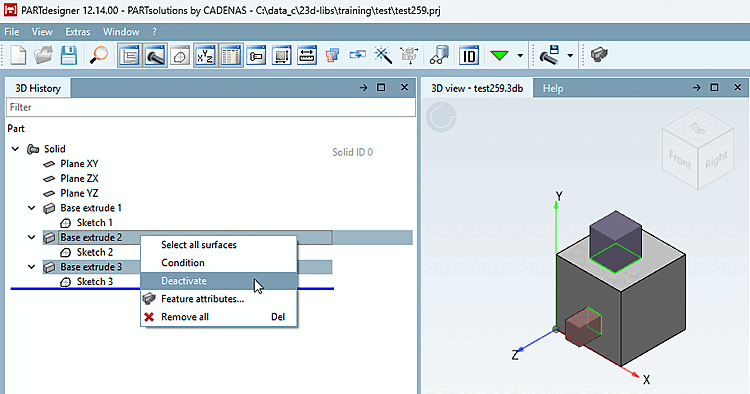
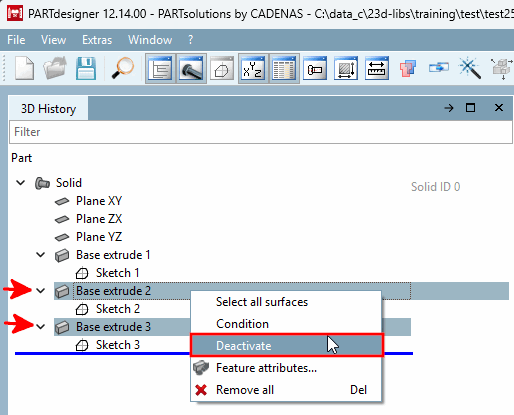
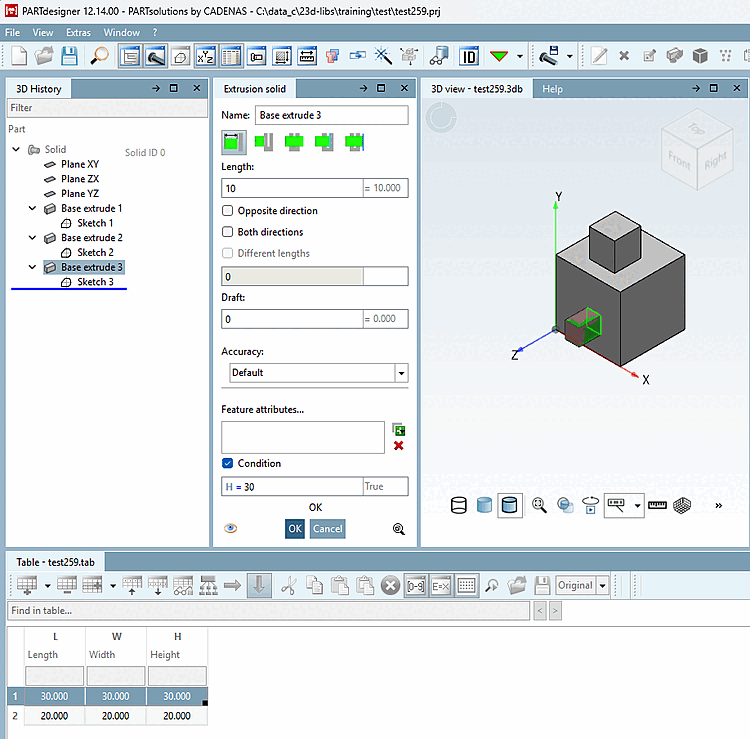
Situazione iniziale: per "Base extrude 3" esiste una condizione, mentre per "Base extrude 2" no. Entrambe devono essere nascoste .
Selezionare l' estrusione di base desiderata e fare clic sul comando Disattiva [Deactivate] del menu contestuale.
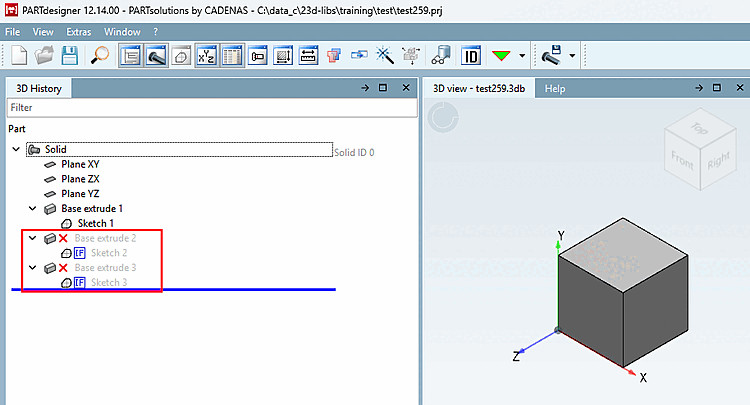
-> L'"estrusione di base" nascosta sarà contrassegnati da un'icona corrispondente
.-> Di default, gli schizzi sono creati con il Se l'icona
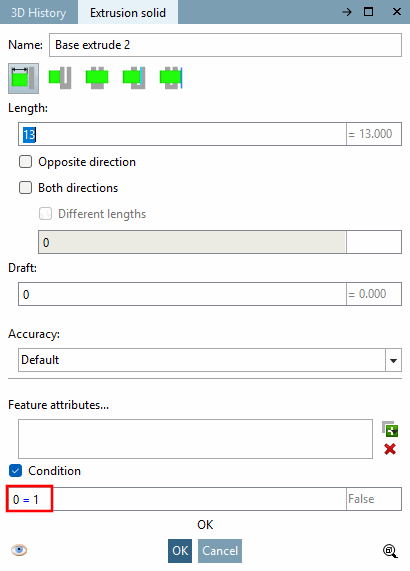
segnata.Aprire "Base extrude 2". È stata inserita la condizione non valida "0=1".
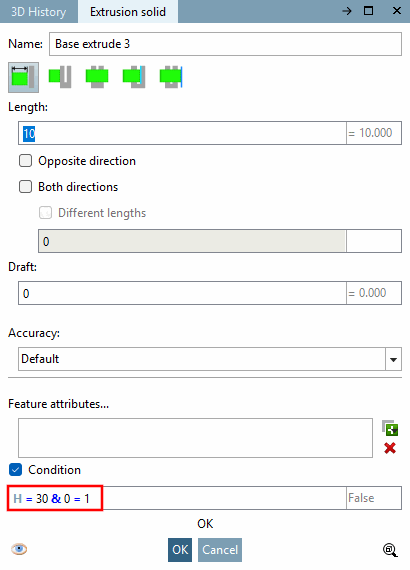
Aprire "Base extrude 3". Qui, alla condizione già esistente "H=30" è stata aggiunta, tramite il simbolo "&", la condizione non valida "0=1".
Per riattivare gli schizzi, fare clic sul comando Attiva [Activate] del menu contestuale.