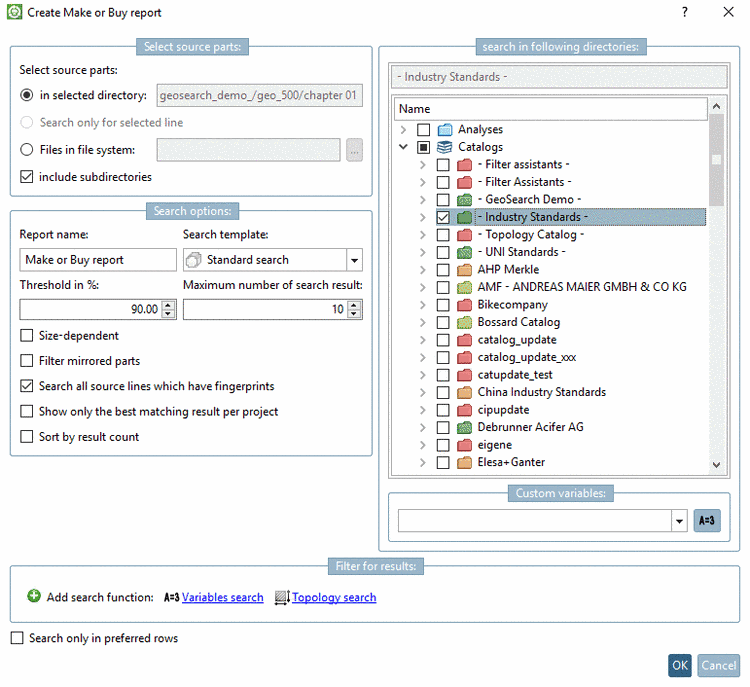
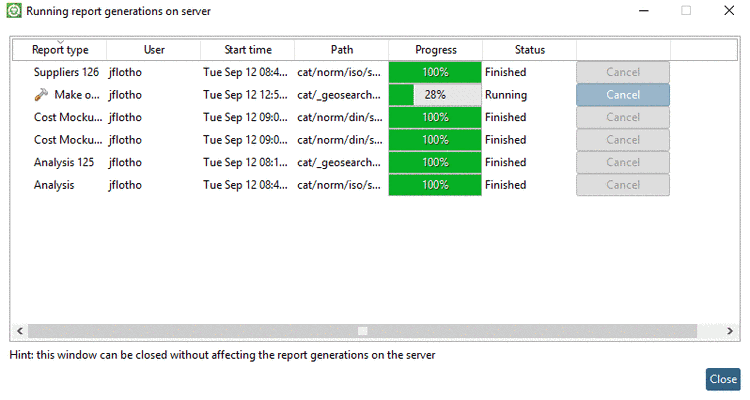
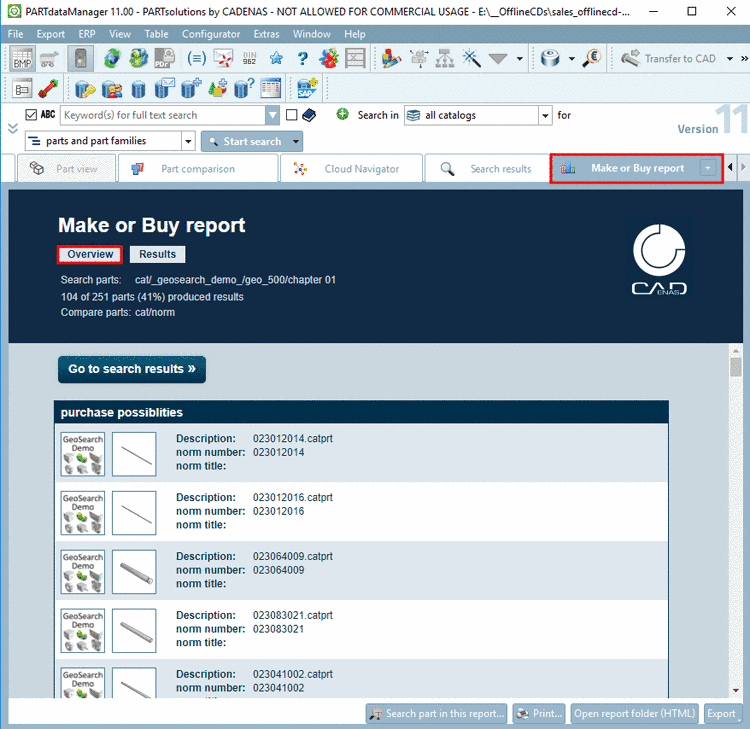
4.7.3.1. CAD Seamless Integration (9.03 SP2, 9.03 SP1, 9.03, 9.00)

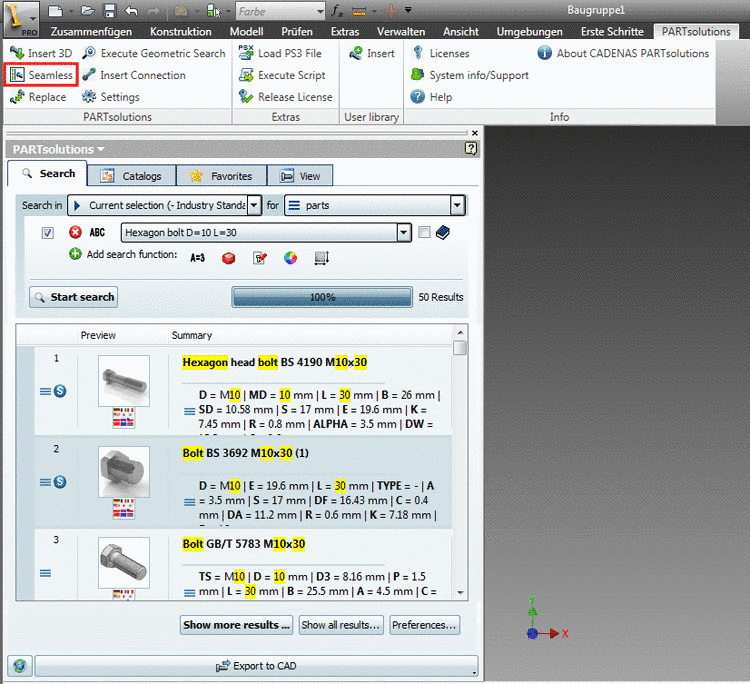
In order to seamlessly integrate the standard and supplier library into your CAD system, in the PARTsolutions menu click on the Seamless menu item.
Seamless integration exemplified in Inventor

Seamless integration exemplified in Inventor

  • Innovations as of v9.03 SP2

    When an ERP integration is used as of v9.03 SP2 the directories are displayed in red/green just like in PARTdataManager.

    Red/green display with ERP activated

    Red/green display with ERP activated

    With click on the "Display filtered tree" button the red directories are hidden.

    With click on the "Display filtered tree" button the red directories are hidden.

    Furthermore via seamless settings you can hide further columns (only for the seamless display), which are displayed in PARTdataManager in contrary.

  • Innovation as of v9.03 SP1

    As of v9.03 SP1 Seamless can be used with ERP integration.

  • Innovation as of v9.03

    As of v9.03 the window arrangement became more efficient. Via tabs you can switch between Selection, Search and View.

    • Selection index page

      Part selection via index tree (Selection index page)

      Select the desired directory or project in the index tree.

      • Catalogs

        • Standard catalogs

        • Supplier catalogs

      • Classifications

      • My Parts

      • User data

        • Favorites

        • History

      With double-click on the desired part the Table opens and the part is loaded in the 3D view.

    • Search index page

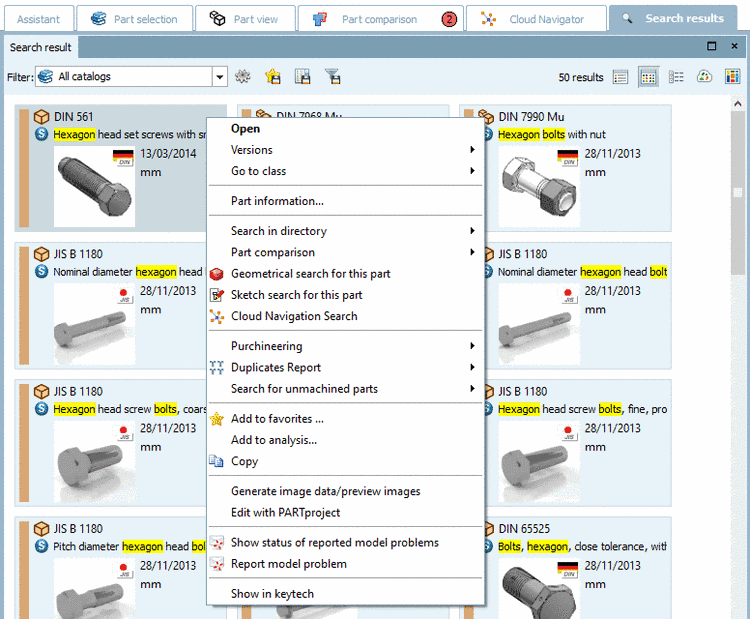
      Part selection via full-text search

      Insert the search term into the input field and then click on Search.

      -> The results are listed below.

      Via double-click on the desired part it is loaded in the Table and in the 3D view.

      Alternative to Keyword search you can also use the Variables search. Depending on the directory selection the according variables are displayed.

    • Selection of characteristic:

      Adjust the desired variables in the list view.
      The procedure is equivalent to the one in PARTdataManager.

      Via you can only display the preferred rows.

      Table

      Table