1.4.3.6.
Gestione degli indici
1.4.3.6.4. Significato delle icone e della loro visualizzazione nell'albero degli indici
|  |
| Indietro | Avanti |
Questa sezione spiega il significato delle icone e del colore dei caratteri nell'albero degli indici.
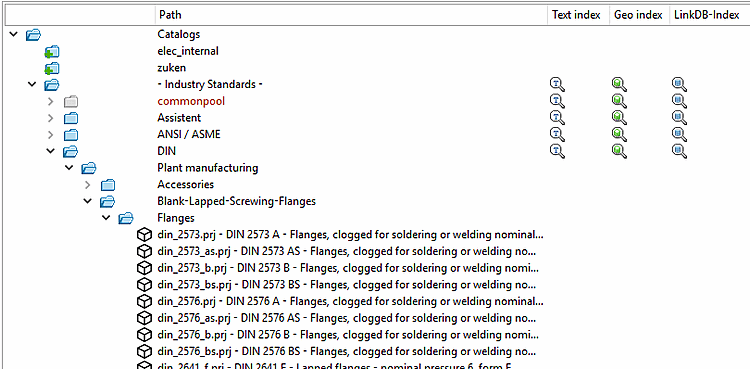
Colore dei caratteri: il colore predefinito dei caratteri in modalità Amministrazione è il nero.
Tooltip: Se si sposta il cursore del mouse su un'icona, viene visualizzata una descrizione del significato dell'icona.
![Esempio di tooltip: "Voce mancante nell'indice [Missing index entry]".](https://webapi.partcommunity.com/service/help/latest/pages/it/partwarehouse/doc/resources/img/img_dff8abdc1cdb47c282b3156d7848c388.png)
Le singole icone sono spiegate di seguito. Se necessario, i link portano a informazioni dettagliate.
Icone nella struttura ad albero dell'indice
| Icone | Significato / Leggenda | Causa - Soluzione |
|
Disponibile nell'indice [Index entry] La directory/file è contenuta nell'indice di visualizzazione [Display index] e viene quindi visualizzata in PARTdataManager. | ||
|
Voce mancante nell'indice [Missing index entry] La directory/file non è inclusa nell'indice di visualizzazione. Il simbolo appare, ad esempio, se i file del progetto sono stati copiati nella directory 23d-libs tramite Explorer o se sono state create nuove directory o progetti in PARTproject. |
Eseguire il comando del menu contestuale Includi nell'indice di visualizzazione [Add to display index] della directory/progetto in questione. | |
|
Voce mancante nel file system [Missing in file system] Le directory e i file sono stati eliminati, ma l'indice esiste ancora. Le directory sono ancora visualizzate in PARTdataManager, ma non possono essere caricate. |
Se la visualizzazione in PARTdataManager non è desiderata, disinstallare il catalogo o sopprimere la visualizzazione. | |
|
Voce nascosta nell'indice [Hidden index entry] Le voci nascoste (directory o file) non vengono visualizzate in PARTdataManager. Nella gestione degli indici di PARTadmin, sono visualizzati con un simbolo grigio e un colore di carattere rosso.
|
La visualizzazione può essere controllata con i seguenti comandi del menu contestuale. Soppressione della visualizzazione [Suppress appearance] <-> Ripristino della visualizzazione [Restore appearance] I comandi sono disponibili per tutte le cartelle principali (Cataloghi [Catalogs], Parti proprie [My parts], Classificazioni [Classifications], Classificazione 2.0 [Classification 2.0], Dati utente [User data], Impronte digitali [Fingerprints], Analisi [Analyses] ). | |
|
Le directory/progetti collegati e fisicamente situati altrove vengono visualizzati con un simbolo di cartella e collegamento blu. | Per ulteriori informazioni su come lavorare con i link, consultare la sezione Sezione 5.8.2.1.4, “ Nuovo link ” in eCATALOG 3Dfindit. | |

| ||

| La voce è in fase di modifica [Entry is being updated] | L'icona appare quando si preme Aggiorna [Update] nel menu contestuale. |

| La voce è in fase di modifica [Entry is being updated] | Il simbolo appare quando l'indice viene modificato in background da un'altra applicazione. |


![[Nota]](https://webapi.partcommunity.com/service/help/latest/pages/it/partwarehouse/doc/images/note.png)


Icone per l'indice di ricerca del testo completo


Icone per Indice di ricerca LinkDB
| Icone | Significato / Leggenda | Azione |

|
Indice per la ricerca del database dei link disponibile [Link database search index available] |
Non appena le impostazioni dei contenuti o dei ruoli di LinkDB vengono modificate, l' indice di ricerca di LinkDB [LinkDB search index] deve essere rigenerato. Sezione 1.4.3.6.6.4, “Indice di ricerca LinkDB ”Per ulteriori informazioni al riguardo, consultare il sito . |

|
Manca l'indice per la ricerca nel database dei collegamenti [Missing link database index for search] |
Icone per l'indice di ricerca geografica
| Icone | Significato / Leggenda | Azione | ||||

|
Indice per la ricerca geometrica disponibile [Geometric search index available] |
Non sono necessarie altre azioni. L'indice di ricerca geografica è solitamente pre-generato per i cataloghi consegnati. | ||||

|
Indice per la ricerca geometrica e GeoDb disponibile [Index for geometric search and GeoDb available] |
Anche il GeoDb è installato con i chip attuali. Sul server delle applicazioni, l'attività di aggiornamento dell'indice (attivata per impostazione predefinita) rigenera il db per i cataloghi mancanti in background.[a] È possibile aggiornare manualmente l'indice utilizzando il comando del menu contestuale Geo search index [Geometrical search index] -> Create/update [Create/Update].
| ||||

|
Indice per la ricerca geometrica obsoleto [Geometric search index is outdated] |
Dopo un aggiornamento del software, l'indice di geo-ricerca può essere aggiornato utilizzando il comando del menu contestuale Indice di geo-ricerca [Geometrical search index] -> Crea/Aggiorna [Create/Update].
| ||||

| Indice per la ricerca geometrica e GeoDb disponibile (compresa la ricerca parziale) [Index for geometric search and GeoDb available (including partial search)] | Seguire le istruzioni per la creazione dell'indice. Sezione 1.4.3.6.6.16, “ Indice di ricerca geografica per la ricerca parziale ” Vedere . | ||||

|
Indice per la ricerca geometrica mancante [Geometric search index is missing] |
Per i cataloghi, le directory e i progetti aggiunti successivamente, l'indice per la ricerca geometrica può essere creato a posteriori con il comando del menu contestuale Indice di georicerca [Geometrical search index] -> Crea/Aggiorna [Create/Update].
| ||||
[a] pappserver.cfg, Blocco [task:UpgradeIndex] | ||||||
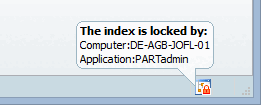
In PARTadmin, l'icona nella barra di stato indica se l'indice è bloccato.
Diventa
 visualizzata un'icona a forma di lucchetto verde, quindi PARTadmin ha accesso al
Indice.
visualizzata un'icona a forma di lucchetto verde, quindi PARTadmin ha accesso al
Indice.
Diventa
 visualizzata un'icona a forma di lucchetto rosso, quindi l'indice viene bloccato.
Se si sposta il mouse sull'icona, appare un messaggio che indica quale computer e quale applicazione sono responsabili.