1.4.5.9.3.
Gestione dei diritti
1.4.5.9.3.3. Pagina della scheda "Assegnazione dei diritti
|  |
| Indietro | Avanti |
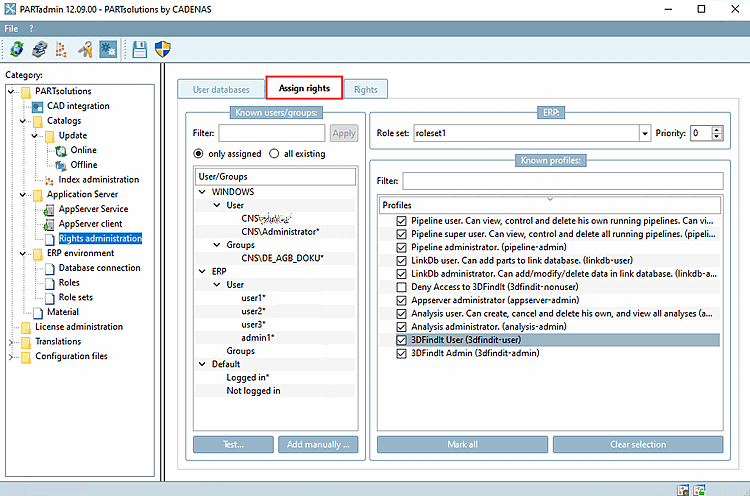
Tutti gli utenti e i gruppi assegnati o esistenti di tutti i domini/fondi attendibili sono elencati nella pagina della scheda Assegnazione dei diritti [Assign rights].
![[Nota]](https://webapi.partcommunity.com/service/help/latest/pages/it/partwarehouse/doc/images/note.png)
![[Suggerimento]](https://webapi.partcommunity.com/service/help/latest/pages/it/partwarehouse/doc/images/tip.png)
Per impostazione predefinita, un utente connesso può vedere, controllare e cancellare le proprie pipeline, creare e cancellare le proprie analisi e vedere tutte le analisi; anche 3DfindIt User dovrebbe essere attivato per impostazione predefinita. In caso contrario, non è possibile accedere a 3DfindIt. Vedere anche sotto.
![Pagina della scheda "Assegnazione dei diritti [Assign rights]"(solo assegnati [only assigned] )](https://webapi.partcommunity.com/service/help/latest/pages/it/partwarehouse/doc/resources/img/img_9bc699518f2b4714b44387523ca98fc7.png)
Figura 1.367. Pagina della scheda "Assegnazione dei diritti [Assign rights]"(solo assegnati [only assigned] )
Se si desidera che un utente speciale o un gruppo speciale abbia diritti estesi, procedere come segue:
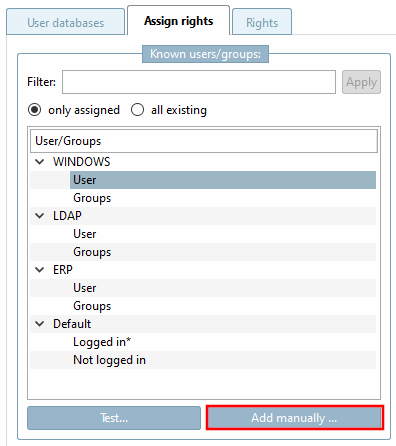
In Utenti/gruppi conosciuti [Known users/groups], selezionare l'opzione Tutti gli esistenti [all existing].
-> Tutti gli utenti/gruppi sono elencati.
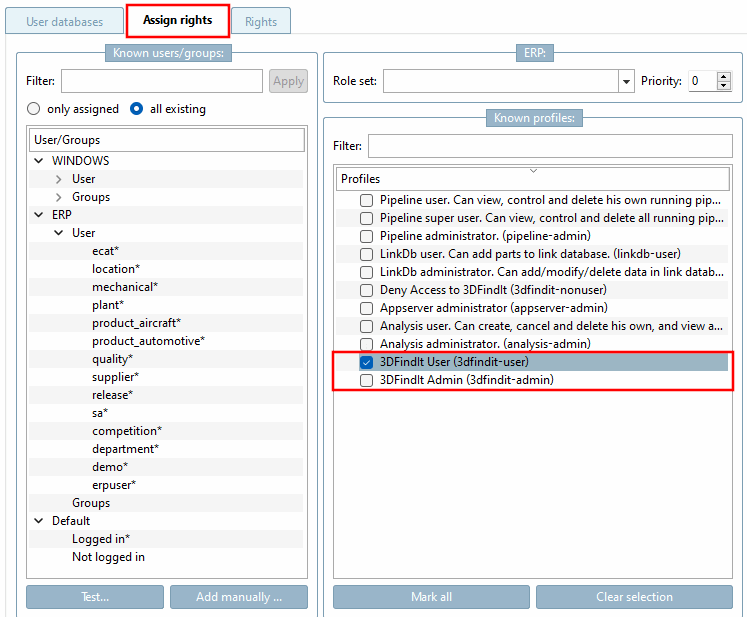
Figura 1.368. Pagina della scheda "Assegnazione dei diritti [Assign rights]"(tutti disponibili [all existing] )
Selezionare l'utente o il gruppo desiderato in Utenti/Gruppi [Users/groups].
Attivare i profili desiderati a destra in Profili [Profiles].
![Pagina della scheda "Assegnazione dei diritti [Assign rights]"(tutti disponibili [all existing] )](https://webapi.partcommunity.com/service/help/latest/pages/it/partwarehouse/doc/resources/img/img_df1a009999d64b62aef7d982d998e50b.png)
In linea di principio, vale quanto segue:
Cliccare su si apre la finestra di dialogo Verifica autenticazione.... [Check authentification...]
![Controllare l'autenticazione... [Check authentification...]](https://webapi.partcommunity.com/service/help/latest/pages/it/partwarehouse/doc/resources/img/img_78758b2f97224df7b56881a40c04a3ca.png)
Inserire il nome utente [Username] e la password [Password].
Fare clic su per caricare tutti i dati e i diritti degli utenti.
Fare clic su Accedi per [Login] verificare se il login di Windows è corretto. Se la voce non è corretta, la valutazione è vuota. L'inserimento della password è facoltativo.
![Controllare l'autenticazione [Check authentification...]...: Password errata](https://webapi.partcommunity.com/service/help/latest/pages/it/partwarehouse/doc/resources/img/img_355de75bb29d4a39b6526a87072778e9.png)
Quando si utilizza 3dfindit, in PARTadmin, alla voce Profili [Profiles], deve essere attivato almeno 3Dfindit User per gli utenti e i gruppi autorizzati; in caso contrario, non è possibile accedere a 3Dfindit.
Può elencare tutti gli utenti di 3Dfindit e tutte le sessioni attive.
È possibile vedere le assegnazioni degli utenti nella dashboard di PARTapplicationServer.
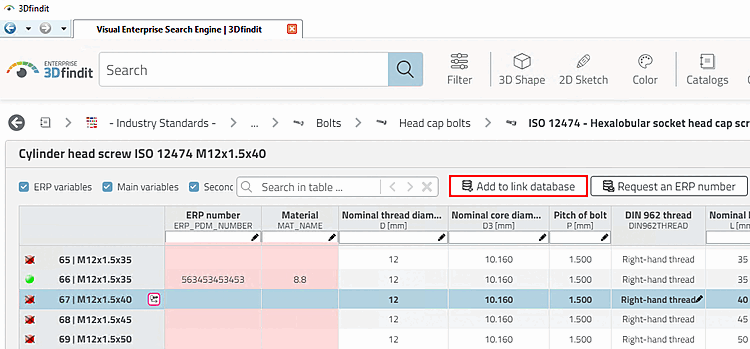
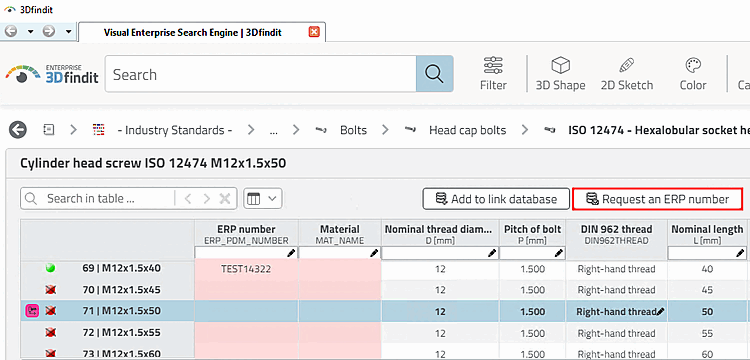
Se la funzione Aggiungi [Add to link database] al database dei collegamenti [Add to link database] (anche varianti) deve essere eseguibile in 3Dfindit, è necessario attivare il profilo Utente LinkDb. Può aggiungere parti al database dei collegamenti. (linkdb-user) deve essere attivato.
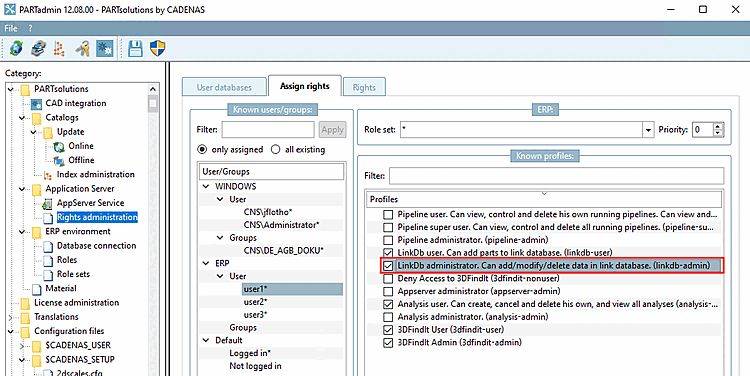
Per modificare i record di dati esistenti, è necessario attivare il profilo LinkDb administrator. Può aggiungere/modificare/cancellare dati nel database dei collegamenti (linkdb-admin) deve essere attivato.
Negare l'accesso a 3Dfindit (3dfindit-nonuser)
Se si desidera bloccare utenti o gruppi specifici da 3Dfindit, è possibile assegnare questo profilo per togliere loro i diritti di utilizzo, anche se un'altra configurazione indica che l'utente è un utente di 3Dfindit.
CNS\CNS_AGB => 3dfindit-user
CNS\specific_user => 3dfind-nonuser
Alle AGB-User sind erlaubt - aber der spezifische User ist nicht erlaubt.
L'impostazione è quindi necessaria se si vuole negare l'accesso a determinati gruppi o utenti, nonostante altri gruppi o * lo consentano.
Per visualizzare i diritti in dettaglio, passare alla pagina della scheda Diritti [Rights].
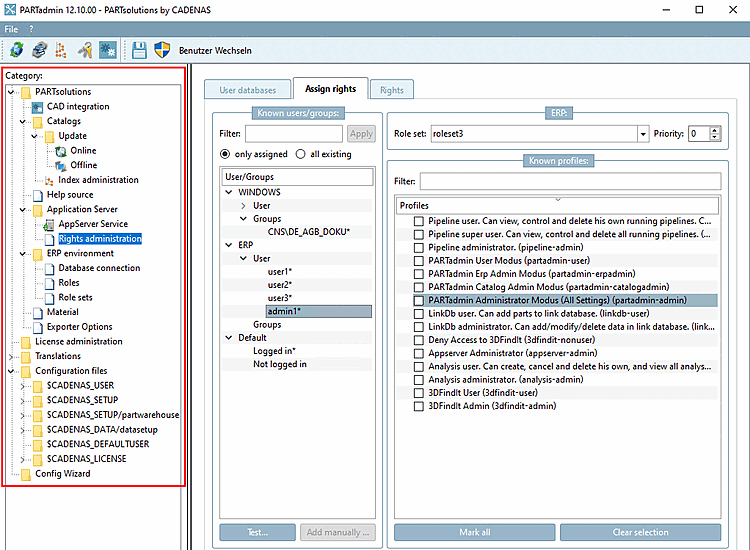
In un ambiente client-server, la scheda Assegnazione dei diritti [Assign rights] controlla anche quali categorie devono essere visualizzate in PARTadmin sui client nell'area di dialogo Categoria [Category].
Sul server è sempre disponibile l'accesso completo alla struttura delle categorie [Category].
![[Importante]](https://webapi.partcommunity.com/service/help/latest/pages/it/partwarehouse/doc/images/important.png)
Se si desidera eseguire la configurazione su un client, assicurarsi di aver effettuato l'accesso con un utente che dispone dei diritti di amministratore, in quanto questo è l'unico modo per accedere alla voce di menu Application Server > Gestione dei diritti [Rights administration].
La struttura [Category] completa delle categorie [Category] viene visualizzata nella modalità di amministrazione standard.
Nella struttura delle categorie [Category] in Application Server, selezionare Gestione dei diritti [Rights administration].
Selezionare la scheda Assegnazione dei diritti [Assign rights].
Nell'area di dialogo Utenti/gruppi conosciuti [Known users/groups], selezionare l'utente o il gruppo desiderato (nell'esempio "admin1").
Se si vuole attivare la modalità amministratore, attivare il profilo PARTadmin Modalità amministratore (tutte le impostazioni) (partadmin-admin) nell'area di dialogo Profili noti [Known profiles] oppure lasciare TUTTE le opzioni disattivate (il che corrisponde all'attivazione di tutte le opzioni [vedi figura seguente]).
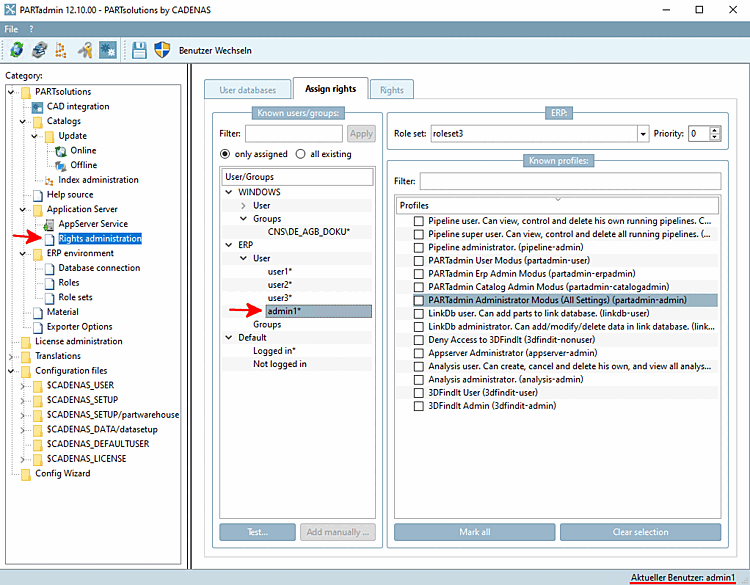

Nella struttura delle categorie [Category] in Application Server, selezionare Gestione dei diritti [Rights administration].
Selezionare la scheda Assegnazione dei diritti [Assign rights].
Selezionare l'utente o il gruppo desiderato nell'area di dialogo Utenti/gruppi conosciuti [Known users/groups].
Attivare il profilo PARTadmin user mode (partadmin-user) nell'area di dialogo Profili noti [Known profiles]. Gli altri profili che iniziano con "PARTadmin" devono essere disattivati.
Se si desidera verificare l'impostazione, passare a un client (se non lo si è già).
→ Si apre la finestra di dialogo Autentica utente [Authenticate user].
Accedere con l'utente configurato e controllare la visualizzazione nella struttura delle categorie [Category].
→ Vengono visualizzate solo le categorie Integrazione CAD [CAD integration] e File di configurazione [Configuration files] > $CADENAS_USER.
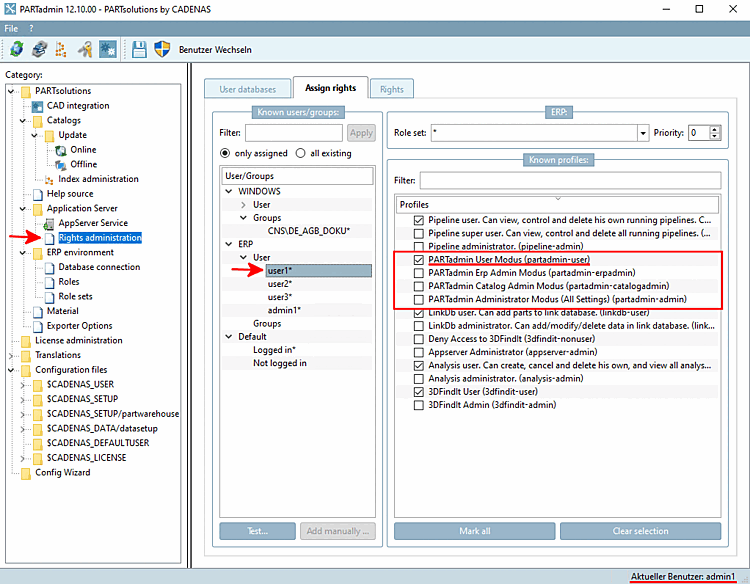
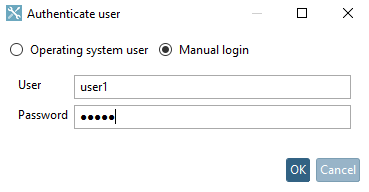
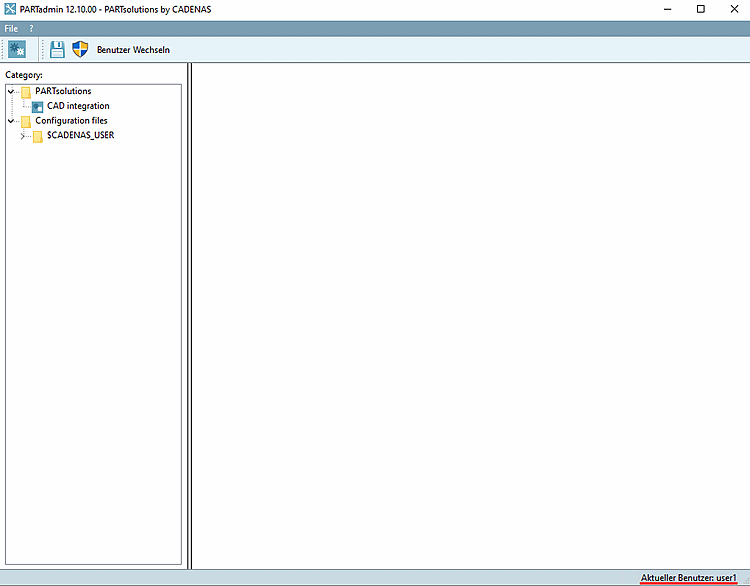
Nella struttura delle categorie [Category] in Application Server, selezionare Gestione dei diritti [Rights administration].
Selezionare la scheda Assegnazione dei diritti [Assign rights].
Selezionare l'utente o il gruppo desiderato nell'area di dialogo Utenti/gruppi conosciuti [Known users/groups].
Attivare il profilo PARTadmin Erp Admin Mode (partadmin-erpadmin) nell'area di dialogo Profili noti [Known profiles].
Se si desidera verificare l'impostazione, passare a un client (se non lo si è già).
→ Si apre la finestra di dialogo Autentica utente [Authenticate user].
Accedere con l'utente configurato e controllare la visualizzazione nella struttura delle categorie [Category].
→ Vengono visualizzati solo l' ambiente ERP [ERP environment] e i file di configurazione [Configuration files] > categorie $CADENAS_USER.
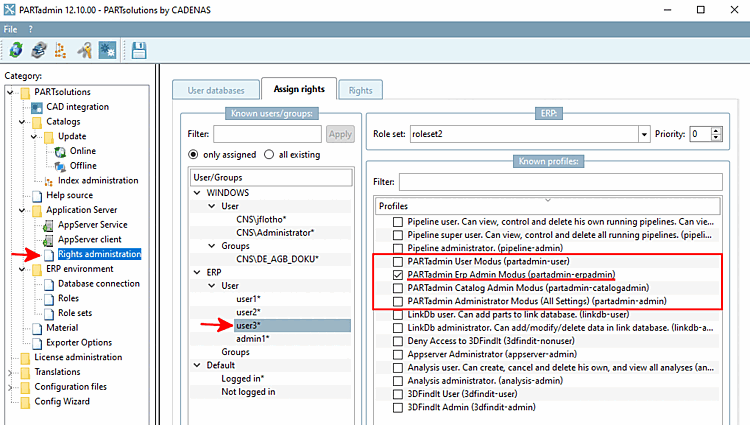
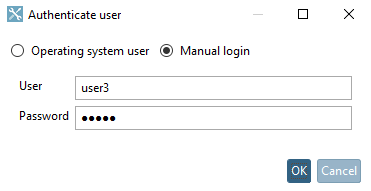
![Albero della categoria con la categoria "Ambiente ERP [ERP environment]"](https://webapi.partcommunity.com/service/help/latest/pages/it/partwarehouse/doc/resources/img/img_ca176e68038747608d51d33129a44e39.png)
Nella struttura delle categorie [Category] in Application Server, selezionare Gestione dei diritti [Rights administration].
Selezionare la scheda Assegnazione dei diritti [Assign rights].
Selezionare l'utente o il gruppo desiderato nell'area di dialogo Utenti/gruppi conosciuti [Known users/groups].
Attivare il profilo PARTadmin Catalog Admin Mode (partadmin-catalogadmin) nell'area di dialogo Profili noti [Known profiles].
Se si desidera verificare l'impostazione, passare a un client (se non lo si è già).
→ Si apre la finestra di dialogo Autentica utente [Authenticate user].
Accedere con l'utente configurato e controllare la visualizzazione nella struttura delle categorie [Category].
→ Vengono visualizzate solo le categorie Cataloghi [Catalogs] e File di configurazione [Configuration files] > $CADENAS_USER.
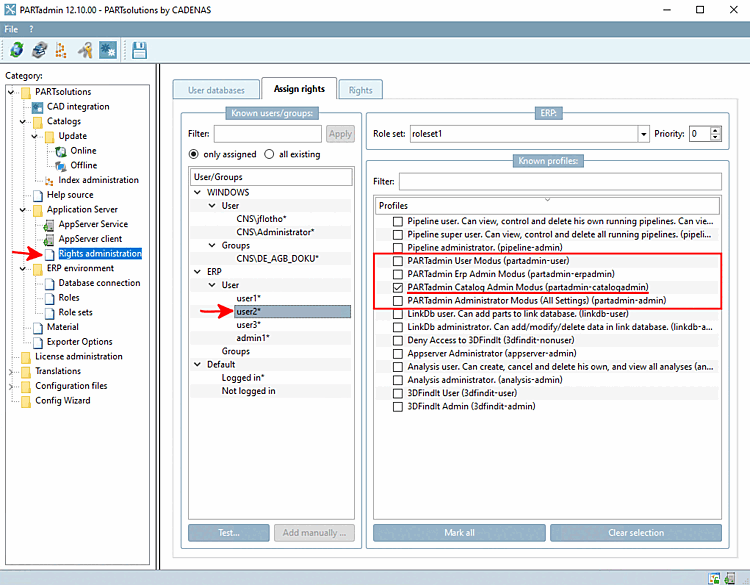
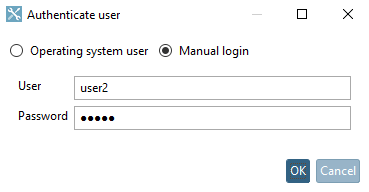
![Albero della categoria con categoria "Cataloghi [Catalogs]"](https://webapi.partcommunity.com/service/help/latest/pages/it/partwarehouse/doc/resources/img/img_cc0c1d53d3904008b34ff8e9a375be06.png)
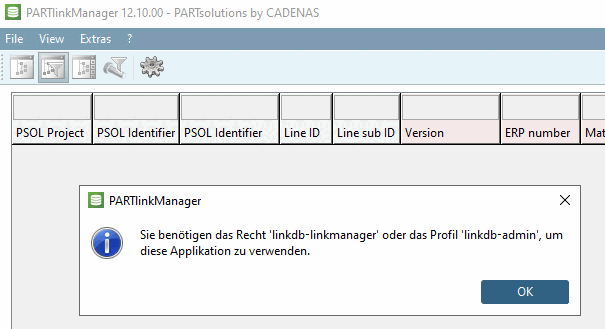
Quanto segue si applica all'accesso a PARTlinkManager:
Chiunque può utilizzare PARTlinkManager sul server e quindi ha il diritto di leggere, modificare e scrivere le voci.
Sui client, solo gli utenti con il diritto di linkdb-linkmanager o il profilo linkdb-admin hanno questi diritti.
Il sistema verifica se questa autorizzazione è disponibile al momento dell'accesso. In caso contrario, viene visualizzato il seguente messaggio:
Per utilizzare questa applicazione è necessario disporre del profilo "linkdb-linkmanager" o del profilo "linkdb-admin". [You need the right 'linkdb-linkmanager' or the profile 'linkdb-admin' to use this application.]