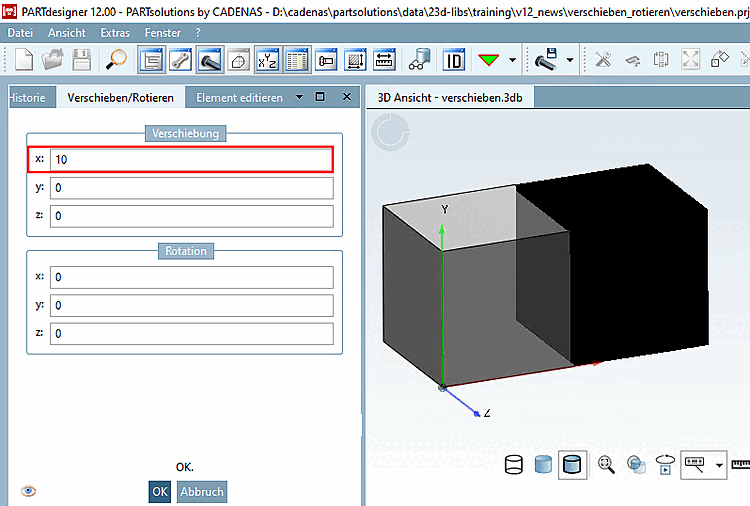
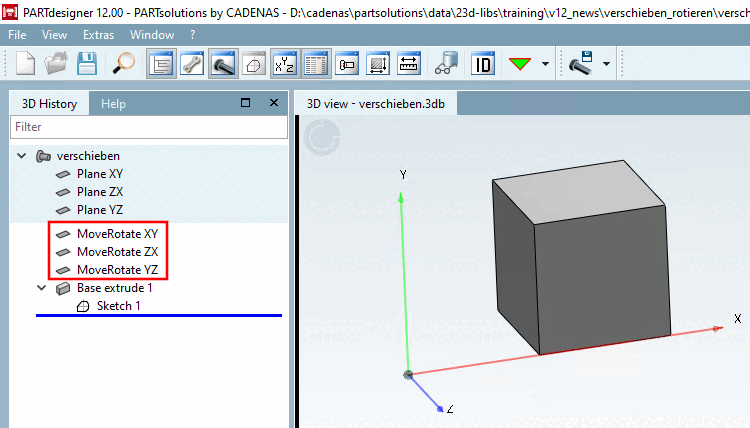
Cliccando su Sposta/Ruota [Move/Rotate...]... apre l'omonima area di dialogo.
È possibile posizionare il componente nello spazio in modo appropriato, inserendo le voci Shift [Displacement] e Rotazione [Rotation]. L'allineamento del sistema di coordinate rimane inalterato.
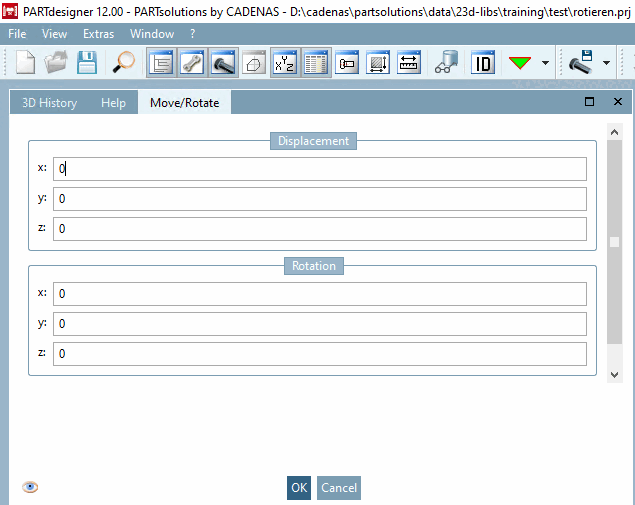
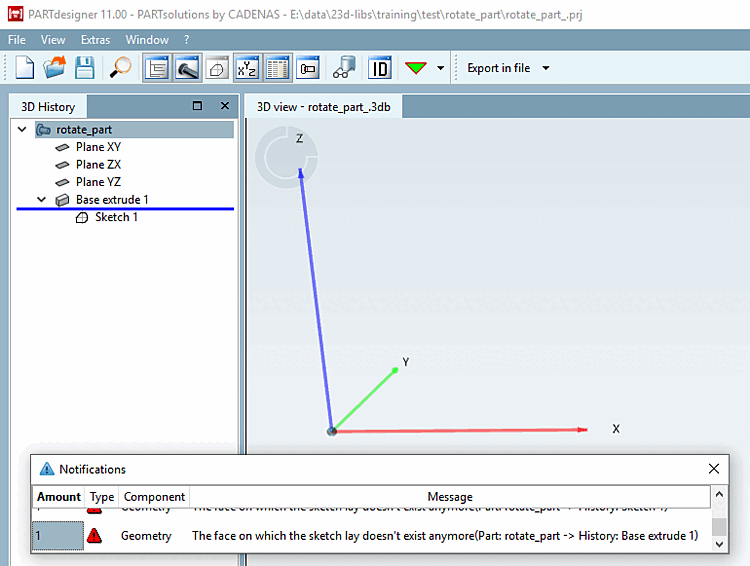
L'uso di Rotate è probabilmente legato a una manipolazione del sistema di coordinate (PARTproject -> Edit project -> General tab -> General -> Coordinate axes ). Si veda il seguente esempio.
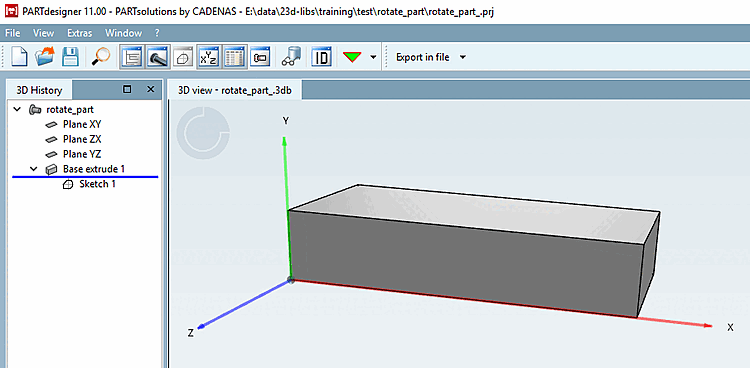
Situazione iniziale: pezzo modellato in eCATALOG 3Dfindit, "difettoso" con asse Y verso l'alto.
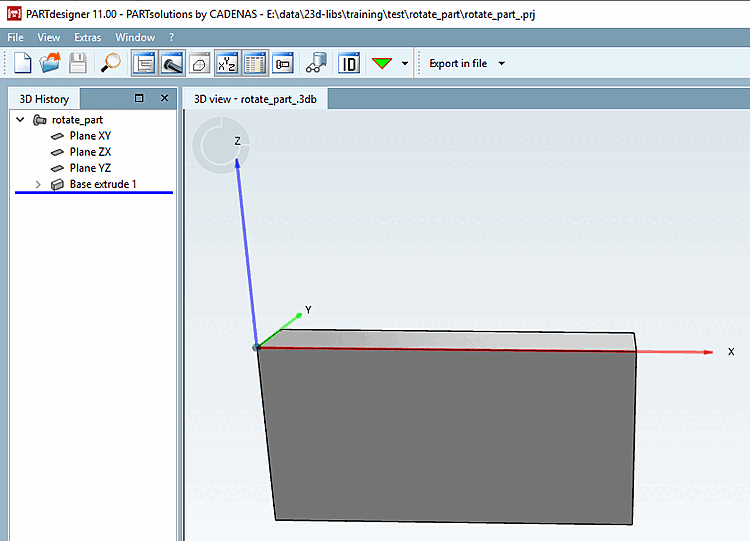
Requisito: il componente deve mantenere la sua posizione orizzontale nello spazio, ma il sistema di coordinate deve essere riorientato con l'asse Z rivolto verso l'alto.
Il sistema di coordinate viene riallineato in PARTproject tramite la funzione Assi delle coordinate [Coordinate axes] in modo che l'asse Z sia rivolto verso l'alto e l'asse Y verso l'indietro.
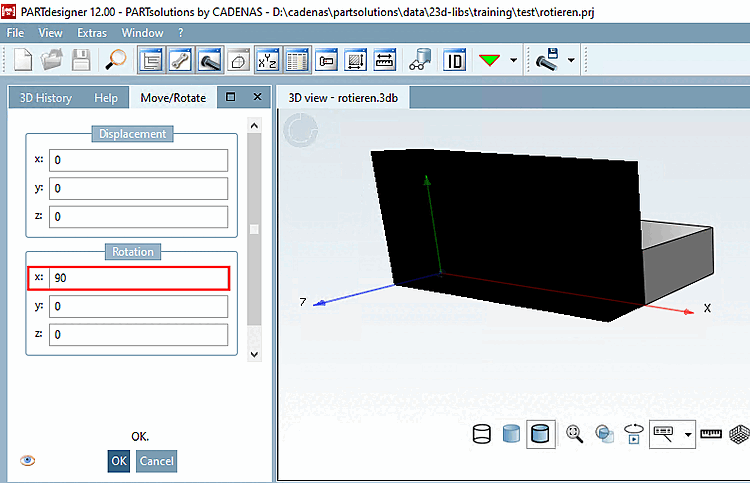
In PARTdesigner è possibile riportare il componente nella sua posizione originale nello spazio ruotandolo [Rotate].
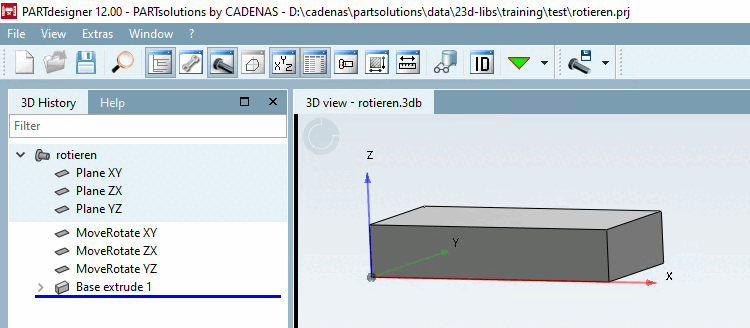
Dopo aver applicato la rotazione [Rotation] x: 90, il componente appare di nuovo nella sua posizione originale. Figura 5.1096, “Situazione iniziale” Confronta .
Figura 7.389. Componente con la stessa posizione nello spazio, ma orientamento desiderato del sistema di coordinate
![[Nota]](https://webapi.partcommunity.com/service/help/latest/pages/it/partwarehouse/doc/images/note.png)
Nota La rotazione [Rotate] in PARTdesigner funziona solo con le parti completamente modellate e non con quelle Q&S.
L'allineamento delle parti Q&S può essere modificato nel file di progetto. Si svolge C'è una stringa che inizia con
REF1@MATRIX. Coperta: matrice di rotazione e le due matrici moltiplicare. Per il calcolo c'è su Internet Pagine di aiuto:http://danceswithcode.net/engineeringnotes/rotations_in_3d/demo3D/rotations_in_3d_tool.htmloppurehttps://matrix.reshish.com/de/multiplication.php.La modifica non è visibile in PARTdesigner, ma solo in PARTdataManager.
![PARTproject: Funzione "Assi delle coordinate [Coordinate axes]](https://webapi.partcommunity.com/service/help/latest/pages/it/partwarehouse/doc/resources/img/img_3a34ab210e9f4eecb8fe942060f4613b.png)
| Nota |
|---|---|
Quando si esegue Sposta/Ruota [Move/Rotate...]... vengono create delle dipendenze, per cui non è possibile tornare indietro. Tenere presente le dipendenze quando si eliminano i piani generati automaticamente. | |
A seconda dell'impostazione effettuata, l'oggetto del disegno viene spostato "nello spazio" di conseguenza: