7.6.2.9.1. Esamina gli schizzi su due o più livelli o superfici. 7.6.2.9.1.1. Esempio 1: creazione di uno sweep tra due piani paralleli
|  |
| Indietro | Avanti |
Sweep è la transizione tra schizzi (anche diversi) su piani o superfici.
Per gli sweep, è possibile utilizzare le funzioni Crea curva di base [Create sweep base] e Crea curva di sezione [Create sweep cut].
![Creare un corso di base [Create sweep base] / Creare un corso di sezione [Create sweep cut]](https://webapi.partcommunity.com/service/help/latest/pages/it/partwarehouse/doc/resources/img/img_909593a036e44787a87867f6ecbafefb.png)
Figura 7.126. Creare un corso di base [Create sweep base] / Creare un corso di sezione [Create sweep cut]
È possibile effettuare i seguenti tipi di sweep:
Quadrato (rettangolo) - Quadrato (rettangolo)
Quadrato (rettangolo) - cerchio:
Attenzione: il cerchio non è un vero cerchio, ma è composto da 4 segmenti.
Poiché anche il rettangolo è composto da 4 forme individuali (lati), è possibile effettuare lo sweep. Entrambi devono avere lo stesso numero di forme individuali!
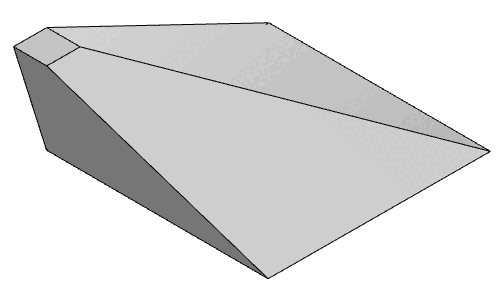
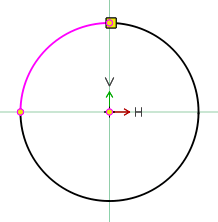
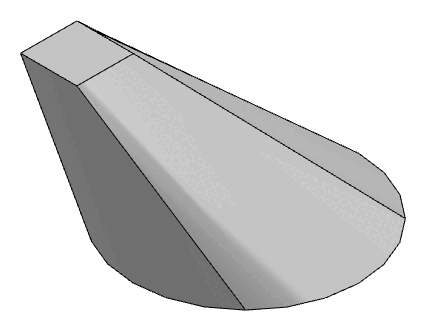
Ad esempio, la funzione sweep è utilizzata nel componente EN 10253.
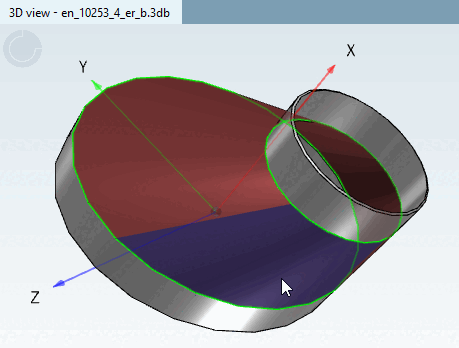
Di seguito è riportato un esempio (cerchio su cerchio) che illustra l'applicazione.
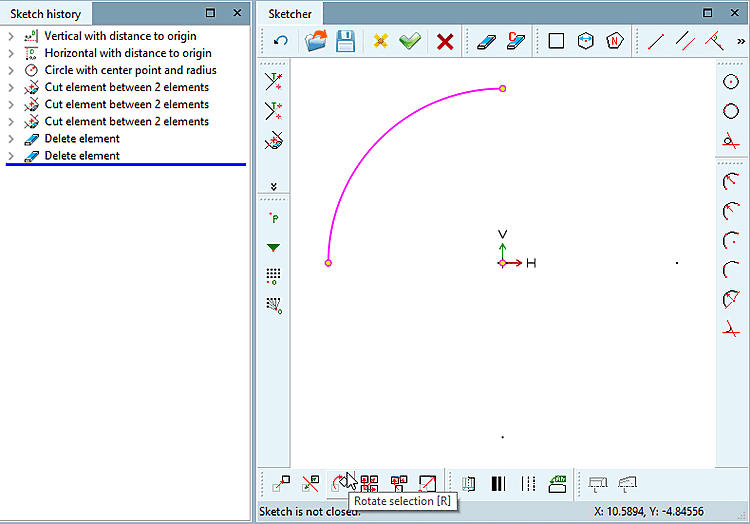
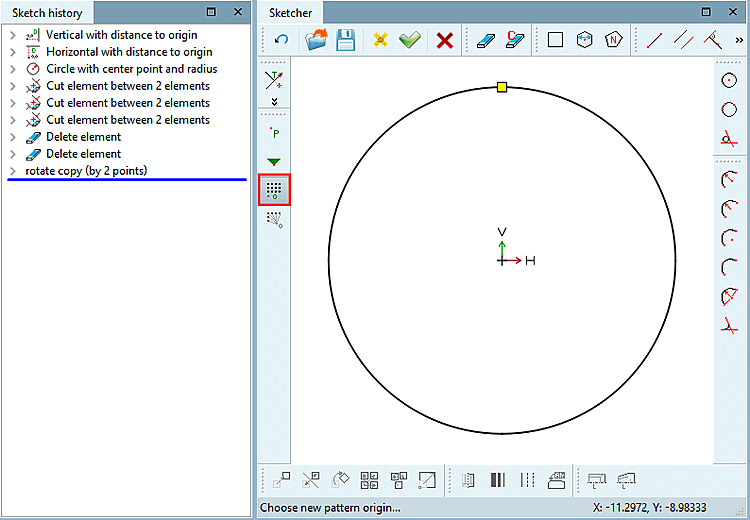
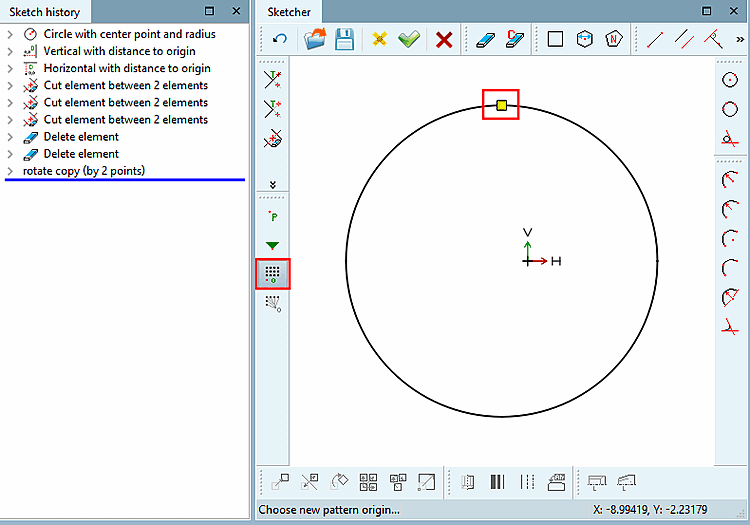
Creare un'area circolare nello schizzo di base.
Inserire l' origine [Pattern origin] di un modello [Pattern origin].
Creare un piano di riferimento (parallelo) alla distanza desiderata e un nuovo schizzo su questo.
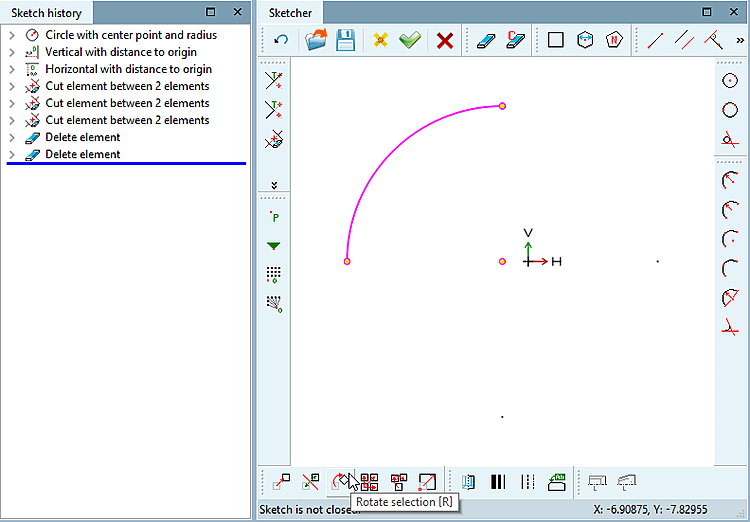
Creare un altro cerchio sullo schizzo 2 utilizzando lo stesso schema. (In questo esempio, questo cerchio è più piccolo e sfalsato rispetto al primo).
Impostare nuovamente l'origine del modello.
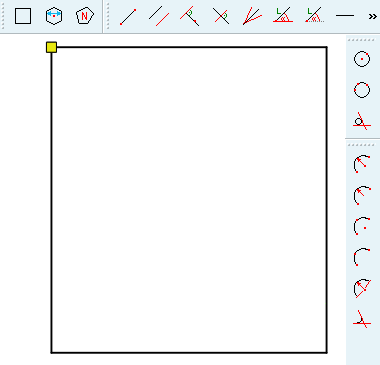
Se il punto si trova nell'angolo superiore sinistro di un rettangolo (e non si vuole la torsione), l'origine del modello nello schizzo collegato deve trovarsi di nuovo nell'angolo superiore sinistro.
Selezionare entrambi gli schizzi in Cronologia [History] e fare clic su Crea cronologia di base [Create sweep base].
Nella cronologia 3D [3D History], selezionare entrambi gli schizzi nell'ordine corretto (con il tasto Ctrl o Shift) e fare clic su Crea cronologia di base [Create sweep base] o Crea cronologia di sezione [Create sweep cut].
-> Viene visualizzata la finestra di dialogo Cronologia [History].
-> Lo sweep viene visualizzato nella vista 3D.
![[Nota]](https://webapi.partcommunity.com/service/help/latest/pages/it/partwarehouse/doc/images/note.png)
![Creare la cronologia di base [Create sweep base]](https://webapi.partcommunity.com/service/help/latest/pages/it/partwarehouse/doc/resources/img/img_c9cbe070baeb47909f156a1d30575908.png)
![Finestra di dialogo della cronologia [History]](https://webapi.partcommunity.com/service/help/latest/pages/it/partwarehouse/doc/resources/img/img_2f618e87d00a4b6fb79bb8579f2fc14d.png)
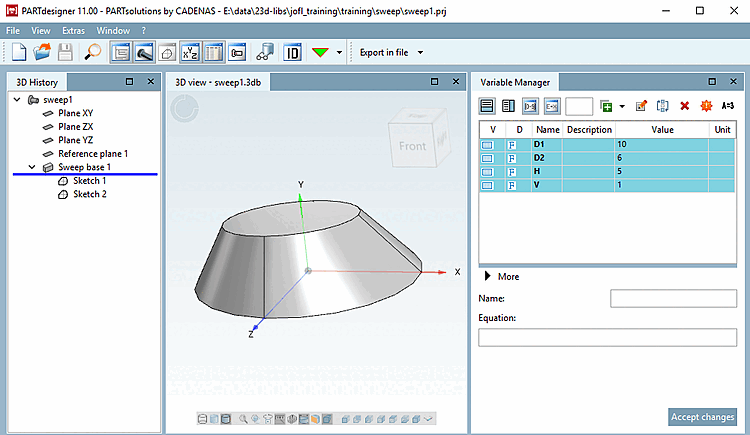
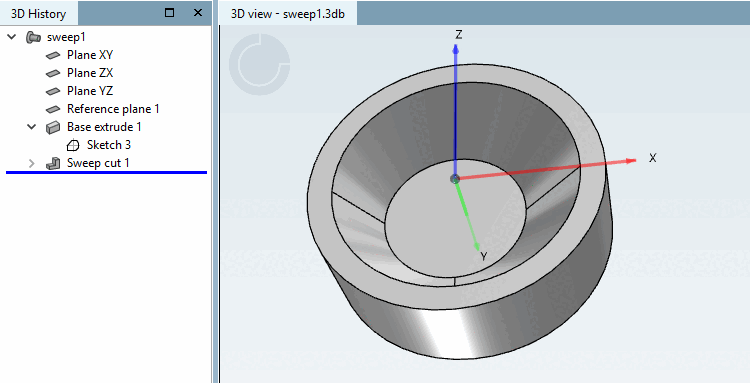
Lo sweep mostrato sopra serve a illustrare questo aspetto.
Il prerequisito è che la "Sweep cut" non sia la prima funzione. In questo caso, viene visualizzato un messaggio di errore.
Figura 7.139. Errore! Non è possibile creare un taglio come prima caratteristica! [Error! First feature can not be a cut!]
È ora possibile utilizzare il comando Converti in sezione [Convert to cut].
![Errore! Non è possibile creare un taglio come prima caratteristica! [Error! First feature can not be a cut!]](https://webapi.partcommunity.com/service/help/latest/pages/it/partwarehouse/doc/resources/img/img_d13beebec84148ab874da3077e33c3b2.png)
![Convertire in taglio [Convert to cut]](https://webapi.partcommunity.com/service/help/latest/pages/it/partwarehouse/doc/resources/img/img_b1b419cf2ab74f75bc9c9128636c5848.png)