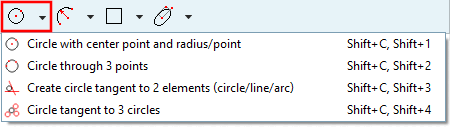
7.9.3.7.  Shapes -> Circles

  • Circle with center point and radius/point

    Determine circle via Center point and Radius.

    1. Choose center point: Either click into the free space at the approximate location or use an already existing point of construction or explicitly set a Point as center point.

    2. Choose point on radius: Drag the circle with the cursor to the desired radius and fixate it by mouse click.

    3. If needed, adjust the values of the points of Center point X, Center point Y and Radius in the docking window Edit element.

    For circles, the activation of "Snap to grid" is not performed under Quick settings -> Snap to grid, but under PARTdesigner -> Settings... -> Sketcher (feat.) -> Grid -> Scalar parameters. For example, if the width is set to 5, a circle will snap at radii with multiples of 5, regardless in which direction the mouse is moved.

  • Circle through 3 points

    Determine circle through three points (free points, end points of line, center point of circle, etc.)

    1. Select first point

    2. Choose second point

    3. Choose third point: Drag the circle with the cursor to the desired radius and fixate it by mouse click.

    4. If needed, adjust the values of the points in the docking window Edit element.

  • Create circle tangent to 2 elements (circle/line/arc)

    Create tangent circle at lines, arcs and circles.

    Example: Circle between coordinate axes

    1. Click first element being tangent to.

    2. Click second element being tangent to.

    3. Drag the circle with the cursor to the desired radius and fixate it by mouse click.

    4. If needed, adjust the radius in the docking window Edit element.

    Create circle tangent to 2 elements (circle/line/arc)

    Create circle tangent to 2 elements (circle/line/arc)

  • Circle tangent to 3 circles

    [Note]Note

    This feature is only available for future versions officially and is only an internal demo version currently.

    Tangent circle within 3 original circles

    Tangent circle within 3 original circles

    1. Enable the tool Circle tangent to 3 circles.

    2. One after another select the 3 original circles.

      -> The new circle is inserted tangential to the 3 original circles.

    In the docking window Edit element, you can put one, two or all three original circles into the tangent circle.

    Example: Circle 1 inside the tangent circle

    Example: Circle 1 inside the tangent circle

    Example: Circle 1 and 2 inside the tangent circle

    Example: Circle 1 and 2 inside the tangent circle

    Example: Circle 1, 2 and 3 inside the tangent circle

    Example: Circle 1, 2 and 3 inside the tangent circle

[Note]Note

If you want to hide a Circle temporarily, please use the function Delete element with condition (see Section 7.9.3.3, “Delete ”) and do not set its radius to „0“!