
7.13.6. Finestra di aggancio "Setup" - Impostazione della configurazione
7.13.6.1. Impostazione della configurazione - esempio |  |
| Indietro | Avanti |
Selezionare una configurazione in PARTproject e fare clic sul comando del menu contestuale Apri con PARTdesigner [Open with PARTdesigner].
![[Nota]](https://webapi.partcommunity.com/service/help/latest/pages/it/partwarehouse/doc/images/note.png) | Nota |
|---|---|
In questo esempio, al momento della creazione del progetto è stata utilizzata una convenzione di denominazione (aggiunta della configurazione "_asmcfg" nel nome). | |
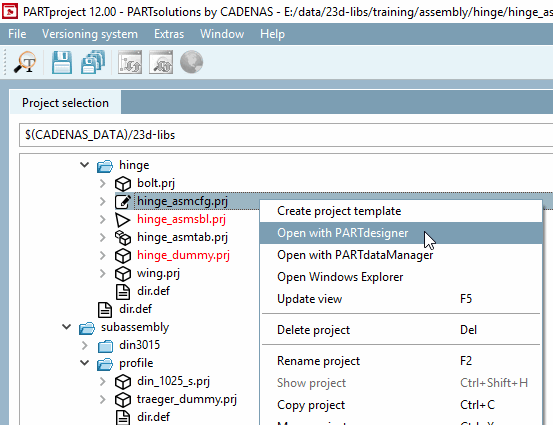
-> La configurazione viene aperta in PARTdesigner.
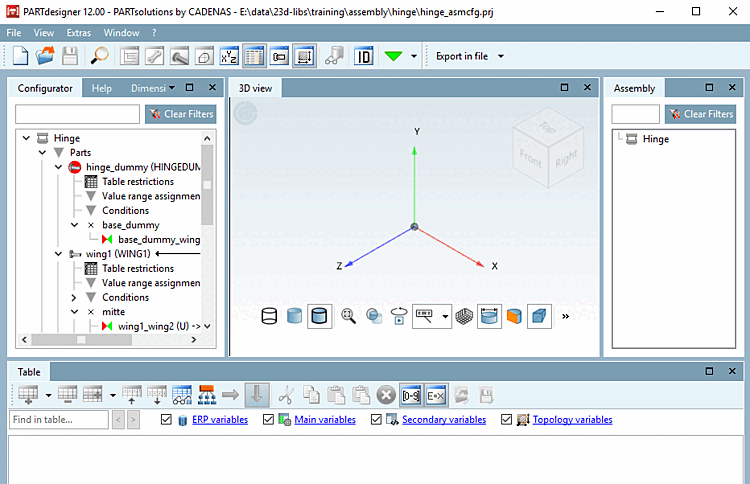
-> Anche se gli elementi di configurazione sono già stati creati nella finestra di aggancio del Configuratore, è necessario selezionarli.
-> Le finestre di aggancio Tabella [Table] e Vista 3D [3D view] sono ancora vuote. Inizialmente, nella finestra di aggancio Struttura [Assembly] è visibile solo il nome dell'assieme.
Fare clic alternativamente sugli elementi visualizzati in Struttura [Assembly] e su una riga della tabella (se ci sono più righe) per selezionare la caratteristica desiderata, finché non viene impostata la configurazione completa.
Sezione 7.13.3.3, “Configurazione del gruppo di prova ”Un esempio completo è disponibile all'indirizzo .