
 |
On the tabbed page you can find the desired part via catalog, subdirectories structure extending down to the project file. Successively open the subdirectories. The decision symbol in the tree marks those folders which contain other folders or projects.
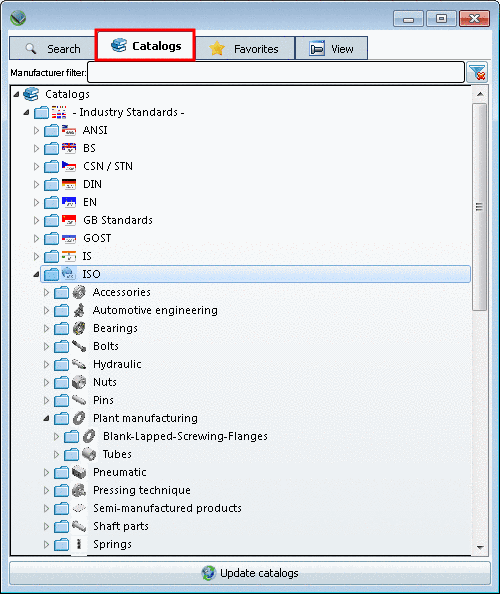
If needed use the Catalog filter. (It makes sense, when many catalogs are installed.)
Advantage: Keeping an overview, quicker finding
You can also insert several suppliers separated by comma.
ahp,afag,fibro
The catalog view changes while typing.

On the Catalogs tabbed page you can find the following main directories:
Catalogs (see figure above)
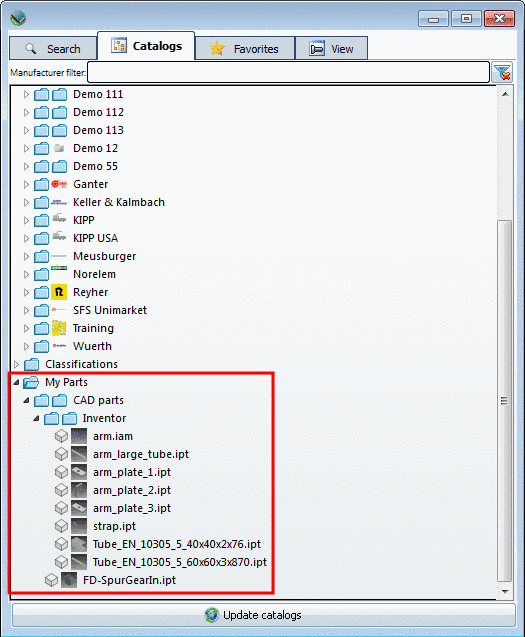
Under My parts you can find those parts, which have been saved via PARTsolutions menu -> User library -> Insert
 .
.Detailed information on this is found under Section 2.6.13, “ User library ” in PARTsolutions - User manual.
Furthermore you can find the desired part via directory structures of classifications.
Detailed information on classifications is found under Section 3.1.6.4.13.4, “Item "Classifications" ” in PARTsolutions - User manual.

Via double-click
on the desired part the view switches to the  View tabbed page. See
Section 4.4.1.1.4, “"View" tabbed page - Variable list | 3D view | 2D derivation
”.
View tabbed page. See
Section 4.4.1.1.4, “"View" tabbed page - Variable list | 3D view | 2D derivation
”.