Chapitre 2. Formation - Création d'un écrou à chapeau
2.2.
Créer un nouveau projet
|  |
| Précédent | Suivant |
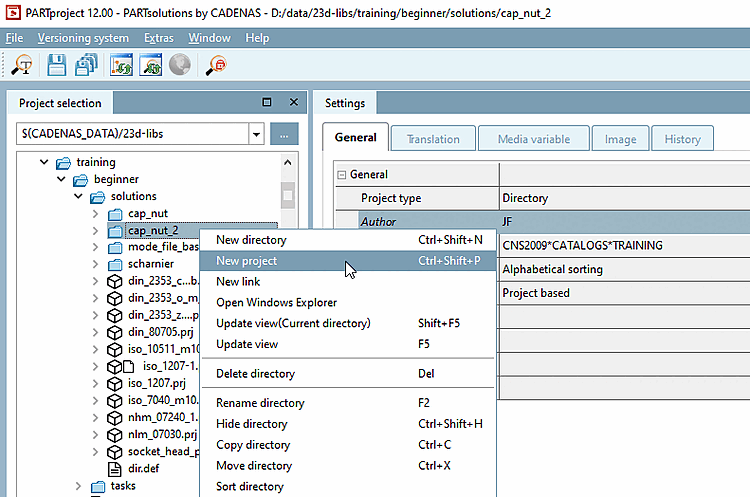
Créer à l’aide de la commande du menu contextuel n’importe quel endroit (ici à titre d’exemple sous
training/beginner/solutions) Nouveau dossiercap_nut_2.Avec le bouton secondaire de la souris, affichez le menu contextuel du dossier et cliquez sur Nouveau projet [New project].
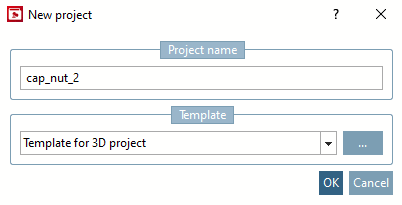
Saisissez le nom du nouveau projet et sélectionnez l'option Modèle pour projet 3D (zone de liste) sous Modèle [Template].
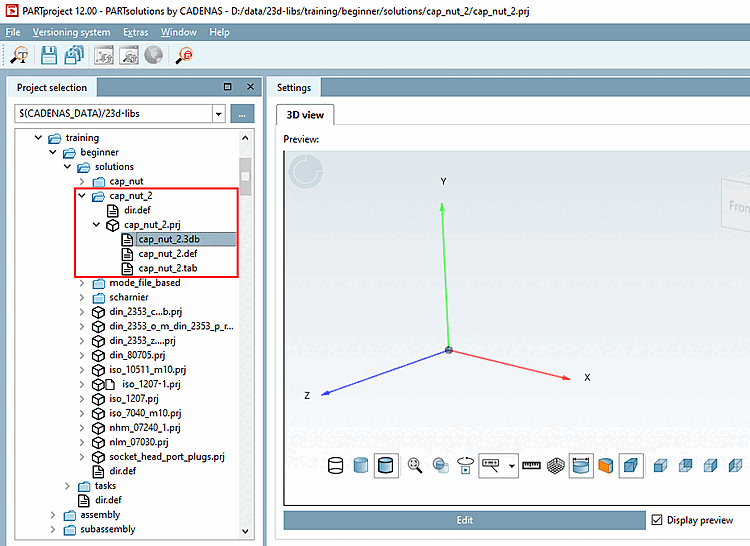
-> Le nouveau projet cap_nut_2.prj est ajouté à l'arborescence du répertoire.
En raison du modèle [Template] choisi, des fichiers "vierges" sont déjà disponibles pour la géométrie [Geometry] (cap_nut_2.3db) et le tableau [Table] (cap_nut_2.tab). Ceux-ci doivent encore être dotés d'un contenu.
Cliquez d'abord sur le nom du fichier géométrique cap_nut.3db.
-> Zone de dialogue Paramètres [Settings]: Pour le moment, aucun aperçu [Preview] de la géométrie n'est visible.
Pour accéder à PARTdesigner, cliquez sur le bouton .
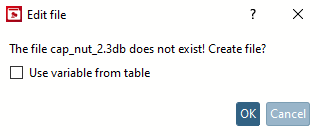
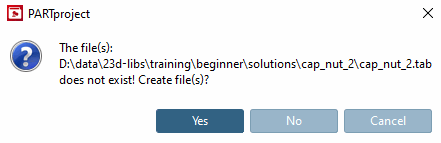
-> Comme le fichier n'a pas encore de contenu, la boîte de dialogue Editer le fichier [Edit file] vous demande si vous voulez le créer.
Le bouton d'option Reprendre les variables de la table [Use variable from table] n'est pas pertinent, car il n'existe pas encore de table à partir de laquelle vous pourriez reprendre des variables.
-> Créer un fichier d'onglets ?
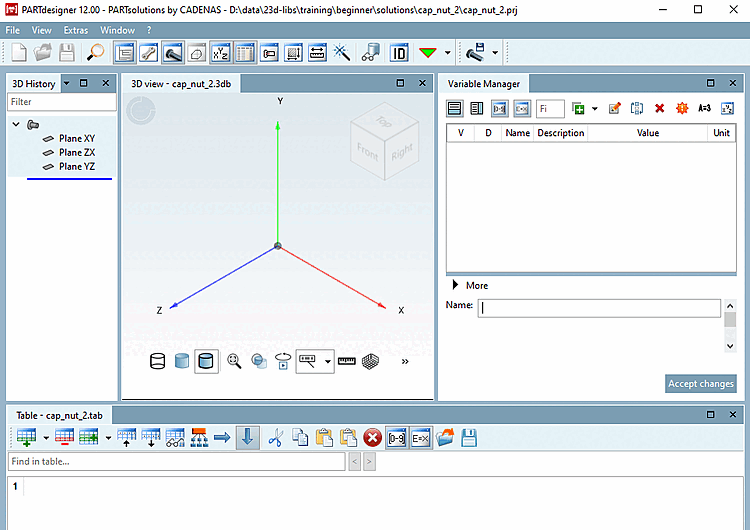
La vue 3D et le tableau sont encore vides.