1.1.8.
Recherche par référence -
Attribution automatique à partir de la référence du fabricant (ancienne
méthode)
1.1.8.1.
Recherche de numéros d'article Déroulement standard |  |
| Précédent | Suivant |
Cela Cet exemple utilise le fichier CSV suivant et a pour but de fournir une vue d’ensemble à un flux standard complet basé sur le modèle de recherche de numéro d’article [Article Number Search] . [3]
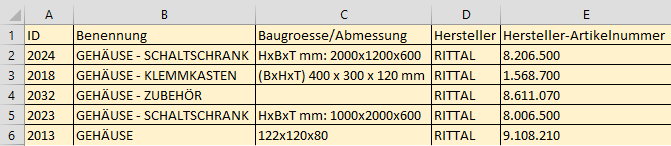
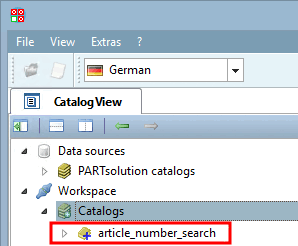
Créer un catalogue à partir de CSV:
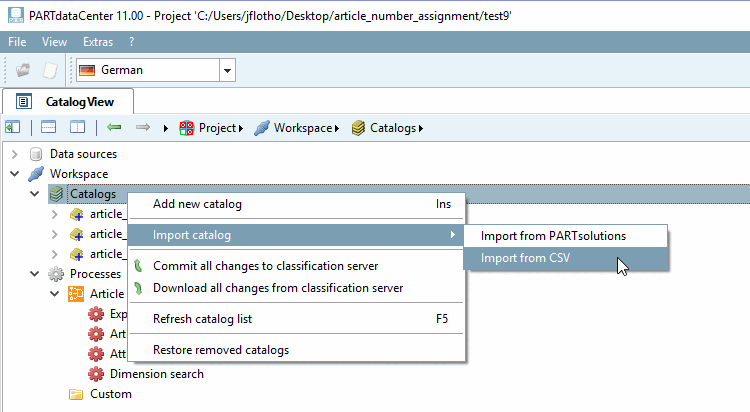
Dans le menu contextuel de Espace de travail [Workspace] -> Catalogues [Catalogs] -> Importer catalogue [Import catalog], cliquez sur Importer depuis CSV [Import from CSV]. Procédez comme décrit précédemment sur Section 1.1.3, « Créer un catalogue à partir d'un fichier CSV ».
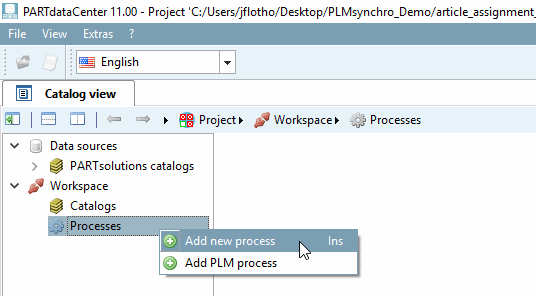
Dans le menu contextuel de Espace de travail [Workspace] -> Processus [Processes] -> Attribution d'articles [Article Assignment], cliquez sur la commande de menu contextuel Ajouter un nouveau processus [Add new process].
Cliquez sur le bouton Charger modèle prédéfini
 , puis cliquez sur la commande de recherche par numéro d’article [Article Number Search].
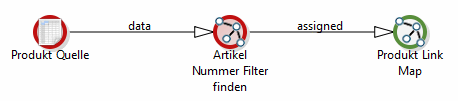
-> Le pipeline s'affiche.[4]
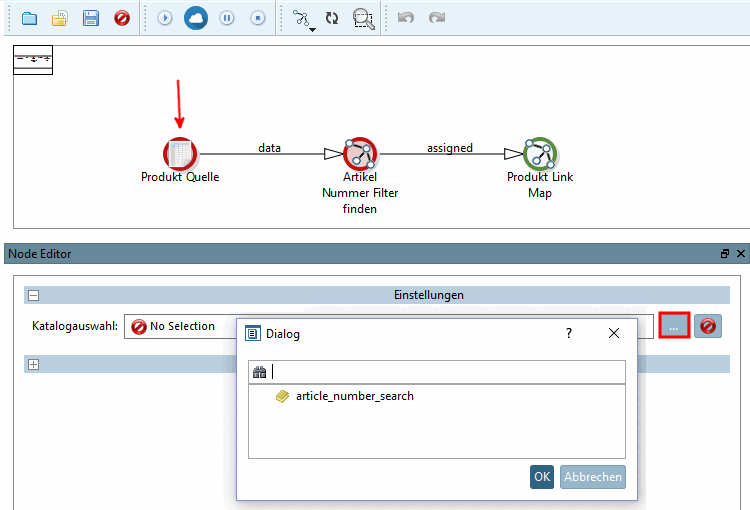
Sélectionner la source du produit [Product Source].
Cliquez sur le bouton Parcourir sous Sélection du catalogue [Catalog selection]
Sélectionnez le catalogue CSV souhaité et confirmez en cliquant sur .
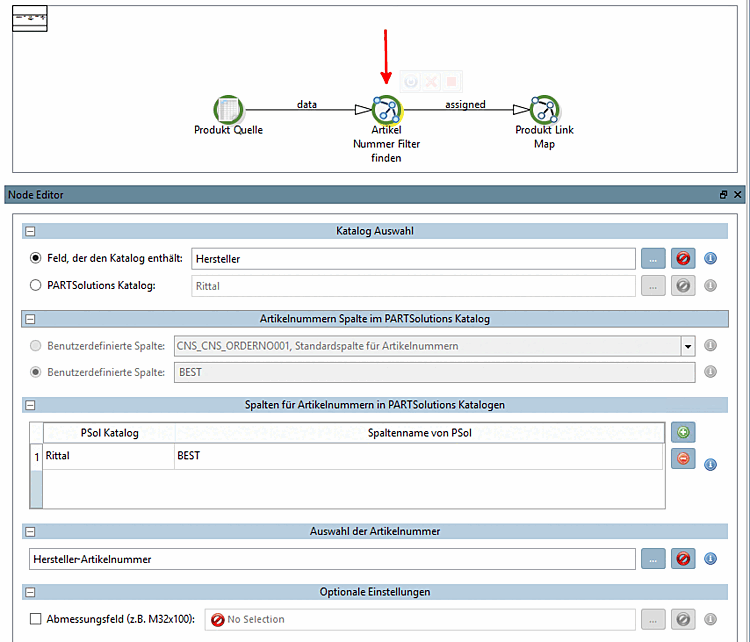
Sélectionner le numéro d'article Trouver un filtre [Find Article Number].
Sélection du catalogue [Catalog Selection]
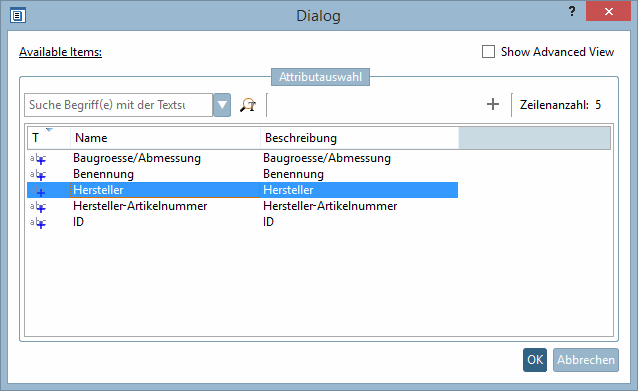
Champ contenant le catalogue [Field containing the catalog]: cette option est également appropriée si le fichier CSV contient des données de plusieurs fabricants de catalogues.
En cliquant sur le bouton Parcourir .. une boîte de dialogue s'ouvre pour déterminer le champ qui contient le nom du catalogue.
Colonnes pour les numéros d'articles dans les catalogues PARTSolutions [Article number columns in PARTsolutions catalogs]:
Le bouton plus vous permet de créer autant de lignes que vous le souhaitez, chacune avec la combinaison du catalogue PSol [PSol catalog] et du nom de colonne de PSol [PSol column name].
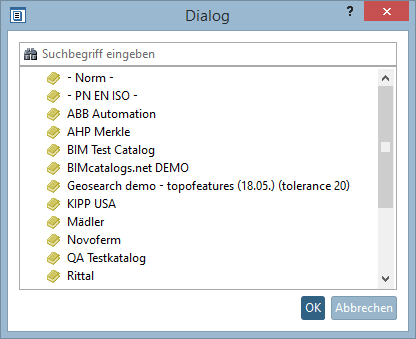
Le catalogue PARTsolutions [PARTsolutions catalog]: En cliquant sur le bouton Parcourir une fenêtre de dialogue s'ouvre avec une liste des catalogues PARTsolutions installés. Sélectionnez le catalogue souhaité et confirmez en cliquant sur .
Sélection du numéro d'article [Article Number Selection]: sélectionner le champ (ou plusieurs) qui contient le numéro d'article.
Paramètres optionnels [Optional settings]:
Champ de dimensions (par ex. M32x100): Si le numéro d'article n'est pas clair, vous pouvez indiquer un autre champ pour le différencier.
Cliquez sur le bouton Démarrer pour exécuter le pipeline.
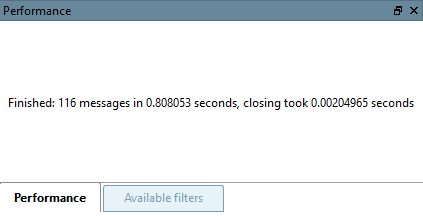
-> Un message correspondant apparaît dans la fenêtre de docking Performance.
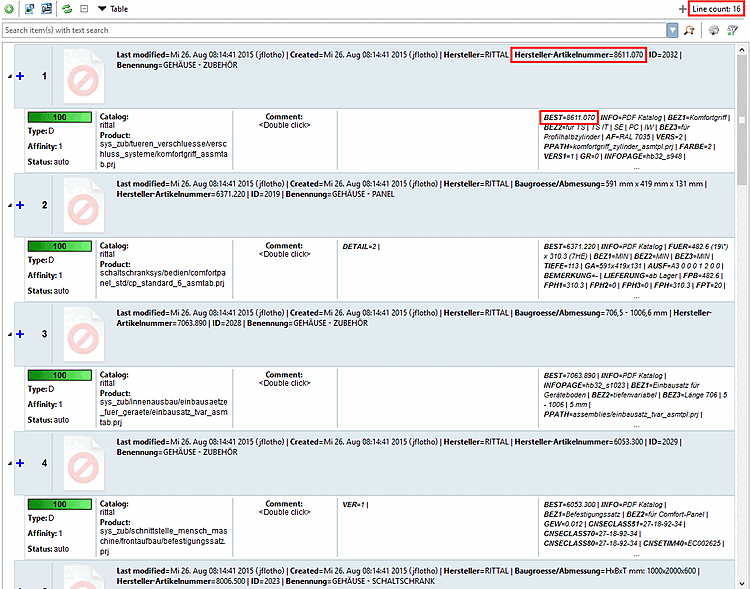
Regardez maintenant le résultat :
![[Remarque]](https://webapi.partcommunity.com/service/help/latest/pages/fr/partwarehouse/doc/images/note.png)
![Charger le modèle de recherche de numéros d'article [Article Number Search]](https://webapi.partcommunity.com/service/help/latest/pages/fr/partwarehouse/doc/resources/img/img_92c2fe117cdf47e69b13b2d26923721c.png)