7.7.1.4.
Attributi dell'area
7.7.1.4.3. Esempio 2 - Sovrascrittura degli attributi dell'area
|  |
| Indietro | Avanti |
Situazione iniziale: Due attributi sono già impostati sull'area selezionata.
![[Nota]](https://webapi.partcommunity.com/service/help/latest/pages/it/ecatalogsolutions/doc/images/note.png) | Nota |
|---|---|
Non appena si seleziona nuovamente un'area con attributi già assegnati, questi vengono visualizzati nella finestra di aggancio degli attributi dell'area [Face attributes]. | |
L'attributo di testo già assegnato deve essere modificato e impostato contemporaneamente su un'altra area.
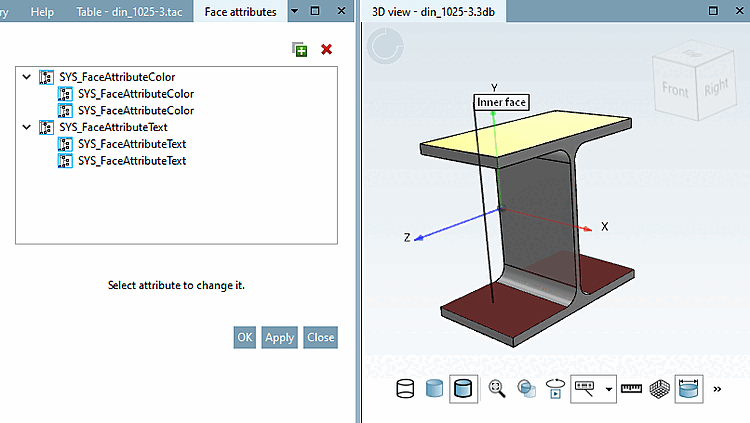
Selezionare l'area con l'attributo testo già assegnato e un'altra area.
-> Non appena vengono selezionate più aree, nella finestra di aggancio viene visualizzata una struttura ad albero con elementi padre e figli.
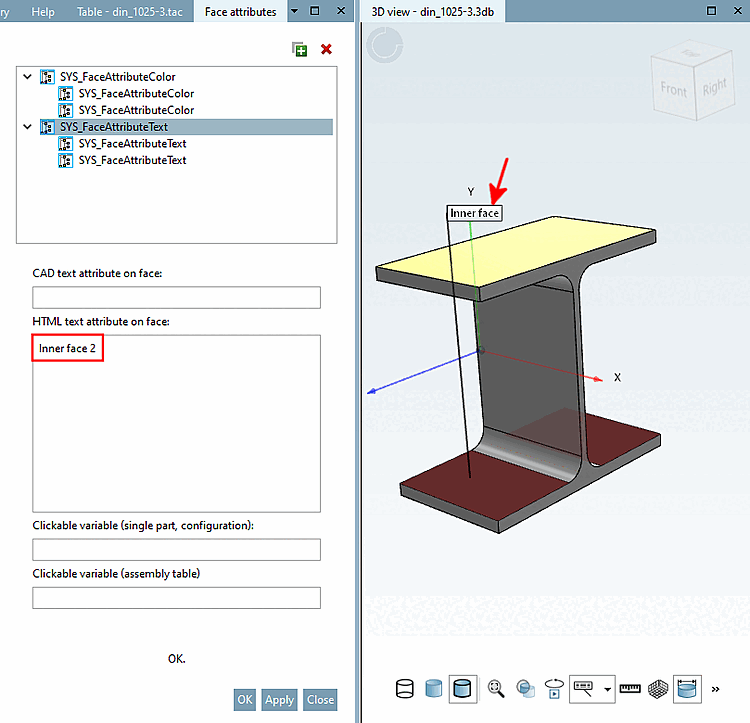
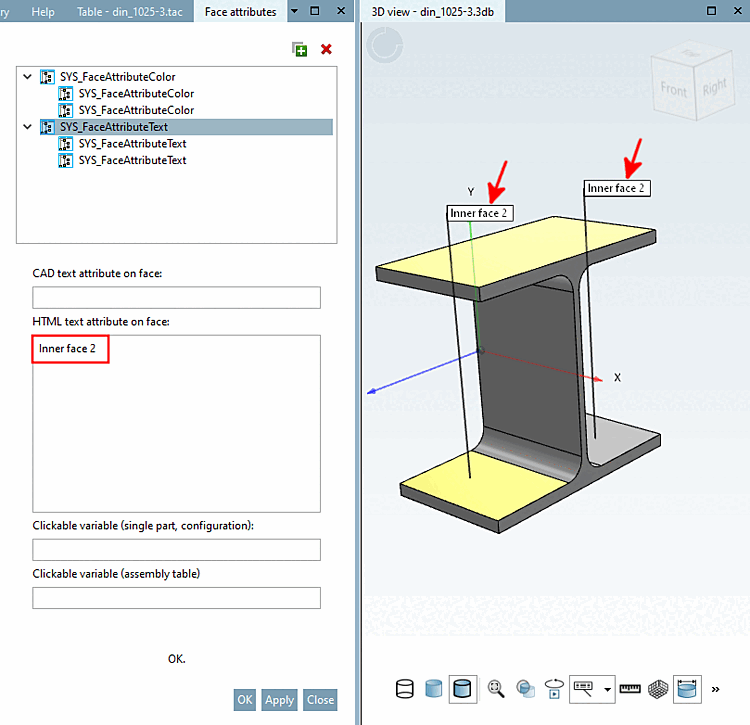
Selezionare l'elemento genitore testo e inserire il testo modificato nell' area dell'attributo testo HTML [HTML text attribute on face].
-> Tutte le aree selezionate ricevono il nuovo valore (anche se solo un'area conteneva precedentemente un attributo di testo). Se si desidera modificare l'attributo di testo solo di un'area specifica, è meglio selezionare solo questa area.