
 |
The catalog translation gets a valuable new feature with V9.03.
Use several online translation services directly out of PARTproject or export the source language via CSV file, in order to make it available for external translators. These import the data into PARTcatalogTranslator [90]. There also without eCATALOGsolutions the same functionality is available. Finally the file is exported out of PARTcatalogTranslator and at the catalog manufacturer imports again into eCATALOGsolutions.
PARTcatalogTranslator can also be used in V8.1 projects, because it is independent via CSV interface.
The following online translation services are already preconfigured:
Google Translator / http://translate.google.com
Microsoft Translator / http://www.microsofttranslator.com
Podge - online dictionary / http://www.podge.de
LEO online dictionary / http://www.leo.org
Beolingus translator / http://dict.tu-chemnitz.de
IATE - EU's multilingual term base / http://iate.europa.eu
Linguee web dictionary / http://www.linguee.de
More than 50 translation languages and many language combinations are available. It is easy to overtake the suggestions and possible to modify before.
More than 50 translation languages and many language combinations are available. It is easy to overtake the suggestions and possible to modify before. Furthermore typing errors are avoided.
In the following you can find a short description:
Select the desired online translation service in the list field under Translator.
Select the table cell to translate or use the buttons for the navigation.
For the translation services "Microsoft Translator" and "Google Translator" the results are displayed on the Translation suggestions tab page.
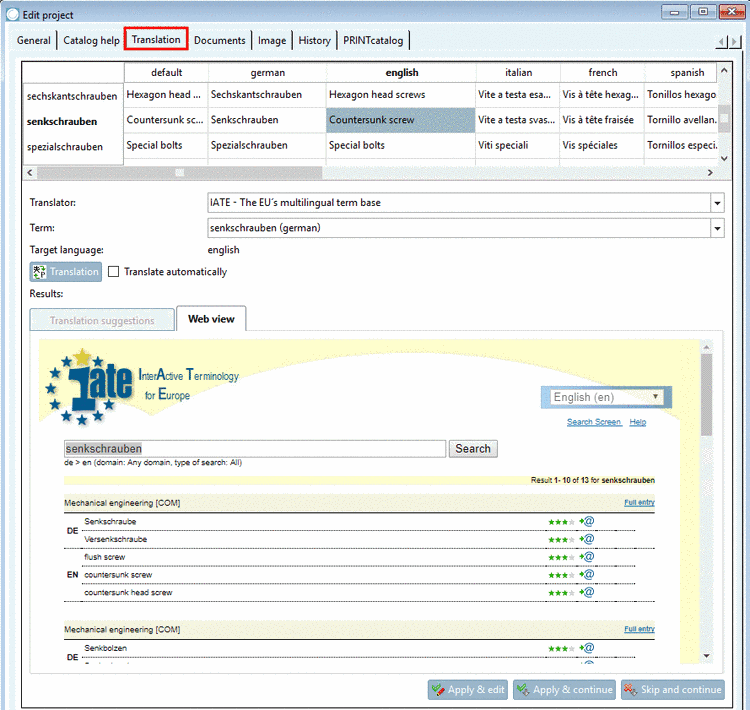
For the translation services Podge, LeoOrg, Beolingus, IATE and Linguee the results are displayed on the Web view tab page.

In the list field under Term you can determine the desired source language.

Mark the desired translation suggestion and overtake it with one of the buttons.
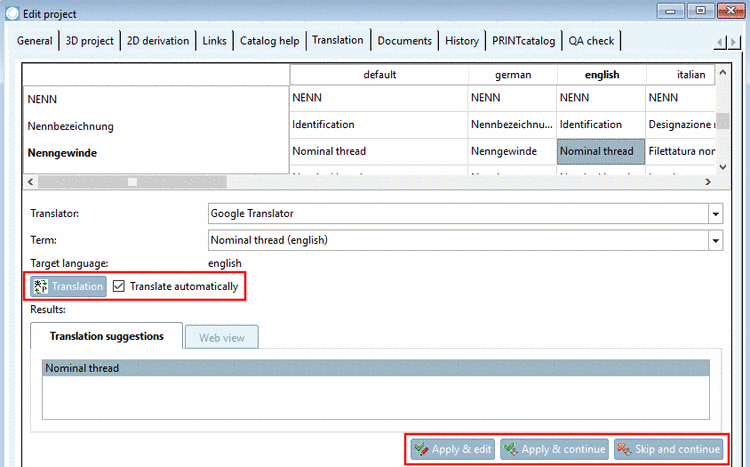


You can find detailed information under Section 5.8.2.1.13, “ Translation ” in eCATALOGsolutions Manual.