
1.5.4.
Amministrare il server delle licenze
1.5.4.2.
Configurare il server delle licenze appena installato
|  |
| Indietro | Avanti |
Il flusso di lavoro per la creazione di una rete (cluster) di 2 o 3 server [1 master e 1 o 2 backup] è il seguente:
Prerequisito: Tutti
I server delle licenze necessari vengono installati senza licenze.
Vedere Capitolo 7, Server licenze
in Installazione. Mettere
Se necessario, assicurati che sotto C:\ProgramData\PARTsolutions
Licenseserver in una directory di configurazione del sito possibilmente esistente
Nessuna voce. In nessun caso copiare manualmente i file di licenza
in! Il file di licenza deve essere creato tramite l'interfaccia utente
può essere registrato.
Aprire l'amministrazione del server di licenze da qualsiasi client facendo clic sul pulsante Avvia amministrazione server di licenze [Start license server management...]....
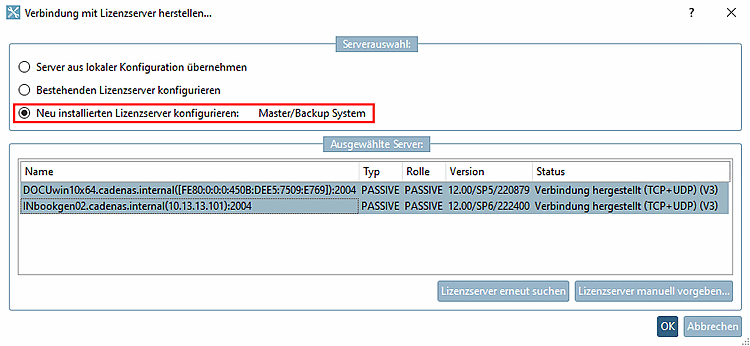
-> Si apre la finestra di dialogo Stabilire la connessione con il server FLM [Connect to FLM server...]....
Selezionare l'opzione Configura il server delle licenze appena installato [Configure newly installed license servers].
-> Vengono visualizzati tutti i server di licenza trovati.
Con un solo clic selezionare i server con cui si desidera creare una rete di server e confermare con .
I server di licenza selezionati vengono visualizzati nell'area di dialogo Server collegati [Connected servers] (tipo e ruolo sono ancora impostati su PASSIVO).
Se non avete ancora ricevuto la vostra licenza, potete richiederla online nella [Request licenses online] scheda Richiesta di licenze [Request licenses online].
Con Fare clic su puoi salvare un
*.json-Datei(file di testo), che contiene anche gli indirizzi di rete (hostid).Fare clic sul pulsante per salvare la configurazione della rete di server. (È possibile disconnettersi dalla rete server con . -> L'area di visualizzazione è di nuovo vuota).
Per importare la licenza ricevuta, ricollegarsi al cluster creato.
-> Si riapre la finestra di dialogo Stabilire la connessione con il server FLM [Connect to FLM server...]....
Questa volta, selezionare l'opzione Configura server di licenze esistente [Configure existing license server].
Selezionare la pagina della scheda Licenze [Licenses] e fare clic su Aggiungi file.... [Add file...] Selezionare il file di licenza richiesto nella finestra di Explorer.
-> La licenza viene visualizzata nel dialogo.
Passare alla pagina della scheda Sicurezza [Security].
È necessario assegnare una password. A tale scopo, attivare l'opzione Abilita protezione con password [Activate server password]. (La password può essere assegnata anche durante la lettura degli hostid).
Inserire una password e confermarla cliccando su .
-> La visualizzazione sotto Tipo [Type] / Ruolo [Role] cambia in MASTER / BACKUP.
Infine, è necessario inserire la password assegnata.
Passare alla pagina della scheda Licenze [Licenses].
Se tutto è verde, il funzionamento può iniziare.




![[Nota]](https://webapi.partcommunity.com/service/help/latest/pages/it/installation_ecatalogsolutions/doc/images/note.png)


