
1.7.7.2.2. Ottimizzare l'interfaccia utente di PARTdataManager 1.7.7.2.2.2. menuvisibility_PARTdataManager.cfg |  |
| Indietro | Avanti |
Il file di configurazione"menuvisibilty" controlla la visibilità delle voci di menu, dei pulsanti e dei comandi del menu contestuale.
È possibile creare diverse modalità. Ogni modalità contiene una gamma specifica di azioni = elementi dell'interfaccia utente.
La dotazione standard prevede due livelli:
Specifiche delle diverse modalità
Le varie modalità sono definite nel blocco [COMMON].
Le modalità predefinite sono Principiante [Beginner] e Professionista.[46]
[COMMON]
MODE_BEGINNER=Beginner
MODE_PROFESSIONAL=Professional
Ogni modalità dichiarata nel blocco [Common] (nome della chiave) richiede un blocco con lo stesso nome, che contiene le azioni desiderate.
[MODE_BEGINNER]
ViewPart=true
View2D=true
ExtrasPARTbom=true
etc.

[MODE_PROFESSIONAL]
ViewPart=true
View2D=true
ExtrasPARTbom=true
etc.
Queste spiegazioni utilizzano il nome della chiave e il nome dell'azione come sinonimi.
L'intervallo di valori delle chiavi è vero(elemento visibile) o falso (elemento nascosto).
La modalità desiderata viene selezionata in PARTdataManager nel menu Extra [Extras] -> Seleziona modalità [Select mode]. La modalità predefinita è definita in $CADENAS_DEFAULTUSER/partsolu.cfg -> Blocco [TWEAKMENU] -> Chiave "PARTdataManager_Mode" o "PARTproject_Mode". Se la chiave ModePreferences è impostata su true nel blocco corrispondente, viene visualizzata la voce di menu corrispondente.
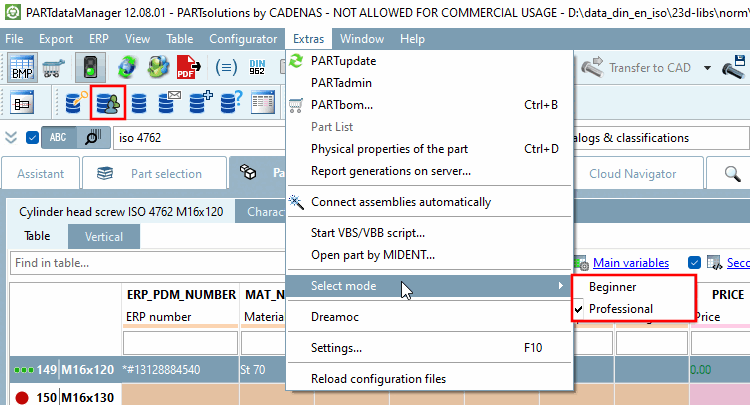
Se si seleziona la modalità Principiante [Beginner], si vedrà un numero minore di funzioni (voci di menu, pulsanti, comandi del menu contestuale) nell'interfaccia utente.
La modalità selezionata è contrassegnata da un segno di spunta.
Se è disponibile un'integrazione ERP, la selezione degli elementi dell'interfaccia utente può dipendere (anche) dal ruolo.
Per evitare impostazioni ridondanti, gli elementi vengono dichiarati in due fasi.
In primo luogo, vengono assegnati tutti i tipi di ruolo richiesti.
[ROLES]
DUMMY=TYP_A
LOC1=TYP_B
LOC2=TYP_A
LOC3=TYP_A
etc.
In una seconda fase, le azioni desiderate(elementi) vengono dichiarate nel blocco [TYP_] corrispondente.
[TYP_A]
MODE_BEGINNER=false
MODE_PROFESSIONAL=false
Bugreport_Clicked=true
din962=true
ShowHideAvoidPartsButton=true
prefcatalogs=true
StartupPageClicked=true
List view of parameters=true
Table view of parameters=true
etc.
[TYP_B]
MODE_BEGINNER=false
MODE_PROFESSIONAL=false
Bugreport_Clicked=true
din962=true
ShowHideAvoidPartsButton=true
prefcatalogs=true
StartupPageClicked=true
List view of parameters=true
Table view of parameters=true
etc.
Se ci sono informazioni in due blocchi diversi e validi, le informazioni vengono unite.
![[Nota]](https://webapi.partcommunity.com/service/help/latest/pages/it/installation_ecatalogsolutions/doc/images/note.png) | Nota |
|---|---|
Per impostazione predefinita, l'opzione Modalità di selezione [Select mode] è disponibile solo in PARTdataManager. | |
![[Suggerimento]](https://webapi.partcommunity.com/service/help/latest/pages/it/installation_ecatalogsolutions/doc/images/tip.png) | Suggerimento |
|---|---|
Scorrete la sezione e date un'occhiata alle illustrazioni. A ogni illustrazione sono associati i nomi delle azioni corrispondenti. Leggete anche le informazioni generali sull'uso dell'Editor di configurazione alla voce Interfaccia utente in sintesi e Ricerca a tutto testo. | |
Di seguito sono riportate tutte le illustrazioni dei menu e delle barre degli strumenti con le singole voci di menu e i pulsanti. I nomi delle azioni corrispondenti (nomi dei tasti) sono associati alle relative illustrazioni.
Di seguito è riportato un elenco delle singole funzioni con il nome dell'azione (nome del tasto):
Icona Visualizzazione del testo o del tooltip Action-Name (nome chiave) in menuvisibility_PARTdataManager.cfgPresenza nel menu e nella barra degli strumenti
(Specifica corrispondente all'indirizzo
menustructure_PARTdataManager.cfg)Aperto [Open] Contenuto del menu file Salva modello con nome [Save template as...]... Contenuto del menu file vedere hasSubMenuAction
[hasSubMenuAktions] AktionRecentFilesListName=
 RecentFile_Menu1,
RecentFile_Menu2
RecentFile_Menu1,
RecentFile_Menu2FileMenuContent e actionRecentFilesListName Uscita [Exit] Contenuto del menu file La struttura viene creata nel file di configurazione menustructure_PARTdataManager.cfg.
Menu e barra degli strumenti di esportazione [Export]
Di seguito è riportato un elenco delle singole funzioni con il nome dell'azione (nome del tasto):
Icona Visualizzazione del testo o del tooltip Action-Name (nome chiave) in menuvisibility_PARTdataManager.cfgPresenza nel menu e nella barra degli strumenti
(Specifica corrispondente all'indirizzo
menustructure_PARTdataManager.cfg)Trasferimento al CAD [Export to CAD] (voce di menu principale)
Esportazione del contenuto del menu Trasferimento al CAD [Export to CAD] (voce di sottomenu) Esportazione del contenuto del menu e esportazione del contenuto della barra degli strumenti Non trasferire al CAD [Do not transfer to CAD] (voce di sottomenu)
Non utilizzato Esportazione su file [Export in file]
Nota La visualizzazione dei pulsanti della barra degli strumenti e delle voci di menu dipende dalla licenza e non è controllata dalle impostazioni di "Tweak".
Esportazione del contenuto della barra degli strumenti e Esportazione del contenuto del menu attualmente non utilizzato Come file nativo [As native file] Esportazione del contenuto del menu Esportazione del contenuto del menu EsportazioneFileMenuStatico Esportazione del contenuto del menu La struttura è disposta nel File di configurazione
menustructure_PARTdataManager.cfg. Per il menu vedi qui, Per la barra degli strumenti vedere qui.Menu e barra degli strumenti ERP
Di seguito è riportato un elenco delle singole funzioni con il nome dell'azione (nome del tasto):
Icona Visualizzazione del testo o del tooltip Action-Name (nome chiave) in menuvisibility_PARTdataManager.cfgPresenza nel menu e nella barra degli strumenti
(Specifica corrispondente all'indirizzo
menustructure_PARTdataManager.cfg)LinkDbLogin LinkDatabaseToolbarContent e ErpMenuContent Gruppo LinkDbChange LinkDatabaseToolbarContent e ErpMenuContent CallLinkMgr LinkDatabaseToolbarContent e ErpMenuContent LinkDbBackToMgr LinkDatabaseToolbarContent e ErpMenuContent LinkDbCancelBackToMgr LinkDatabaseToolbarContent e ErpMenuContent Richiedere un numero ERP via e-mail [Request ERP number per e-mail]
LinkDbInviaMail LinkDatabaseToolbarContent e ErpMenuContent Aggiungere un record di dati al database dei collegamenti [Add dataset to link database]
LinkDbAddToDb LinkDatabaseToolbarContent e ErpMenuContent LinkDbShowLegend LinkDatabaseToolbarContent e ErpMenuContent Visualizzazione dell'albero filtrata [Display filtered tree]
LinkDbFilteronoff LinkDatabaseToolbarContent e ErpMenuContent Campi preferiti LinkDatabaseToolbarContent e ErpMenuContent CollegamentoDbClassifica LinkDatabaseToolbarContent e ErpMenuContent Nota La visualizzazione dei seguenti pulsanti dipende non solo dalle impostazioni di "Tweak", ma anche da altre impostazioni.
Vedere Sezione 5.8, “Barra degli strumenti e menu ERP (PARTdataManager) ” e Sezione 5.22.1, “ Caricare script ERP aggiuntivi - erpcustom.cfg -> Blocco [LOAD] ” e Sezione 5.27.8.2.7.2, “Determinare esplicitamente l'ordine delle varianti nella tabella PARTdataManager ”.
Di seguito è riportato un elenco delle singole funzioni con il nome dell'azione (nome del tasto):
Icona Visualizzazione del testo o del tooltip Action-Name (nome chiave) in menuvisibility_PARTdataManager.cfgPresenza nel menu e nella barra degli strumenti
(Specifica corrispondente all'indirizzo
menustructure_PARTdataManager.cfg)Aggiungere un record di dati al database dei collegamenti (variante) [Add dataset to link database (variant)]
erp_psol_mm_vars LinkDatabaseToolbarContent e ErpMenuContent Impostare l'ordine di ordinamento per il progetto attualmente aperto [Set the sorting order for currently opened project] SORTTABILE LinkDatabaseToolbarContent e ErpMenuContent Modifica/cancellazione del record di dati [Edit/delete dataset]
erp_dbedit LinkDatabaseToolbarContent e ErpMenuContent Mostra i dati del database per questa parte [show database-data for this part]
mostra_dbdati LinkDatabaseToolbarContent e ErpMenuContent La struttura è disposta nel File di configurazione
menustructure_PARTdataManager.cfg:Menu: Vedi Sezione 1.7.7.2.2.1.1.1, “Menu”
Barra degli strumenti: vedere Sezione 1.7.7.2.2.1.1.2, “Barre degli strumenti”
Nota La visualizzazione dei pulsanti non dipende solo dalle impostazioni di "Tweak", ma anche da altre impostazioni.
Vedere Sezione 5.8, “Barra degli strumenti e menu ERP (PARTdataManager) ” e Sezione 5.22.1, “ Caricare script ERP aggiuntivi - erpcustom.cfg -> Blocco [LOAD] ”.
Di seguito è riportato un elenco delle singole funzioni con il nome dell'azione (nome del tasto):
Icona Visualizzazione del testo o del tooltip Action-Name (nome chiave) in menuvisibility_PARTdataManager.cfgPresenza nel menu e nella barra degli strumenti
(Specifica corrispondente all'indirizzo
menustructure_PARTdataManager.cfg)Sistema SAP MM sap o erp_sap_showdis LinkDatabaseToolbarContent o AddSapToolbarContent Cambiare il materiale Pulsante ChangeMat LinkDatabaseToolbarContent Mostra il materiale Pulsante DisplayMat LinkDatabaseToolbarContent Ricerca di materiale Pulsante CercaMat LinkDatabaseToolbarContent La struttura è disposta nel File di configurazione
menustructure_PARTdataManager.cfg. Vedere LinkDatabaseToolbarContent o AddSapToolbarContent.Menu Visualizza [View] / Barra degli strumenti delle viste [Views] / Barra degli strumenti di assemblaggio [Assembly] / Barra degli strumenti standard [Default]
Di seguito è riportato un elenco delle singole funzioni con il nome dell'azione (nome del tasto):
Costruire automaticamente gli assiemi [Connect assemblies automatically]
Ricalcolo automatico on/off [Automatic recalc on/off] Mostra i punti di connessione attivi [Show active connection points]
Mostra/nascondi le opzioni per DIN962 [Display / hide options for DIN 962 standards] Mostra/nascondi le parti da evitare [Show/hide parts that should be avoided] Pulsante MostraNascondiEvitaParti
Azione attualmente non efficace.
Il controllo funzionale avviene in partsol.cfg -> Blocco [EOLService].
Cataloghi dei desideri [Vote for catalogs] Primi passi [First steps] Portale utenti PARTsolutions [PARTsolutions User Portal] Scheda tecnica PDF Interrompere la visualizzazione del catalogo [Stop catalog view]
"Fine vita" per le linee Contenitore di stoccaggio [storage area] La struttura è disposta nel File di configurazione
menustructure_PARTdataManager.cfg. Vedi le viste Barra degli strumenti / Vista Menu / Extra Menu / Montaggio Barra degli strumenti / Standard Barra degli strumenti.Di seguito è riportato un elenco delle singole funzioni con il nome dell'azione (nome del tasto):
La struttura è disposta nel Il file di configurazione
menustructure_PARTdataManager.cfg. Vedi Sezione 1.7.7.2.2.1, “menustructure_PARTdataManager.cfg”.Menu Configuratore [Configurator]
Di seguito è riportato un elenco delle singole funzioni con il nome dell'azione (nome del tasto):
La struttura è disposta nel Il file di configurazione
menustructure_PARTdataManager.cfg. Vedi Sezione 1.7.7.2.2.1, “menustructure_PARTdataManager.cfg”.Di seguito è riportato un elenco delle singole funzioni con il nome dell'azione (nome del tasto):
Icona Visualizzazione del testo o del tooltip Action-Name (nome chiave) in menuvisibility_PARTdataManager.cfgPresenza nel menu e nella barra degli strumenti
(Specifica corrispondente all'indirizzo
menustructure_PARTdataManager.cfg)Aggiornamento della PARTE PARTITA PARTBOM... Elenco delle parti [Bill of material] attualmente non utilizzato ExtraPARTbomSelezionato Proprietà fisiche del componente [Physical properties of the part] Acquisto [Purchineering] Per controllare le sottovoci, vedere sotto.
ExtrasMenuContent (Menu Extras)
IndexTreePopupMenuContent (menu contestuale)
Rapporto duplicato [Duplicates Report] Vedere di seguito per il controllo delle sottovoci.
ExtrasMenuContent (Menu Extras)
IndexTreePopupMenuContent (menu contestuale)
Rapporto sui pezzi grezzi/finiti [Unmachined / Finished part report] Vedere di seguito per il controllo delle sottovoci.
ExtrasMenuContent (Menu Extras)
IndexTreePopupMenuContent (menu contestuale)
Generazione di report sul server [Report generations on server...]... Elenco dei lavori del server 
Occhiali da soleExport Costruire automaticamente gli assiemi [Connect assemblies automatically] Avviare lo script VBS/VBB [Start VBS/VBB script...]... Aprire la parte tramite MIDENT [Open part by MIDENT] Seleziona la moda [Select mode] ModalitàPreferenze Impostazioni.. [Settings...]. La struttura è disposta nel File di configurazione
menustructure_PARTdataManager.cfg.Sottomenu di Purchineering , Duplicate Report [Duplicates Report] e Raw / Finished Parts Report [Unmachined / Finished part report]
Il blocco [hasSubMenuActions] viene utilizzato per creare sottomenu.
Sottomenù di Acquisto [Purchineering]:
Le voci secondarie della voce di menu Acquisti [Purchineering] vengono visualizzate nella finestra di dialogo
menustructure_PARTdataManager.cfgfile di configurazione nel blocco[hasSubMenuAktions]. Vedi Sezione 1.7.7.2.2.1.2, “ Blocco [hasSubMenuActions] ”.Icona Visualizzazione del testo o del tooltip Action-Name (nome chiave) in menuvisibility_PARTdataManager.cfgPresenza nel menu e nella barra degli strumenti
(Corrispondente Specifiche di cui al
menustructure_PARTdataManager.cfg)
Rapporto di acquisto o di vendita [Make-or-Buy Report] -> Crea rapporto [Create report...]...
vedere [hasSubMenuActions ]. 
Trova fornitori [Find suppliers] -> Crea rapporto [Create report...]... vedere [hasSubMenuActions ]. 
Cost Mockup [Cost mockup] -> Crea rapporto [Create report...]... vedere [hasSubMenuActions ]. 
Sedi dei fornitori [Supplier branches] -> Crea rapporto [Create report...]... vedere [hasSubMenuActions ]. 
Rapporto Kanban [Kanban Report] -> Crea rapporto [Create report...]... vedere [hasSubMenuActions ]. Icona Visualizzazione del testo o del tooltip Action-Name (nome chiave) in menuvisibility_PARTdataManager.cfgPresenza nel menu e nella barra degli strumenti
(Corrispondente Specifiche di cui al
menustructure_PARTdataManager.cfg)
Rapporto di acquisto o di vendita [Make-or-Buy Report] -> Gestione dei rapporti [Report management...]...
vedere [hasSubMenuActions ].
Trova i fornitori [Find suppliers] -> Gestione dei rapporti [Report management...]... vedere [hasSubMenuActions ].
Cost Mockup [Cost mockup] -> Gestione dei rapporti [Report management...]... vedere [hasSubMenuActions ].
Sedi dei fornitori [Supplier branches] -> Gestione dei rapporti [Report management...]... vedere [hasSubMenuActions ].
Rapporto Kanban [Kanban Report] -> Gestione dei rapporti [Report management...]... vedere [hasSubMenuActions ]. Figura 1.704. Sottomenu di "Crea rapporto [Create report...]..." e "Gestione rapporto [Report management...]...".
Sottomenu del rapporto sui duplicati [Duplicates Report]
Le voci secondarie della voce di menu Rapporto duplicato [Duplicates Report] vengono visualizzate nella finestra
menustructure_PARTdataManager.cfgfile di configurazione nel blocco[hasSubMenuAktions]. Vedi Sezione 1.7.7.2.2.1.2, “ Blocco [hasSubMenuActions] ”.Icona Visualizzazione del testo o del tooltip Action-Name (nome chiave) in menuvisibility_PARTdataManager.cfgPresenza nel menu e nella barra degli strumenti
(Specifiche corrispondenti sotto
menustructure_PARTdataManager.cfg)Duplica rapporto [Duplicates Report] -> Crea rapporto [Create report...]...
vedere [hasSubMenuActions ]. Rapporto duplicato [Duplicates Report] -> Gestione rapporti [Report management...]...
vedere [hasSubMenuActions ]. Sottomenu del rapporto sui pezzi grezzi / finiti [Unmachined / Finished part report]
Le voci secondarie della voce di menu Report pezzi grezzi / finiti vengono visualizzate [Unmachined / Finished part report] in il file di configurazione
menustructure_PARTdataManager.cfgnel blocco[hasSubMenuAktions]. Vedi Sezione 1.7.7.2.2.1.2, “ Blocco [hasSubMenuActions] ”.Icona Visualizzazione del testo o del tooltip Action-Name (nome chiave) in menuvisibility_PARTdataManager.cfgPresenza nel menu e nella barra degli strumenti
(Specifiche corrispondenti sotto
menustructure_PARTdataManager.cfg)
Rapporto parti finite [Finished part report] -> Crea rapporto [Create report...]...
vedere [hasSubMenuActions ]. 
Rapporto sulle parti grezze [Unmachined part report] -> Crea rapporto [Create report...]...
vedere [hasSubMenuActions ]. Icona Visualizzazione del testo o del tooltip Action-Name (nome chiave) in menuvisibility_PARTdataManager.cfgPresenza nel menu e nella barra degli strumenti
(Specifiche corrispondenti sotto
menustructure_PARTdataManager.cfg)
Rapporto sulle parti finite [Finished part report] -> Gestione dei rapporti [Report management...]...
vedere [hasSubMenuActions ].
Rapporto sulle parti grezze [Unmachined part report] -> Gestione dei rapporti [Report management...]...
vedere [hasSubMenuActions ].
Dettagli della [Details] barra degli strumenti
Di seguito è riportata la funzione con il nome dell'azione (nome della chiave):
La struttura viene creata nel file di configurazione menustructure_PARTdataManager.cfg.
Di seguito è riportato un elenco delle singole funzioni con il nome dell'azione (nome del tasto):
Icona Visualizzazione del testo o del tooltip Action-Name (nome chiave) in menuvisibility_PARTdataManager.cfgPresenza nel menu e nella barra degli strumenti
(Specifica corrispondente all'indirizzo
menustructure_PARTdataManager.cfg)Gestire le viste [Manage views] LayoutContenuto del menu Ripristino dello standard [Recover standard] LayoutContenuto del menu La struttura viene creata nel file di configurazione menustructure_PARTdataManager.cfg.
Di seguito è riportato un elenco delle singole funzioni con il nome dell'azione (nome del tasto):
Icona Visualizzazione del testo o del tooltip Action-Name (nome chiave) in menuvisibility_PARTdataManager.cfgPresenza nel menu e nella barra degli strumenti
(Specifica corrispondente all'indirizzo
menustructure_PARTdataManager.cfg)Aiuto [Help] Aiuto contestuale. [Context help...].. Informazioni sul programma e copyright [Program information and copyrights] Licenze [Licenses] Informazioni sulle parti [Part information] Informazioni sul sistema/Assistenza [System info/Support] La struttura è disposta nel File di configurazione
menustructure_PARTdataManager.cfg.Barra degli strumenti di classificazione [Classification]
Di seguito è riportato un elenco delle singole funzioni con il nome dell'azione (nome del tasto):
Icona Visualizzazione del testo o del tooltip Action-Name (nome chiave) in menuvisibility_PARTdataManager.cfgPresenza nel menu e nella barra degli strumenti
(Specifica corrispondente all'indirizzo
menustructure_PARTdataManager.cfg)ct_add_class Barra degli strumenti di classificazioneContenuto Eliminare la classe [Remove class] ct_delete_class Barra degli strumenti di classificazioneContenuto ct_edit_class Barra degli strumenti di classificazioneContenuto ct_move_class Barra degli strumenti di classificazioneContenuto ct_add_datasets Barra degli strumenti di classificazioneContenuto ct_delete_datasets Barra degli strumenti di classificazioneContenuto ct_edit_dataset Barra degli strumenti di classificazioneContenuto ct_move_datasets Barra degli strumenti di classificazioneContenuto ct_copy_dataset Barra degli strumenti di classificazioneContenuto ct_edit_views Barra degli strumenti di classificazioneContenuto Modifica del progetto nell'esecuzione batch [Edit project in batch mode]
ct_batch_update Barra degli strumenti di classificazioneContenuto Assegnazione dei pezzi mediante ricerca geometrica [Assign parts per geometrical search...]...
ct_move_geomsearch Barra degli strumenti di classificazioneContenuto ct_update_tool Barra degli strumenti di classificazioneContenuto ct_create_classification Barra degli strumenti di classificazioneContenuto La struttura viene creata nel file di configurazione menustructure_PARTdataManager.cfg.
!["Menu "File [File]](https://webapi.partcommunity.com/service/help/latest/pages/it/installation_ecatalogsolutions/doc/resources/img/img_bbc25d2ce1d749b0874a4b586b86d7eb.png)


!["Menu "Esportazione [Export]](https://webapi.partcommunity.com/service/help/latest/pages/it/installation_ecatalogsolutions/doc/resources/img/img_94f39ccbae6c4ebcb8664bf67940e8ba.png)
![Barra degli strumenti "Esportazione [Export]": "Trasferimento in CAD [Export to CAD]" con sottovoci](https://webapi.partcommunity.com/service/help/latest/pages/it/installation_ecatalogsolutions/doc/resources/img/img_f9b2d9d95aba427789be51bbaebb668e.png)
![Barra degli strumenti "Esportazione [Export]": "Esportazione su file [Export in file]" con sottovoci](https://webapi.partcommunity.com/service/help/latest/pages/it/installation_ecatalogsolutions/doc/resources/img/img_c6340a743a5248a7995a08312ff4df44.png)


![Visualizza [View] il menu](https://webapi.partcommunity.com/service/help/latest/pages/it/installation_ecatalogsolutions/doc/resources/img/img_56c57e50890d4e76834eb7dd50e385a3.png)
![Barra degli strumenti delle viste [Views]](https://webapi.partcommunity.com/service/help/latest/pages/it/installation_ecatalogsolutions/doc/resources/img/img_7750d5c30bff4f1683be73ad766a68e8.png)
![Barra degli strumenti di assemblaggio [Assembly]](https://webapi.partcommunity.com/service/help/latest/pages/it/installation_ecatalogsolutions/doc/resources/img/img_31806c86e3c344b988fb404f59303598.png)
![Barra degli strumenti standard [Default]](https://webapi.partcommunity.com/service/help/latest/pages/it/installation_ecatalogsolutions/doc/resources/img/img_209d1de7474e4b5ebe68d2e453e82f16.png)


![Tabella [Table] dei menu](https://webapi.partcommunity.com/service/help/latest/pages/it/installation_ecatalogsolutions/doc/resources/img/img_48c6fecddfc944dba4352ded0bed9e7c.png)

![Menu Configuratore [Configurator]](https://webapi.partcommunity.com/service/help/latest/pages/it/installation_ecatalogsolutions/doc/resources/img/img_79a6939ad57542819121a7019b42f5f2.png)
![Menu Extra [Extras]](https://webapi.partcommunity.com/service/help/latest/pages/it/installation_ecatalogsolutions/doc/resources/img/img_7aee4528eec944028ca8ce628cb8822a.png)


![Sottomenu di "Crea rapporto [Create report...]..." e "Gestione rapporto [Report management...]...".](https://webapi.partcommunity.com/service/help/latest/pages/it/installation_ecatalogsolutions/doc/resources/img/img_a3e51d40383a4420a782cfc4b97d8ed8.png)


![Dettagli della [Details] barra degli strumenti](https://webapi.partcommunity.com/service/help/latest/pages/it/installation_ecatalogsolutions/doc/resources/img/img_8ab303ab89014dc6b2928ad9308993c3.png)


![Menu Finestra [Window]](https://webapi.partcommunity.com/service/help/latest/pages/it/installation_ecatalogsolutions/doc/resources/img/img_ac4c84e023d64e3ea2115ec1ef83b86f.png)
![Menu Aiuto [Help]](https://webapi.partcommunity.com/service/help/latest/pages/it/installation_ecatalogsolutions/doc/resources/img/img_bc889dbefc314d51a374469464b6d6b1.png)
![Menu Aiuto [Help]](https://webapi.partcommunity.com/service/help/latest/pages/it/installation_ecatalogsolutions/doc/resources/img/img_e43980555a724a4fba953af31998608d.png)

![Barra degli strumenti di classificazione [Classification]](https://webapi.partcommunity.com/service/help/latest/pages/it/installation_ecatalogsolutions/doc/resources/img/img_b0cff702d5844715afeea81879241e90.png)


Modalità di visualizzazione [View modes] della barra degli strumenti
Ingrandire la vista a una sezione rettangolare [Zoom view on rectangular clipping]
![Barra degli strumenti "Modalità di visualizzazione [View modes]"](https://webapi.partcommunity.com/service/help/latest/pages/it/installation_ecatalogsolutions/doc/resources/img/img_a23ff6d4fe72443591a6006dd6835b10.png)


In questa sezione si trovano i nomi delle azioni di PARTdataManager per i comandi del menu contestuale.
| Nota |
|---|---|
Tutti i nomi delle azioni dei comandi del menu contestuale iniziano con la stringa"IndexTree". Il layout strutturale di tutti i
I comandi del menu contestuale vengono eseguiti in La visibilità dei comandi (voce di menu,
, comando del menu contestuale) nel file di configurazione
| |
| Suggerimento |
|---|---|
Scorrete la sezione e osservate le illustrazioni. In relazione a ciascuna illustrazione, troverete i comandi del menu contestuale associati e quindi il nome dell'azione corrispondente. Leggete anche le informazioni generali sull'uso dell'Editor di configurazione alla voce Interfaccia utente in sintesi e Ricerca a tutto testo. | |
Azioni generali in contesti diversi:
Icona Visualizzazione del testo o del tooltip Action-Name (nome chiave) in menuvisibility_PARTdataManager.cfgNote di rilascio... [Release Notes...] (a livello di catalogo)

Copia [Copy] (a livello di progetto) IndiceCopiaPrj
Copia [Copy] (a livello di directory) IndexTreeCopyDir Aggiungi ai preferiti [Add to favorites ...]... Creare una directory [Create Directory] (sulla directory principale "Catalogo")
Trasferimento al CAD [Export to CAD] (sui risultati della ricerca a livello di riga)
Esportazione dei preferiti [Export favorites] IndiceAlberoEsportazioneAlbero Rimuovere il progetto dai preferiti [Remove project from favorites] ) IndiceAlberoRimuoviFav Rimuovere la directory dai preferiti [Remove directory from favorites]
Comandiaggiuntivi del menu contestuale Preferiti [Favorites]
Icona Visualizzazione del testo o del tooltip Action-Name (nome chiave) in menuvisibility_PARTdataManager.cfgInserisci [Insert] ( [Favorites] pagina della scheda Preferiti [Favorites] o Analisi [Analyses] ) IndiceIncollare Creare una nuova directory [Create new directory] ( [Favorites] pagina della scheda Preferiti [Favorites] o Analisi [Analyses] ) Esportazione dei preferiti [Export favorites] IndiceAlberoEsportazioneAlbero Rimuovere il progetto dai preferiti [Remove project from favorites] ) IndiceAlberoRimuoviFav Rimuovere la directory dai preferiti [Remove directory from favorites]
Rimuovere la directory dall'indice di ricerca [Remove directory from search index] (preferiti [Favorites] o analisi [Analyses] ) IndexTreeRemoveDir Ricerca nella directory [Search in directory]:
Comandi aggiuntivi del menu contestuale a livello di progetto: /Confronto [Part comparison] tra /Confronto [Part comparison]:
Icona Visualizzazione del testo o del tooltip Action-Name (nome chiave) in menuvisibility_PARTdataManager.cfgConfronto tra i componenti [Part comparison] Menu di confronto degli alberi degli indici Confronto tra componenti [Part comparison] -> Carico come 1° componente [Load as first part] IndexTreeSetComparePrj Confronto tra componenti [Part comparison] -> Carica come secondo progetto [Load as second project] IndexTreeSetCompareRef Confronto tra componenti [Part comparison] -> Aggiungi componente [Add part] Icona Visualizzazione del testo o del tooltip Action-Name (nome chiave) in menuvisibility_PARTdataManager.cfgRicerca geometrica di questa parte [Geometrical search for this part] IndiceRicercaPerPrj Ricerca parziale di questa parte [Partial search for this part] Ricerca di schizzi con schizzi di questa parte [Sketch search for this part] IndexTreeSearchForSketchFromPrj Sottovoci di @ Classificazioni [Classifications]:
Icona Visualizzazione del testo o del tooltip Action-Name (nome chiave) in menuvisibility_PARTdataManager.cfgUtilizzare la vista come immagine di classificazione [Use view as classification picture] (nel menu Classificazioni [Classifications] )
Figura 1.717. Utilizzare la vista come immagine di classificazione [Use view as classification picture]
Icona Visualizzazione del testo o del tooltip Action-Name (nome chiave) in menuvisibility_PARTdataManager.cfgCopia %1 negli appunti [Copy %1 to clipboard] (vista Dettagli )
Menu contestualedella scansione dei documenti [Document scan]:
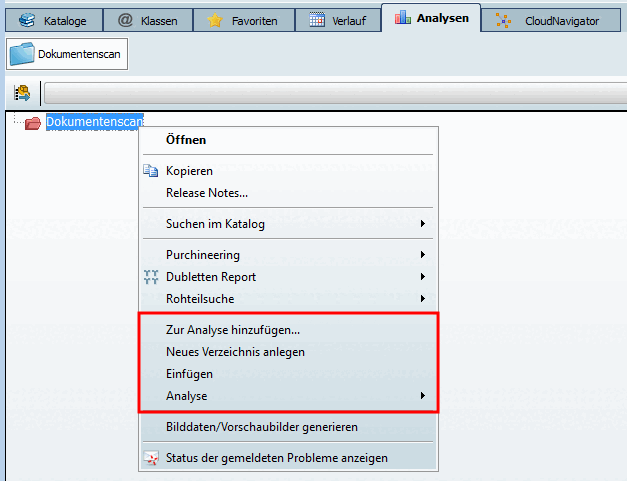
Icona Visualizzazione del testo o del tooltip Action-Name (nome chiave) in menuvisibility_PARTdataManager.cfgAggiungi all'analisi [Add to analysis...]... ( [Analyses] pagina della scheda Analisi [Analyses] )
Analisi [Analysis] ( [Analyses] pagina della scheda Analisi [Analyses] )
Analisi [Analysis] -> Aprire un documento in CAD [Open document in CAD] IndiceAlberoApriCadDocumento Analisi [Analysis] -> Scansione dei documenti Commenti [Document scan comments...]... IndiceAlberoCommentoDocscan Rimuovere il progetto dall'indice di ricerca [Remove project from search index] ( [Analyses] pagina della scheda Analisi [Analyses] ) IndiceRimuoviPrj Azioni dipendenti dall'utente:
Icona Visualizzazione del testo o del tooltip Action-Name (nome chiave) in menuvisibility_PARTdataManager.cfgQuesta azione è disponibile solo in modalità sviluppatore. Vedere Sezione 1.7.3.3.3.1, “ Tasto "IsAdmin" - Modalità utente ”.
Generare dati di immagine/anteprime di immagini [Generate image data/preview images]
Questa azione è disponibile solo in modalità sviluppatore. Vedere Sezione 1.7.3.3.3.1, “ Tasto "IsAdmin" - Modalità utente ”.


![Menu contestuale Preferiti [Favorites]](https://webapi.partcommunity.com/service/help/latest/pages/it/installation_ecatalogsolutions/doc/resources/img/img_4de6d6e897ae4873a6a785e91a43f51f.png)
![Menu contestuale "Cerca nella directory [Search in directory]"](https://webapi.partcommunity.com/service/help/latest/pages/it/installation_ecatalogsolutions/doc/resources/img/img_1aef387d6f8142dda9dd5ada48f505ef.png)


![Utilizzare la vista come immagine di classificazione [Use view as classification picture]](https://webapi.partcommunity.com/service/help/latest/pages/it/installation_ecatalogsolutions/doc/resources/img/img_b24a6cffe2c7441b9fa62fa5dd8522d3.png)

[46] È possibile ampliare il numero di modalità in qualsiasi momento. A tale scopo, è sufficiente aggiungere una nuova chiave nel blocco [COMMON] e poi impostare i blocchi corrispondenti con le azioni.