
5.8.2.1.20.
Automazione
5.8.2.1.20.26.
Ricerca inversa - controllo della risoluzione (automatico)
|  |
| Indietro | Avanti |
- 5.8.2.1.20.26.1. Controllo della risoluzione - caso d'uso
- 5.8.2.1.20.26.2. Controllo della risoluzione - prerequisiti/preparativi
- 5.8.2.1.20.26.3. Controllo della risoluzione - analisi del catalogo
- 5.8.2.1.20.26.4. Controllo della risoluzione - Attivazione
- 5.8.2.1.20.26.5. Controllo della risoluzione - analisi dopo le modifiche del catalogo
- 5.8.2.1.20.26.6. Ricerca inversa - Ricerca del numero d'ordine del test
- 5.8.2.1.20.26.7. Controllo della risoluzione - Note speciali
- 5.8.2.1.20.26.8. Controllo della risoluzione - Impostazioni di configurazione
- 5.8.2.1.20.26.9. Ricerca inversa - controllo della risoluzione (automatico) - evitare i costrutti problematici
Se il numero di combinazioni possibili risultanti dagli intervalli di valori è troppo elevato, invece dell'indicizzazione si utilizza una ricerca inversa, che consente di trovare con successo anche i valori degli intervalli di valori.
Devono essere soddisfatti alcuni requisiti affinché i componenti possano essere trovati tramite la ricerca per numero d'ordine [Order number] o codice tipo, compresi quelli per i quali CNSORDERNO e CNSTYPECODE sono costituiti da valori di intervallo.
Il controllo della risoluzione verifica [Resolve check] se i cataloghi possono essere risolti nell'indice di ricerca full-text o se è necessaria una ricerca inversa. Se il catalogo è stato preparato in modo adeguato, anche i casi più complessi possono essere ricercati con successo utilizzando il numero d'ordine [Order number] o il codice del tipo.
I vantaggi di una ricerca inversa sono
I risultati della ricerca sono sempre buoni, in quanto vengono trovati anche i numeri d'ordine (numeri di articolo) o i codici tipo composti da valori complessi (campi gialli).
Gli articoli sui portali PARTcommunity possono essere trovati in modo affidabile e ordinati correttamente tramite il numero d'ordine/codice del tipo. È possibile il collegamento trasversale dei portali. Gli assistenti esterni possono inoltre richiedere la geometria direttamente richiamando il numero di articolo/codice del tipo invece di utilizzare un complesso elenco di deeplink.
L'assegnazione iniziale degli articoli dal numero ERP ai progetti 3Dfindit di ENTERPRISE sulla base del numero d'ordine/codice tipo è semplificata, poiché questi sono assolutamente unici ("adempimento originale").
Vedere anche Sezione 5.12.3.6.10.2, “Vantaggi della classificazione secondo CNSORDERNO e CNSTYPECODE”.
Classificazione in base a CNSORDERNO e/o CNSTYPECODE
![[Importante]](https://webapi.partcommunity.com/service/help/latest/pages/it/installation_ecatalogsolutions/doc/images/important.png)
Importante Per informazioni sulla distinzione tra CNSORDERNO e CNSTYPECODE, ovvero su quando classificare in base a cosa, consultare la sezione Sezione 5.12.3.6.10, “Classificazione secondo CNSORDERNO / CNSTYPECODE ”.
Questo compito può essere eseguito in modo semiautomatico per l'intero catalogo utilizzando il plugin Classify projects in batch run ( [Batch classification of projects] vedere il Sezione 5.12.8, “ Classificare i progetti nell'esecuzione batch ( comando del menu contestuale) ” ).
Il risultato è una voce sotto Variabile con numero d'ordine e/o Variabile con codice tipo.
Aggiornare l'indice di ricerca full-text (se non è già stato fatto automaticamente).
Se l'opzione Aggiorna automaticamente l'indice di ricerca full-text sulle modifiche [Automatically update full-text search index when changes are made] non è stata attivata nelle opzioni di impostazione di PARTproject, ora è necessario farlo manualmente tramite PARTadmin (vedere Sezione 1.4.3.6.6.3, “Indice di ricerca full text ” in ENTERPRISE 3Dfindit (Professional) - Amministrazione ).


Scaricare la versione SVN corrente.
Figura 5.355. Scaricare i file modificati nelle directory/progetti dal server [Download changed files in directories / projects from server]
Aggiornare l'indice di ricerca full-text (se non è già stato fatto automaticamente).
Se l'opzione Aggiorna automaticamente l'indice di ricerca full-text sulle modifiche [Automatically update full-text search index when changes are made] non è stata attivata nelle opzioni di impostazione di PARTproject, ora è necessario farlo manualmente tramite PARTadmin (vedere Sezione 1.4.3.6.6.3, “Indice di ricerca full text ” in ENTERPRISE 3Dfindit (Professional) - Amministrazione ).
Prima di iniziare l'analisi, attenersi alla procedura descritta di seguito. garantire che le
resolvecheck.cfgesistenti nel La directory del catalogo viene eliminata. In caso contrario, il controllo di scioglimento sarà i risultati esistenti dal file esistente usare.![[Nota]](https://webapi.partcommunity.com/service/help/latest/pages/it/installation_ecatalogsolutions/doc/images/note.png)
Nota Dopo ogni analisi,
$CADENAS_DATA/23dlibs/<catalogname>il file di configurazioneresolvecheck.cfgche elenca tutti i risultati centralmente.Eliminarli prima di una nuova esecuzione per ottenere nuovamente un risultato pulito.
[REVERSEANALYSIS]
pfad/projectname.prj=GEOMDATE;Tabellenzeilen;Varianten;Automatische Suche möglich
(0 oder 1)z.B. project.prj=01.01.2019;1;10;1
...
...
ganz unten
[COMMON]
REVERSEANALYSIS=Datum des letzten Laufs
Sezione 5.8.2.1.20.26.8, “ Controllo della risoluzione - Impostazioni di configurazione”Un nuovo test iniziale può anche essere forzato automaticamente tramite l'impostazione della configurazione. Vedere .
Nel menu contestuale del catalogo desiderato, richiamare il comando Ricerca inversa - Controllo risoluzione (automatico) [Reverse Search - Resolve check (automatic)] alla voce Automazione [Automation].
Una volta completato il processo, viene visualizzato un messaggio che indica se il catalogo può essere risolto completamente o meno.
Il controllo [Resolve check] iniziale della risoluzione [Resolve check] può richiedere un certo tempo, a seconda delle dimensioni del catalogo. Se non è cambiato nulla o poco quando si richiama il catalogo, il risultato viene visualizzato nuovamente dopo alcuni secondi. Vengono verificati solo i progetti modificati.
-> I risultati del controllo della risoluzione vengono visualizzati in dettaglio nella finestra di dialogo Risultati della risoluzione [Results].
La colonna Numero [Amount] mostra le varianti per progetto. Per i progetti senza intervalli di valori [Projects without value ranges], il valore è uguale al numero di righe della tabella e per i progetti con intervalli di valori [Projects with value ranges], il valore indica il numero di varianti o, se vuoto, le varianti sono più di 25.000 (valore limite, non vengono effettuati ulteriori controlli).
Nella colonna Progetti [Projects], il valore numerico tra parentesi indica quanti progetti ci sono nella rispettiva categoria.
La tabella seguente mostra il significato delle icone.

Una o più parti sotto questo nodo non sono ancora state risolte. Il punto esclamativo blu indica varie possibilità:

Classificazione mancante (i progetti sono stati ignorati) [Classification is missing (projects were ignored)]
Viene visualizzato un messaggio di errore

La sottoarea è stata risolta in un modo o nell'altro e non richiede più attenzione:
----------------------------------------------------------------------------------------
Progetti con intervallo di valori non rilevante (caratteristica dimensionale) [Projects with an irrelevant value range (Dimension attribute)]
La risoluzione automatica è avvenuta con successo, ma il numero d'ordine o il codice tipo contiene una variabile di intervallo di valori non valida del tipo caratteristica funzionale [Function attribute] o caratteristica dimensionale.
Nota I dettagli sono riportati alla voce Sezione 7.8.14, “ Identificazione del tipo ”.

Per questo progetto è stata memorizzata una configurazione di inversione manuale (<nome progetto>_pnoreverse.cfg disponibile). 
Il progetto viene scritto nel Luceneindex. La tabella seguente illustra il significato delle singole categorie.
Alla voce Progetti [Projects] vengono visualizzati due livelli principali, in cui si distingue se i progetti hanno o meno intervalli di valore. I progetti con intervalli di valore sono differenziati in dettaglio in 4 categorie.
Progetti con intervalli di valore [Projects with value ranges] Categoria Significato Calcolo automatico della ricerca inversa [Automatic calculation of the reverse search]: la ricerca inversa ha potuto essere calcolata automaticamente per i progetti qui elencati. Un controllo euristico non ha rivelato alcun errore.
Sotto
$CADENAS_DATA/index/cat/cat_<catalogname>/graphViene creato un filegraphlookup.map. Contiene tutte le informazioni fino a fino al livello del progetto.Inclusione nell'indice full text fino a un massimo di 50.000 righe in totale [Inclusion in full text index up to max. 50,000 lines]
Ricerca inversa manuale disponibile [Manual reverse search available] (a livello di catalogo esiste un File di configurazione
pnoreverse.cfg)È necessaria la creazione manuale della ricerca inversa [Manual creation of the reverse search necessary]
Tutti i progetti che non sono stati assegnati alle categorie 1-3 compaiono nella categoria 4.
È comunque possibile ottenere la cancellazione automatica apportando alcune modifiche alla struttura del progetto. Per informazioni al riguardo, consultare il sito Sezione 5.8.2.1.20.26.9, “ Ricerca inversa - controllo della risoluzione (automatico) - evitare i costrutti problematici”.
Progetti senza intervalli di valore [Projects without value ranges] È facile stimare lo sforzo necessario per ottenere risultati di ricerca della massima qualità:
Se non è stato possibile risolvere completamente il catalogo, è necessario apportare modifiche ai progetti della categoria(4) Creazione manuale della ricerca inversa [Manual creation of the reverse search necessary]:
-> Verificare se i progetti in questione possono essere cancellati attraverso modifiche strutturali (cfr. Sezione 5.8.2.1.20.26.9, “ Ricerca inversa - controllo della risoluzione (automatico) - evitare i costrutti problematici”).
Per informazioni dettagliate, fare clic su e Esporta csv. [Export csv file]
Tutti i progetti vengono esportati sotto la voce Creazione manuale della ricerca inversa richiesta [Manual creation of the reverse search necessary].
Tutti i progetti elencati vengono esportati.
IS_COMPLEX: vero se ci sono campi gialli, ad esempio caratteristica materiale o caratteristica geometrica.
0: Il progetto non contiene intervalli di valori (campi gialli).
1: Il progetto contiene intervalli di valori (campi gialli) e il calcolo automatico della ricerca inversa [Automatic calculation of the reverse search] non funziona. -> È necessaria la creazione manuale della ricerca inversa.
2: Il progetto contiene intervalli di valori (campi gialli) e il calcolo automatico della ricerca inversa [Automatic calculation of the reverse search] funziona in modo che questi progetti possano essere risolti automaticamente.
-1: Manca la classificazione secondo CNSORDERNO o CNSTYPECODE. Confrontare l'icona con il punto esclamativo rosso sopra.
-2: Il progetto contiene intervalli di valori (campi gialli); la ricerca inversa automatica va in timeout. Sono necessari script di inversione manuali.
RANGES: numero di intervalli di valori (campi gialli). Se RANGES=0, allora SUBTYPE=0)
HASPNO: Per questo progetto è già disponibile uno script inverso creato manualmente (_pnoreverse.cfg) (soluzione di configurazione manuale).
HASFLAG: Il flag VARSEARCHRESOLVEORDERNO è già impostato a 1 e il progetto è incluso nella ricerca Lucene. Deve essere rispettato per non superare il limite di 50000 per catalogo.
REPORT: rapporto dettagliato su come l'algoritmo tenta di risolvere il numero d'ordine. Il campo viene compilato solo se è necessario uno script manuale.
![Scaricare i file modificati nelle directory/progetti dal server [Download changed files in directories / projects from server]](https://webapi.partcommunity.com/service/help/latest/pages/it/installation_ecatalogsolutions/doc/resources/img/img_77251e0d65104b5aa7a4e700baddb861.png)


![Esempio di risultati di risoluzione [Results]](https://webapi.partcommunity.com/service/help/latest/pages/it/installation_ecatalogsolutions/doc/resources/img/img_af66599e9f7f4bdfa470257529208f37.png)

Controllare il catalogo SVN (se non è già stato fatto per l' analisi del catalogo ).
Aggiornare l'indice di ricerca full-text (se non è già stato fatto per l' analisi del catalogo ).
Eseguire il Resolve Check utilizzando il comando del menu contestuale Ricerca inversa - Resolve Check (automatico) [Reverse Search - Resolve check (automatic)] (se non è già stato fatto per l' analisi del catalogo ).
Se i progetti indicati nelle categorie(1) Calcolo automatico della ricerca a ritroso [Automatic calculation of the reverse search],(2) Inclusione nell'indice full text fino a un totale di max. 50.000 righe [Inclusion in full text index up to max. 50,000 lines] e(3) Ricerca a ritroso manuale disponibile [Manual reverse search available] devono essere etichettati di conseguenza all'interno del programma, assicurarsi di fare clic su !
Facendo clic su si apre il flag di risoluzione controllato. [24]
Il flag è impostato su 1 per i progetti della categoria Inclusione nell'indice full text fino a un totale massimo di 50.000 righe [Inclusion in full text index up to max. 50,000 lines] (2).
Per i progetti della sezione Calcolo automatico della ricerca inversa [Automatic calculation of the reverse search] (1), il flag è impostato su 2.
Le righe senza varianti (intervalli di valori) o con una configurazione manuale di Resolve(3) rimangono a 0.
Fare clic su per confermare l'impostazione del flag per i potenziali progetti x.
Per garantire che la ricerca inversa sia effettivamente disponibile, è necessario attivare il flag "Ricerca inversa automatica".
La ricerca inversa (automatica) può essere attivata opzionalmente per i portali PCOM.
Eseguire il comando Genera stato QA [Generate QA catalog...]... (per i test)
Esecuzione del comando Publish Live Stand [Publish Live state...]... (a pagamento)
I dettagli si trovano alla voce Sezione 6.10, “ Pubblicare il catalogo ”.
![In questo esempio,"Applica [Apply]" influirebbe su 9 progetti (6+1+2).](https://webapi.partcommunity.com/service/help/latest/pages/it/installation_ecatalogsolutions/doc/resources/img/img_91ddc3967c2c4024a743b84d7b845620.png)

Per i progetti nuovi o modificati, Testmeta controlla se i progetti sono risolvibili e se ORNUMBER/TYPECODE sono classificati, emettendo avvisi/errori.
Cosa succede quando una variabile o un valore di una variabile viene modificato?
Per tutti i progetti che possono essere risolti attraverso il calcolo automatico della ricerca inversa [Automatic calculation of the reverse search], in questo caso non sono necessari ulteriori aggiustamenti oltre alla ripubblicazione del catalogo.
Cosa succede se una variabile viene omessa o aggiunta?
Per tutti i progetti che possono essere risolti attraverso il calcolo automatico della ricerca inversa [Automatic calculation of the reverse search], in questo caso non sono necessari ulteriori aggiustamenti oltre alla ripubblicazione del catalogo.
Qual è la procedura per effettuare un'analisi dei dati del catalogo?
Se sono state apportate delle modifiche, per l'aggiornamento del catalogo è necessario eseguire la seguente procedura:
Aggiornare l'indice di ricerca full-text (a meno che non sia già stato fatto automaticamente).
Vedere l' Sezione 1.4.3.6.6.3, “Indice di ricerca full text ” in ENTERPRISE 3Dfindit (Professional) - Amministrazione.
Eseguire il comando Genera stato QA [Generate QA catalog...]... (per i test)
Esecuzione del comando Publish Live Stand [Publish Live state...]... (a pagamento)
In PARTproject -> Selezione progetto -> Menu contestuale del catalogo (o di una sottodirectory o progetto) -> Automazione [Automation] si trova la funzione Ricerca inversa - Test di ricerca del numero d'ordine [Reverse Search – Test Order Number Search].[25]
In questo modo è possibile verificare quali parti sono state trovate da un elenco generato automaticamente di numeri d'ordine o codici di tipo (composto da valori dei campi gialli), in modo da essere sicuri che questi portino a risultati corretti, ad esempio durante la ricerca in PARTdataManager.
È anche possibile controllare una lista specifica (sia quella iniziale sia quella risultante dalla generazione automatica dopo che sono state apportate modifiche per migliorare i risultati).
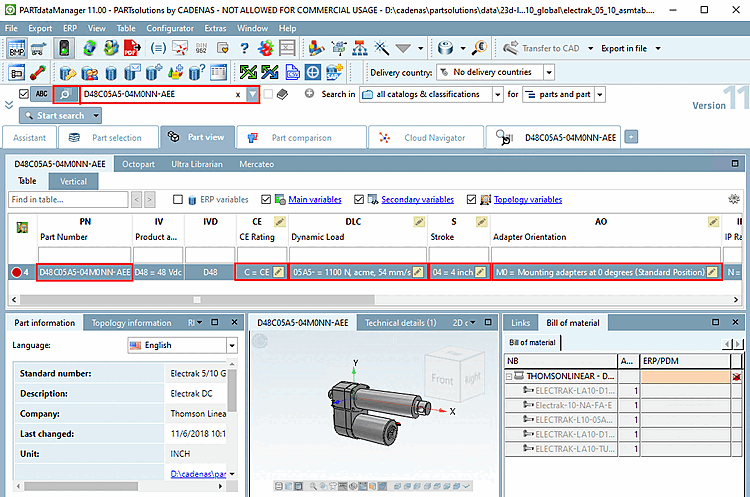
Prima di avviare il test, eseguire le seguenti operazioni:
Assicuratevi di aver installato l'ultimo catalogo SVN, che include gli ultimi aggiornamenti e modifiche.
Assicurarsi che venga eseguito un controllo di risoluzione "nuovo".
A tale scopo, cancellare sotto
$CADENAS_DATA/23dlibs/<catalogname>resolvecheck.cfgil file di configurazione prima di utilizzare il Avviare il controllo della risoluzione.Aggiungere il catalogo in PARTadmin nella cartella
reverselookup.cfg, nella chiavegenerategraph.Aggiornare l'indice di visualizzazione e di ricerca full text in PARTadmin.

Selezionare la directory del catalogo, una sottodirectory o un progetto e fare clic sul comando del menu contestuale Ricerca inversa - Ricerca del numero d'ordine del test [Reverse Search – Test Order Number Search].
Figura 5.367. Comando del menu contestuale "Ricerca inversa - Ricerca del numero d'ordine di prova [Reverse Search – Test Order Number Search]".
-> Si apre l'omonima finestra di dialogo.
Figura 5.368. Comando del menu contestuale "Ricerca inversa - Ricerca del numero d'ordine del test [Reverse Search – Test Order Number Search]".
-> Viene prima generato un elenco di numeri d'ordine casuali (vedere la barra di avanzamento in Generazione di numeri d'ordine [Generation of order numbers] ), che vengono testati nella seconda fase (vedere la barra di avanzamento in Test della ricerca [Test the search] ).
-> Dopo il test, riceverete un riepilogo dei risultati direttamente nel programma.
-> I risultati vengono scritti anche nell'elenco di esportazione generato automaticamente. Il risultato del test è riportato nell'ultima colonna. I numeri trovati sono contrassegnati da "OK", quelli non trovati da "FAIL".
Se le ricerche non sono andate a buon fine e la funzionalità di ricerca inversa è stata ottimizzata, è possibile ricaricare e testare l'elenco di output con .
![Comando del menu contestuale "Ricerca inversa - Ricerca del numero d'ordine di prova [Reverse Search – Test Order Number Search]".](https://webapi.partcommunity.com/service/help/latest/pages/it/installation_ecatalogsolutions/doc/resources/img/img_bf067d5eec464d36a4b0493d0d7f3c50.png)
![Comando del menu contestuale "Ricerca inversa - Ricerca del numero d'ordine del test [Reverse Search – Test Order Number Search]".](https://webapi.partcommunity.com/service/help/latest/pages/it/installation_ecatalogsolutions/doc/resources/img/img_5c6338e8aec54582b22d6e97f677d46a.png)


Esempio (test iniziale di un elenco di numeri d'ordine/codici tipo definiti)
In alternativa, è possibile eseguire il test con un elenco di numeri d'ordine/codici tipo definiti. In questo caso, l'impostazione in Numero per progetto [Amount per project] non è rilevante.
Avviare il processo facendo clic su .
-> Si apre la directory impostata nell' elenco del percorso di destinazione per l'esportazione [Destination path export list]. Selezionare il file CSV desiderato.

-> La funzione viene eseguita e i risultati vengono scritti nel file CSV caricato.
Il risultato del test è riportato nell'ultima colonna. I numeri trovati sono contrassegnati da "OK", quelli non trovati da "FAIL".
Numeri d'ordine di prova tramite il "Reversemap Service".
Se la ricerca inversa è già stata attivata per l'uso online, è possibile verificare manualmente i numeri d'ordine con il "Reversemap Service".
Basta inserire l'URL nel browser e vedere se si ottiene il MIdent.
https://webapi.qa.partcommunity.com/service/reversemap?catalog=norelem&part=06247-116044&exact=1
https://webapi.partcommunity.com/service/reversemap?catalog=norelem&part=06247-116044&exact=1
catalogo = -> Catalogo in cui effettuare la ricerca
parte = -> Numero d'ordine da ricercare
exact = -> 1 (ricerca esatta del numero d'ordine); 0 (ignora le maiuscole/minuscole)
Numeri d'ordine di prova su 3Dfindit o sul Portale Fornitori
È possibile cercare i numeri d'ordine anche sul portale 3Dfindit o sul portale dei fornitori (la chiave di configurazione corrispondente deve essere stata precedentemente attivata sul portale dei fornitori).
Assicurarsi di aver già selezionato il catalogo su 3Dfindit. La ricerca del numero d'ordine non funziona nella barra di ricerca standard di 3Dfindit.


Il calcolo automatico del La ricerca inversa viene eseguita in
$CADENAS_DATA\index\cat\cat_resolve_check\graphgraphlookup.mapcreato un file. Questi viene ignorato per impostazione predefinita durante il caricamento su portali online e devono essere esplicitamente attivati da CADENAS per l'uso divenire.La ricerca per numero d'ordine o designazione del tipo [Order number or type code] sui portali online funziona solo nel catalogo pertinente (in PARTdataManager anche in tutti i cataloghi).
È opportuno effettuare sempre una ricerca nel catalogo desiderato. Tuttavia, a volte un catalogo è composto da sotto-cataloghi (il catalogo delle norme, ad esempio, è composto da DIN, ISO, EN, ecc.). In questo caso, si prega di effettuare la ricerca nel relativo sotto-catalogo.
Quando si crea il file CIP del catalogo nella
dir.prjdel catalogo, il Risultati del controllo della risoluzione sotto forma delle seguenti chiavi posata:CATMETRICS_PROGETTI_RICERCABILI
Numero di progetti che dovrebbero essere trovati (tutti i progetti visibili e i progetti con SEARCHINDEX=ON)
CATMETRICHE_INVERSE_CLASSIFICATE
Numero di progetti con un numero d'ordine classificato o una variabile di codice tipo
Numero di progetti con numeri d'ordine e codici di tipo indicizzati tramite Lucene.
GRAFICO_INVERSO_DELLA_CATMETRIA
Numero di progetti con calcolo automatico della ricerca a ritroso
Numero di progetti che non possono essere trovati con la ricerca inversa
Informazioni generali: Per ottenere le informazioni scritte al
dir.prj, sono I file di configurazioneresolve_check.cfgeqacheck.cfgvalutati. Inresolve_check.cfgscrive, ad esempio: il ResolveChecker, per il quale è possibile una ricerca inversa automatica. Tuttavia, può essere È possibile che qualcuno abbia modificato un progetto senza eseguire ResolveChecker . In In questo caso, vengono lette le informazioni delqacheck.cfgin cui Testmeta e Testmeta devono assolutamente essere utilizzati per le modifiche progetti, altrimenti non saranno pubblicati potere.
Le
Il file di configurazione si trova sotto $CADENAS\libs\all\plugins\resolve_check.cfg:
La qualità del controllo euristico durante il calcolo automatico della ricerca inversa può essere impostata con i primi tre tasti.
Se NEVERSKIPGRAPH è impostato su 1 (l'impostazione predefinita è 0), viene eseguito un ricalcolo completo per ogni esecuzione. (Questo può essere utile a scopo di test se la generazione automatica è stata migliorata).
[COMMON]
# maximum graphsearch searches per line (default: 10000)
MAXHEURISTICS=10000
# maximum time in minutes to use when counting variants per project (default: 15)
MAXTIME=15
# maximum time in minutes when checking graphsearch results per project (default: 30)
MAXTIMETEST=30
# always recheck the graphsearch even if we already have a saved result (default: 0)
NEVERSKIPGRAPH=0
# maximum time used to check one number in seconds (default: 20)
#:INACTIVE;MAXTIMEPERNUMBER=20
# limit the maximum threads to check at the same time, 0 -> don't limit threads (default: 0)
#:INACTIVE;MAXTHREADCOUNT=0
# check all order numbers instead of stopping after the first failed (default: 0)
#:INACTIVE;CHECKALLNUMBERS=0
Definizioni delle abbreviazioni variabili utilizzate
RNG: variabile di intervallo di valori che definisce un intervallo
[10:100]
NMD: variabile di intervallo di valori con valori concreti
'x','b','y',...
Esempio 2 (variabile di intervallo di valori con denominazione [Value range variable with naming] )
1,'txt1',2,'txt2',...
ALG: Variabile basata sull' algoritmo delle caratteristiche [Attribute algorithm]
ALG = '$A.-$B.-$C.-$D.-$E.-$F.-$G.'
TAB: Variabile con valori fissi [Variable with fixed values]
L'illustrazione seguente mostra l'intervallo di impostazione delle variabili del campo di valori sopra menzionate.
![Gestione variabili [Variable Manager] -> Stato [Status]](https://webapi.partcommunity.com/service/help/latest/pages/it/installation_ecatalogsolutions/doc/resources/img/img_5f9e7ac040dd4410a50a98b92e30f9e2.png)
Esempio 1 - Uso indiretto e calcolato dell'intervallo di valori
Nota La seguente restrizione si applica quando si utilizzano gli algoritmi:
Un algoritmo produce sempre un valore concreto calcolato "in avanti", ma il valore utilizzato nell'algoritmo non può essere dedotto "all'indietro" se si utilizza un'operazione aritmetica; la sostituzione diretta, invece, funziona.
Il numero d'ordine (NR) risulta dalla stringa "xyz" e da un algoritmo di caratteristiche.
NR=xyz ALG
ALG=10*RNG
Problema: ad ALG può essere assegnato un valore univoco, ma il valore di RNG non può essere determinato a causa della restrizione di cui sopra.
Lo stesso vale anche per i casi seguenti, leggermente modificati, poiché anche qui viene eseguita un'operazione aritmetica:
Una soluzione potrebbe essere quella di determinare i valori dell'intervallo di valori in modo tale da poter omettere il calcolo con ALG e utilizzare direttamente RNG per determinare NR.
Esempio 2 - Risoluzione in avanti con algoritmi
ALG1: Inoltro a un intervallo di valori
ALG1=RNG (ALG1 si basa su un intervallo di valori)
ALG2: istruzione IF per determinare il valore del numero d'ordine visualizzato
If ALG1='xyz' then
ALG2=123
Else If ALG1='abc' then
ALG2=789
End if
NR=DIN ALG2
Ad ALG1 può essere assegnato un valore univoco, ma il valore non può essere impostato a causa della restrizione sopra descritta.
Utilizzare l'intervallo di valori direttamente nell'istruzione IF invece delle variabili dell'algoritmo.
If RNG='xyz' then
ALG2=123
Else If RNG='abc' then
ALG2=789
End if
NR=DIN ALG2
Esempio 3 - Nessun separatore tra le variabili dell'intervallo di valori
NR=RNG1RNG2
Non c'è un separatore tra i due intervalli di valori, quindi non è chiaro quali singoli valori compongano il numero d'ordine/codice tipo (NR).
NR='3412' potrebbe essere una combinazione di '341' e '2' o '34' e '12', ad esempio.
Soluzione: inserire un separatore tra le variabili dell'intervallo di valori, in modo che sia chiaro quale elemento appartenga alla variabile dell'intervallo di valori 1 e quale alla variabile dell'intervallo di valori 2.
NR=RNG1-RNG2Esempio 4 - Nessun percorso unico con lo stesso risultato
If a=1 then
ALG='01'
Else if a=2 then
ALG='0$RNG.'
End if
ALG ha diverse opzioni, alcune delle quali sono uguali. Nella prima condizione "01" e nella seconda condizione "01".
Se ALG assume lo stesso valore, il backsolving non può avere successo. Non è possibile decidere se il caso è "a=1" o "a=2", il che significa che anche un'affermazione su RNG=1 è secondariamente errata.
[24] Chiave VARSEARCHRESOLVEORDERNO. Su
A livello di progetto, questo è disponibile nel file di progetto, a livello di catalogo in
$CADENAS_DATA/23d-libs/<katalogname>/dir.prj.
Nessun equivalente GUI. L'intervento manuale non è
necessario.
[25] I file dei plugin corrispondenti devono trovarsi in %CADENAS%/libs/all/plugins: resolve_check_tester.cfg, resolve_check_tester.def, resolve_check_tester.vbb