
 |
Click on the arrow in order to open the list field with the project types. Select the desired type from there.
By selecting a type, a specific selection of tabbed pages shows up. You can find an overview on this under Section 5.9.1, “Overview on tabbed pages”.
Project type Description Classification Search ...you are prompted later in PARTdataManager as to whether it is to be opened as a 2-D or 3D project
...is later asked for in the PARTdataManager whether it should be opened as 2-D or 3D project. Assembly configuration 
Assembly template 
Project documentation *.doc, *.HTML and *.pdf files etc. are created in the form of a project
Assembly table 
Directory 
Project on the basis of a PARTmedia file (a print catalog can be created from PARTsolutions parts with PARTmedia)
Without geometry 
Assistant See Section 5.15, “Embed use cases in PARTdataManager / PARTcommunity ”.
Starts the PARTsolutions Web Wizard, which enables alternative masks for part selection to be displayed.
See Section 3.1.6.4.16, “ Web assistant (provided by customer) ” in PARTsolutions - User manual.
Search Assistant See Section 3.1.6.4.15.2, “Customized filter assistants ” in PARTsolutions - User manual.
Filter Assistant Global filter assistant created by administration. See Section 3.1.6.4.15.3.2, “ Search filter assistant (provided by PARTsolutions administration) ” in PARTsolutions - User manual.
Calculation Assistant See Section 3.1.6.4.15.2, “Customized filter assistants ” in PARTsolutions - User manual.
Name of person that applied and/or is working on this project.
Basically you must enter the license key with which the respective folder (catalog) is secured against unauthorized access. On the highest level (for example: C:\Programs\partsolutions/23d-libs) this is not provided.
Via option File Display Mode, the behavior concerning display in the directory tree under Project selection and the behavior concerning SVN checkin is controlled.
File Display Mode: Project based (Default)
In the respective directory, all files belonging to the project are displayed on the left under Project selection. A file is belonging to the project, if it is referenced by it (what may happen in different ways).
Other files are only displayed, if they are declared under PARTserver/PARTcommunity -> Additional files.
Capital letters, empty spaces or special characters may not be used. Otherwise error messages will appear when executing Upload changed files in directories / projects to the server:
Directories in this mode should not contain project files! Directories declared in such a manner are needed, if the catalog contains a configurator or assistant, for example.
All files in such a directory (and its subdirectories) are displayed under Project selection. In above figure the file
New Text Document.The use of capital letters, empty spaces or special characters is allowed.
When executing Upload changed files in directories / projects to the server all files of the respective directory (and its subdirectories) are checked into the SVN.
Variable Search - Add/Remove / Variable Search - Fixed List:
The two setting options can be used for an additional or alternative determination of search variables in filters besides the automatic determination.
Details on this can be found under Section 5.9.2.1.1, “Determination of search variables ”.
Short name (max. 16 characters) :
The number character used should be oriented to the character limit of the "receiving" CAD system, since the short term is transferred as part name to the CAD during export.
The short name must be unique and should preferably include the DIN number and the value of the variable "NENN" (represented with a placeholder) (e.g. “DIN1587_$NENN.”).
Row Label: ...is displayed highlighted in gray as the second column from the left in the table (see Fig. „ Row Label, characteristic attribute table, Preview “). This retains your overview as to what component attribute you are dealing with in the relevant row even when scrolling to the right (the columns with the important identification variables would be concealed).
Information on the use of (translatable) text in the Row Label is found under Section 7.8.11.6, “ Translation functions”.
Similar to standard parts (optional):
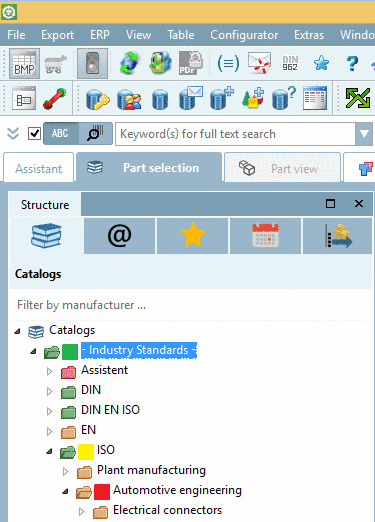
When a new release CIP is generated via PARTproject, also a scanner is running during this process in order to identify and classify all kind of standardized parts. Explicitly all NNs and NTs are checked whether they contain one of the below listed keywords followed by a number like “123”, etc.: If this is the case, the project is automatically assigned in the Standards classification of found Standard project's class. Projects of this sort are marked with the Standards icon
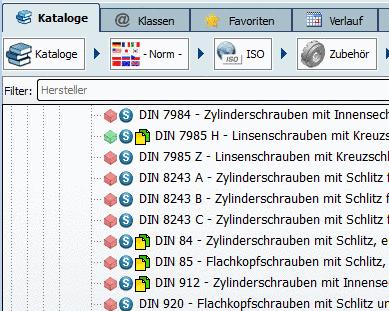 in PARTdataManager.
DIN, ISO, ANSI B, NF E, VDI, UNI, NAS, NASM, BSI, ASNA, JIS, CSN, STN, GOST, JB/T, NIHS
EN, SN, LN, AN, SN, BS, IS, KS, GB, PN, GB, MS, VG
Especially within the 2-digit keywords there is unfortunately a high rate of mistakes and wrong classifications, because e.g. „Rohrbogen 90°“ is recognized as a en 90 (an "Euro Standard”). Wrong classifications like this can be sorted out by inserting a „NO“ into the respective field in PARTproject under tabbed page General -> menu item General -> Similar to standard parts (optional) and then regenerating the catalog. Classifications have to be checked from time to time regularly.
When using an ERP integration, directories and projects can be colored based on certain rules in addition. Information on this can be found under Section 4.7.3, “ Create and configure roles ” in PARTsolutions - Administration Manual.
Table file: The table file contains the Table, which you can see in the Part view of the PARTdataManager (see figure below). Set the respective file (*.tab, *.tac).
Preview is the Image displayed in Part selection in the PARTdataManager (see illustration above). Likewise, in the Links side you can see the Part view (see illustration below). Enter the corresponding file (*.pra, *.bmp).
Under Product information pages, the catalog manufacturer can provide additional information ( e.g. installation information, shop info, etc.) for his catalog in HTML format. This can either be linked to a web site or being stored in a directory within the project directory. Variables can also be used. The syntax is the same as with document variables.
https://de.wikipedia.org/w/index.php?search=$NB.
Information is displayed in PARTdataManager, in the Part view, respectively on a dedicated tabbed page. The view dynamically shows the respective row selection in table.
At the option Product information pages, click on .
-> The same-named dialog box is opened.
Click on
 and create the desired pages. With
 and
and  you can edit and delete entries.
Under Name enter
Info 1and under Addresshttps://de.wikipedia.org/w/index.php?search=$NB.for example.-> In PARTdataManager, the created pages are displayed.
Under Additional export formats, additional files (export formats) can be made available for the export (e.g. Revit [RFA = Revit Family Tables], DXF with special tool layers).[32]
Additional files can be made available for the whole project, but also per row or value range value by adding a placeholder in the form of
$VARIABLENAME..In the following you can find a description on how to create the needed entries.
Also see Section 5.12.12.9, “Classification of general connections / Subcircuits”.
![[Note]](https://webapi.partcommunity.com/service/help/latest/pages/it/partsolutions_user/doc/images/note.png)
Note The use of this function possibly happens in relation with the use of function Rotate. Both functions are possibly needed in order to change the orientation of parts erroneously modelled for the Mechanical scope to Architecture or Electrical scope. An example for joint use of Coordinate axes and Rotate can be found under Section 7.6.4.6, “ Move/Rotate... (part) ”.
Special case of General – projects without a table
In the case of projects without table (such as document projects) fields Standard number (e.g. DIN 404) and Standard title (e.g. “Slotted capstan headed screw”) are also available.








[32] When using the Q&S import required entries are automatically created. Information on Quick & Simple can be found under Section 5.13, “Create catalogs - Quick & Simple ”.