
5.2.
Database dei link di installazione
5.2.4. Creazione dello schema del database e degli utenti per l'ERP (utilizzando MSSQL come esempio) |  |
| Indietro | Avanti |
La creazione dello schema del database e la creazione dell'utente "erpuser" sono spiegate di seguito:[69]
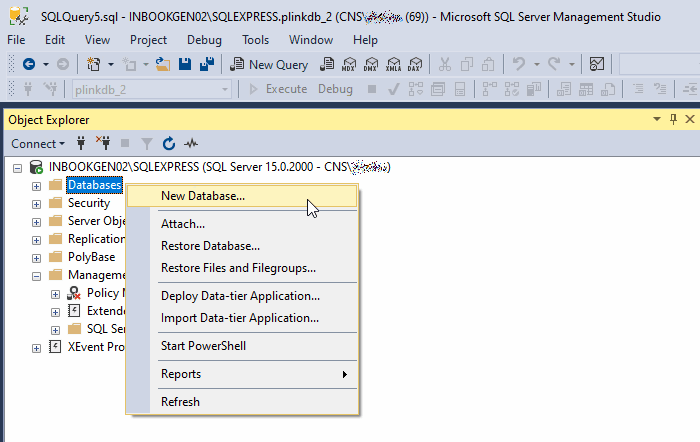
Creare il database: Cliccare con il tasto destro del mouse su "Database" -> "Nuovo database".
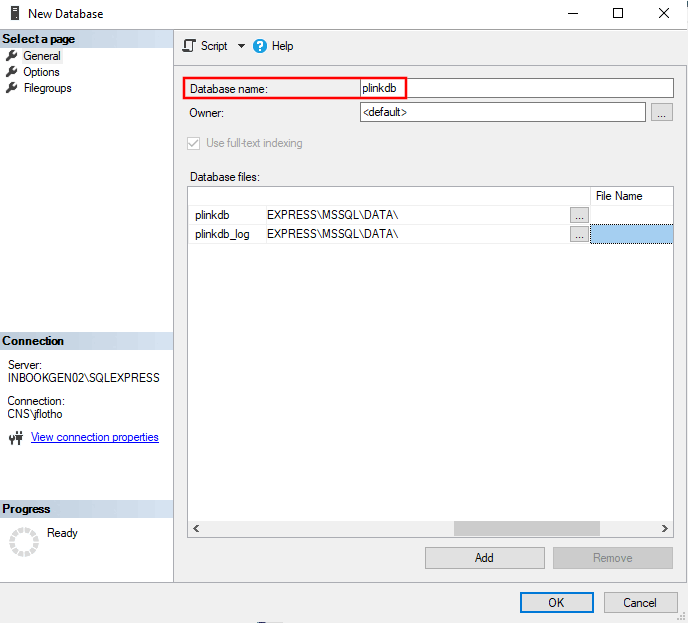
Inserite il nome del database desiderato nella finestra di dialogo Nuovo database che si apre e fate clic su " e poi su .
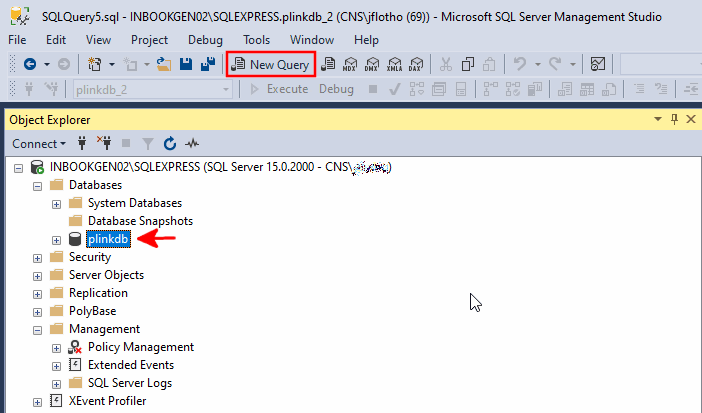
Selezionare il database e fare clic su Nuova query.
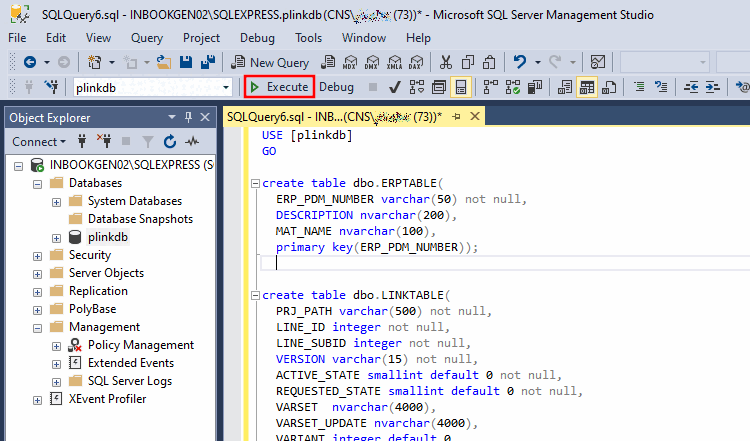
Ora è necessario uno script SQL per creare la struttura del database (...\tools\databases\MSSQL\erp_install_mssql.sql).
Più avanti questo viene illustrato come esempio per MSSQL. Sotto
$CADENAS/tools/databasestroverai. Script di database per altri database.Copiare e incollare il contenuto nella query vuota e aggiungere manualmente il seguente testo all'inizio:
USE [datenbankname]
GO
...
Ora apri un'altra query vuota e Creare l'utente "ERPUSER". È possibile utilizzare lo script
plinkdb_reuse.sql(sotto..\tools\databases\MSSQL) usare.USE [master] GO CREATE LOGIN [erpuser] WITH PASSWORD=N'erpuser', CHECK_EXPIRATION=OFF, CHECK_POLICY=OFF GO CREATE DATABASE [plinkdb] ON ( FILENAME = N'<DBFILE>' ), ( FILENAME = N'<DBLOGFILE>' ) FOR ATTACH GO if not exists (select name from master.sys.databases sd where name = N'plinkdb' and
 SUSER_SNAME(sd.owner_sid) = SUSER_SNAME() )
EXEC [plinkdb].dbo.sp_changedbowner @loginame=N'sa', @map=false
GO
USE [plinkdb]
GO
DROP USER [erpuser]
GO
CREATE USER [erpuser] FOR LOGIN [erpuser] WITH DEFAULT_SCHEMA=[dbo]
GO
SUSER_SNAME(sd.owner_sid) = SUSER_SNAME() )
EXEC [plinkdb].dbo.sp_changedbowner @loginame=N'sa', @map=false
GO
USE [plinkdb]
GO
DROP USER [erpuser]
GO
CREATE USER [erpuser] FOR LOGIN [erpuser] WITH DEFAULT_SCHEMA=[dbo]
GO-> Lo schema del database e l'utente "erpuser" dovrebbero essere ora disponibili.
Infine, è necessario assegnare i diritti desiderati a "erpuser": fare clic con il pulsante destro del mouse su "erpuser" -> "Proprietà".
Nella finestra di dialogo che si apre, definire le appartenenze desiderate per l'utente in questione e confermare con .
![[Attenzione]](https://webapi.partcommunity.com/service/help/latest/pages/it/partsolutions_user/doc/images/caution.png)
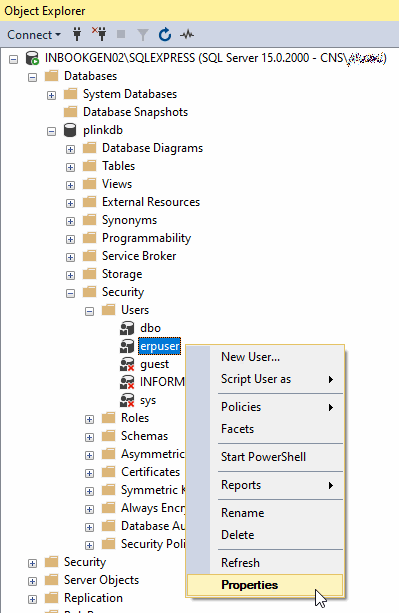
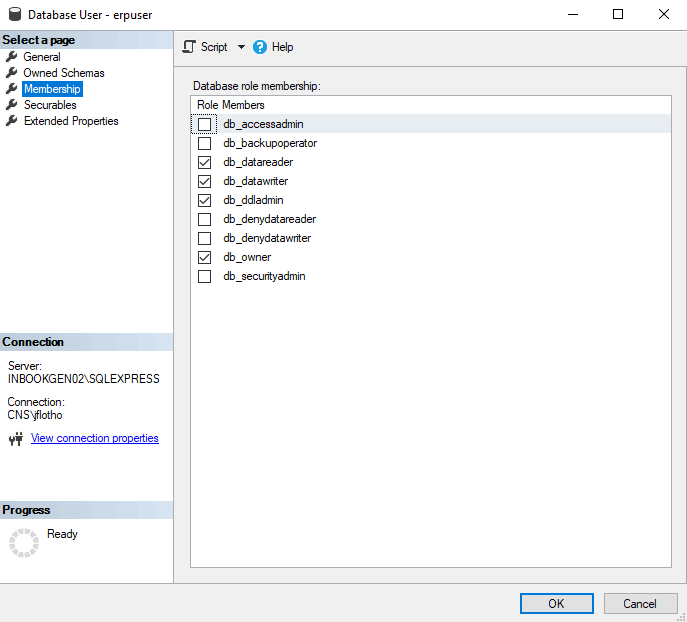
A partire dalla V12.9, esistono diversi script con diverse sezioni GRANT per "erpuser" e "psadmin". Fino ad allora non c'era alcuna differenziazione tra diritti standard e diritti di amministratore.
CREATE USER IF NOT EXISTS 'erpuser' IDENTIFIED WITH mysql_native_password BY 'erpuser';

GRANT SELECT, INSERT, UPDATE, DELETE ON partlinkdb.ERPTABLE to erpuser;
GRANT SELECT, INSERT, UPDATE, DELETE ON partlinkdb.LINKTABLE to erpuser;
GRANT SELECT, INSERT, UPDATE, DELETE ON partlinkdb.CLASSFOLDERTABLE to erpuser;
GRANT SELECT, INSERT, UPDATE, DELETE ON partlinkdb.CLASSTABLE to erpuser;
GRANT SELECT, INSERT, UPDATE, DELETE ON partlinkdb.PRJTABLE to erpuser;
GRANT SELECT, INSERT, UPDATE, DELETE ON partlinkdb.PLMTABLE2 to erpuser;
GRANT SELECT, INSERT, UPDATE, DELETE ON partlinkdb.PLM_HIERARCHY to erpuser;
GRANT SELECT, INSERT, UPDATE, DELETE ON partlinkdb.CNSSEQ to erpuser;
GRANT SELECT, INSERT, UPDATE, DELETE ON partlinkdb.TREETABLE to erpuser;
GRANT SELECT, INSERT, UPDATE, DELETE ON partlinkdb.LOGTABLE to erpuser;
GRANT SELECT, INSERT, UPDATE, DELETE ON partlinkdb.EXPORTTABLE to erpuser;
L'amministratore deve anche essere in grado di modificare le definizioni delle colonne nell'ERPTABLE.
CREATE USER IF NOT EXISTS 'psadmin' IDENTIFIED WITH mysql_native_password BY 'psadmin';

GRANT ALTER, SELECT, INSERT, UPDATE, DELETE ON partlinkdb.ERPTABLE to psadmin;
GRANT SELECT, INSERT, UPDATE, DELETE ON partlinkdb.LINKTABLE to psadmin;
GRANT SELECT, INSERT, UPDATE, DELETE ON partlinkdb.CLASSFOLDERTABLE to psadmin;
GRANT SELECT, INSERT, UPDATE, DELETE ON partlinkdb.CLASSTABLE to psadmin;
GRANT SELECT, INSERT, UPDATE, DELETE ON partlinkdb.PRJTABLE to psadmin;
GRANT SELECT, INSERT, UPDATE, DELETE ON partlinkdb.PLMTABLE2 to psadmin;
GRANT SELECT, INSERT, UPDATE, DELETE ON partlinkdb.PLM_HIERARCHY to psadmin;
GRANT SELECT, INSERT, UPDATE, DELETE ON partlinkdb.CNSSEQ to psadmin;
GRANT SELECT, INSERT, UPDATE, DELETE ON partlinkdb.TREETABLE to psadmin;
GRANT SELECT, INSERT, UPDATE, DELETE ON partlinkdb.LOGTABLE to psadmin;
GRANT SELECT, INSERT, UPDATE, DELETE ON partlinkdb.EXPORTTABLE to psadmin;
La connessione può essere controllata in PARTadmin alla voce Connessione al database [Database connection].
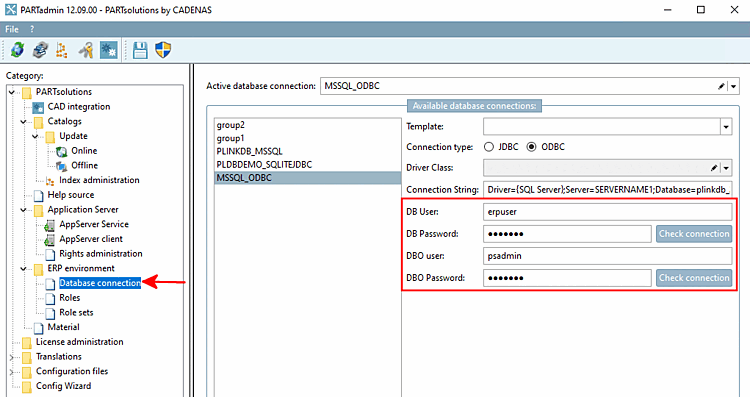
[69] Sezione 5.2.4.1, “Script di installazione ”Ecco un esempio per MSSQL Utilizzare lo script fornito per il proprio tipo di database (vedere ) e adattarlo di conseguenza.