1.5.5.2. Informazioni aggiuntive 1.5.5.2.1. Attivazione dell'interfaccia 3Dfindit in Creo Parametric
|  |
| Indietro | Avanti |
Dopo l'installazione dell'interfaccia 3Dfindit per Creo Parametric, sono disponibili diverse opzioni per l'attivazione dell'interfaccia:
In futuro, l'interfaccia 3Dfindit verrà avviata automaticamente insieme a Creo Parametric.
Estendi il tuo file esistente
config.pro(Creo Parametric Installazione/.../text/) con il tasto protkdat. Ciò include Il percorso del file protk<name>dat, che si trova nella cartella Directory di interfaccia "iFace".protkdat $CADENAS\iface\proewildfire\win\protkcreo8_64.dat
Assicuratevi di inserire il nome corretto del file.
Regolare il nome del file in base alla versione di Creo Parametric in uso.
L'interfaccia 3Dfindit deve essere disponibile solo all'avvio di Creo Parametric dopo l'attivazione manuale.
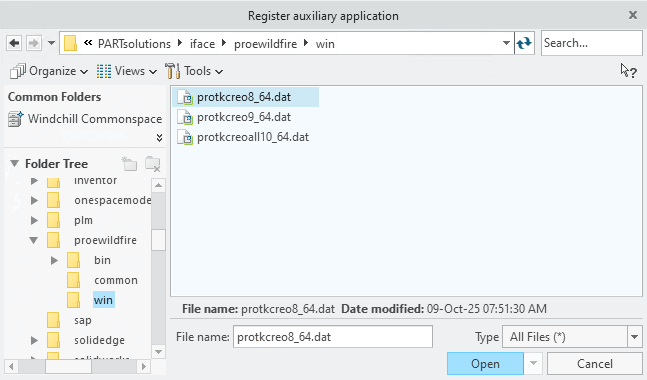
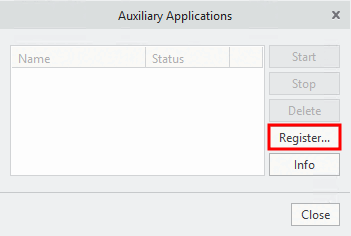
Nel Directory di installazione di PARTsolutions in .../iface/proewildfire/win , aprire il file protk<version>.dat (ad es.
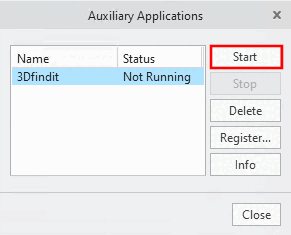
protkwf8.dat).Nella finestra Applicazioni ausiliarie , selezionare la nuova riga 3Dfindit e fare clic su .
-> L'interfaccia 3Dfindit appare nella barra dei menu di Creo Parametric.
![[Nota]](https://webapi.partcommunity.com/service/help/latest/pages/it/partsolutions_user/doc/images/note.png)