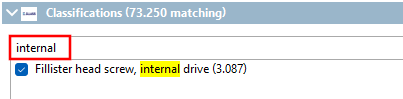
È necessaria una vite per la testa del cilindro:
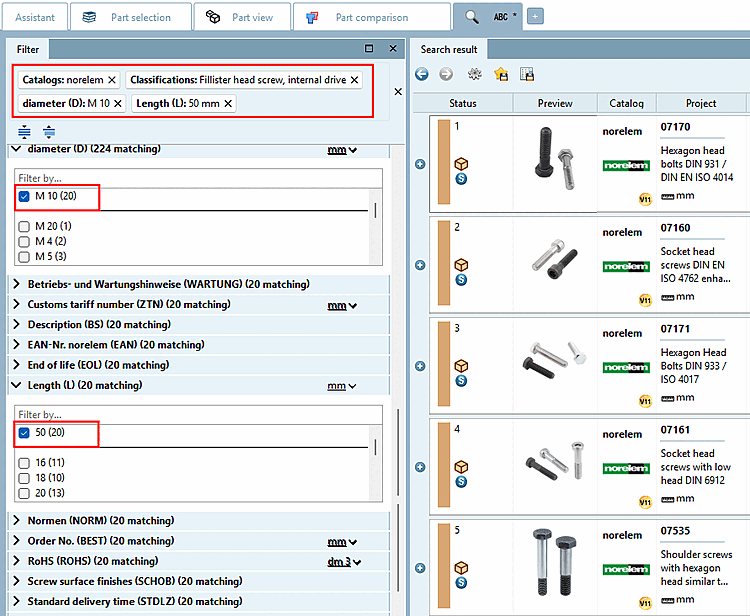
-> Dopo aver impostato il primo filtro, viene visualizzata la finestra di aggancio Filtro a sinistra.
Ad esempio, impostare i seguenti filtri variabili:
-> I prodotti sono già specificati in modo relativamente chiaro.
-> Più si specifica, più filtri variabili possono essere visualizzati.
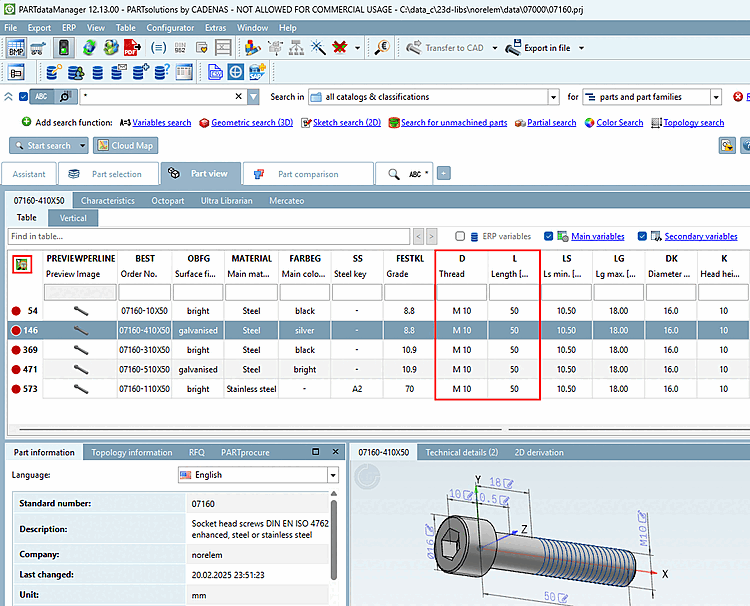
-> Vengono visualizzate solo le parti con la caratteristica desiderata.
Se vuoi vedere tutte le righe della tabella, Clicca sull'icona
 filtro dei risultati della ricerca
acceso spento [Search filter on/off].
filtro dei risultati della ricerca
acceso spento [Search filter on/off].
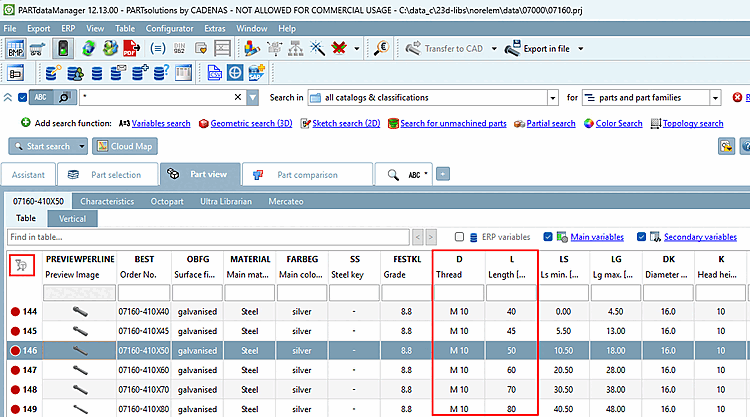
-> Vengono visualizzate tutte le righe della tabella e l'icona è disattivata
 .
.
![[Suggerimento]](https://webapi.partcommunity.com/service/help/latest/pages/it/partsolutions_user/doc/images/tip.png)