|
With the Cloud Navigator an alternative search method is available. You can perform complex sequences of searches and always keep in view the single results.
In the course of
the redesign of the user interface of 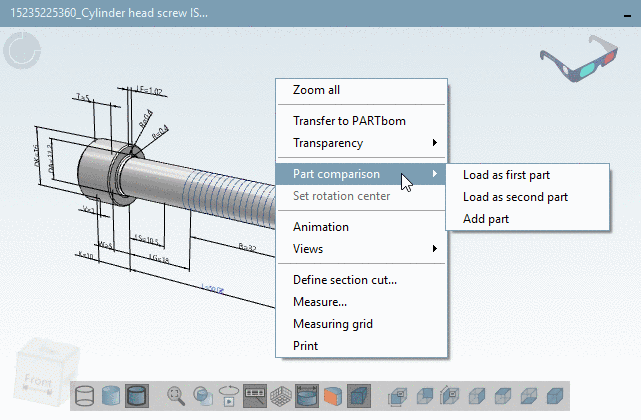 Search and Part Selection some important enhancements have been done for the
CloudNavigator, which are explained in the following. You can find a
complete description on the CloudNavigator under Section 3.1.6.11, “
Cloud Navigator
” in PARTsolutions - User manual.
Search and Part Selection some important enhancements have been done for the
CloudNavigator, which are explained in the following. You can find a
complete description on the CloudNavigator under Section 3.1.6.11, “
Cloud Navigator
” in PARTsolutions - User manual.
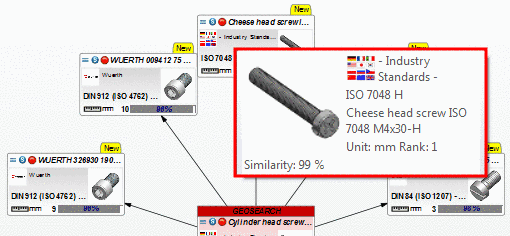
The CloudNavigator is now a tab (tabbed page) on the main page. The Search Results are displayed as graph on the Cloud Navigator tabbed page.
Starting the Cloud Navigation Search happens via the button.
The central settings under Search in .... for independently apply, regardless of whether the search is performed via or .
Initially in the Project selection, in the search methods section all methods except color search can be used. For a single search run only one search method can be used in the Cloud Navigator.
Full-text search | Variables search | Geometric search (3D) | Sketch search (2D) | Topology search
Other searches then can be started inside the graph based on result parts.
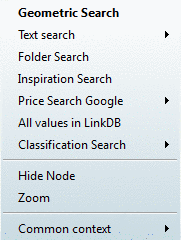
GeoSearch | Text Search | Folder Search | Inspiration Search | Price Search Google | All values in LinkDB | Classification Search
You can find the commands in the context menu of each result node.
Variables search and Topology search:
In the case of the Variables search and the Topology search the initial search can be modified in the CloudNavigator and be performed as a variant. The call happens on the root node itself.
You can compare the results of both search runs directly side by side.
Variables search: The initial variable search has been performed with D=5, the modified search with ERP_PDM_NUMBER = * in addition, meaning result parts should already be part of the ERP system. In the second search run only 1 part can still be found.
Topology search: The first search has been performed with "Largest dimension greater or equals (>=) 1000 mm", the second one with "Largest dimension greater or equals (>=) 2000 mm". A comparing search with a further attribute would possibly also make sense.
You can find two detailed examples on this under Section 3.1.6.11.1.2, “ CloudNavigator example - Variable search and modification side by side” in PARTsolutions - User manual and Section 3.1.6.11.1.3, “ CloudNavigator example - Topology search: Directly compare similar search runs” in PARTsolutions - User manual.
Switching between Standard Search and Cloud Navigation Search is always possible, so that you can optimally combine the advantages of both methods.
You can start searches in standard mode out of the Cloud Navigator via the context menu commands under Common context. There you can find the same context menu commands which are found in the search results of the standard search.
On each result node the standard name and the standard number are displayed.
On single parts the exact description of the characteristic is shown in a tooltip, which is displayed when you move the mouse over a result node.
All icons of the standard search such as "Standard part" (
 ), "Obsolete standard part/manufacturer part" (
 ), "This part is loaded in part compare (
 )", "Status from ERP integration,
etc. for example are also displayed in the CloudNavigator
)", "Status from ERP integration,
etc. for example are also displayed in the CloudNavigatorWith these commands you can save and load a graph and later based on it perform a new search.
Or you can make it available for others. But please regard that the same environment (catalogs) is available again.
Start Part comparison from CloudNavigator
The Part comparison dialog box can be docked just like in the standard search.
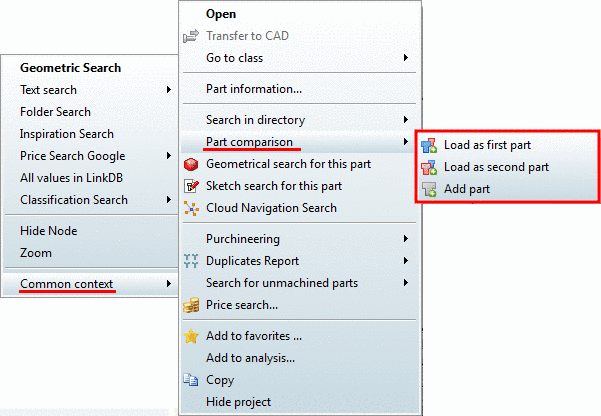
In the Cloud Navigation Search you can reach the part comparison in the context menu via Common context -> Part comparison.
Once select
 Load as first part
and once
Load as first part
and once  Load as second part.
-> The Part comparison window is docked and the desired parts are transferred to it.
You can find detailed information under Section 3.1.6.10, “ Part comparison ” in PARTsolutions - User manual.
This command is only available with ERP integration and with Single parts.
The available LinkDB entries are displayed.