|
All windows are arranged as "Dockings" now with V10.
Default arrangement of dockings under Part selection
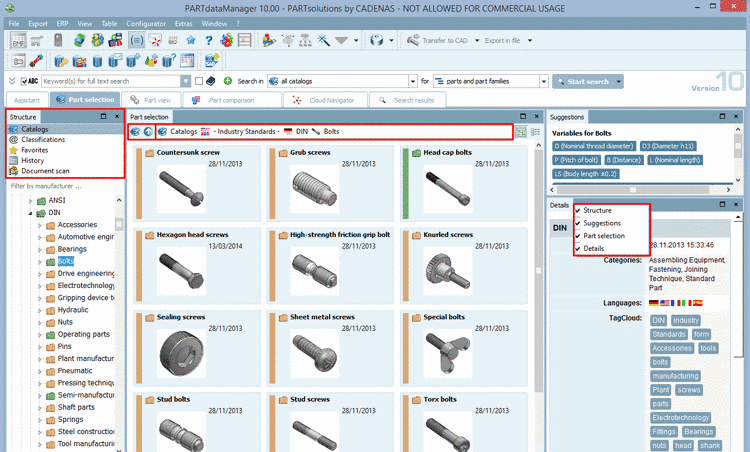
Suggestions and Details are found on the right side one below the other.
The Breadcrumbs (navigation path) have been scaled-down to Windows Explorer style. The button for „One level up“ and „To catalog level“ are beside the breadcrumbs now. Thereby these two buttons could be removed from the index where they were displayed on each level again.
Furthermore the tabbed pages Catalogs, Classifications, Favorites, History and Document scan have been combined and are found in the docking window Part selection now.
Default arrangement of dockings under Part view:
Table 30% hight and whole width, 3D view and Technical details right below and Links (Similar parts) and Assembly left below.
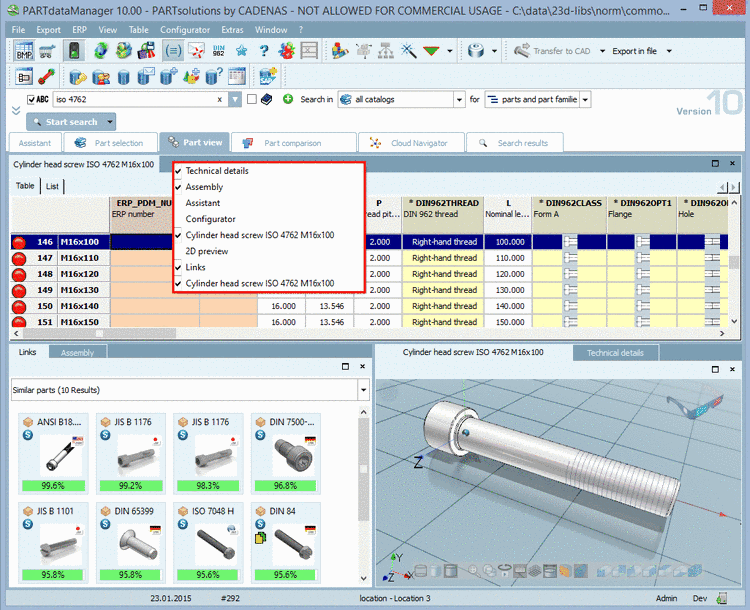
You can arrange the windows as you like. Changes are saved and reloaded at the next start. Via context menu command over a window, you can show or hide the single dockings.
In order to perform positional changes click on the title bar of a docking window and draw it to the desired position with pressed left mouse key. If you release the mouse key outside the main window the docking appears as separate window.
If you move the docking over the tab area then a free area opens, where you can put it down.
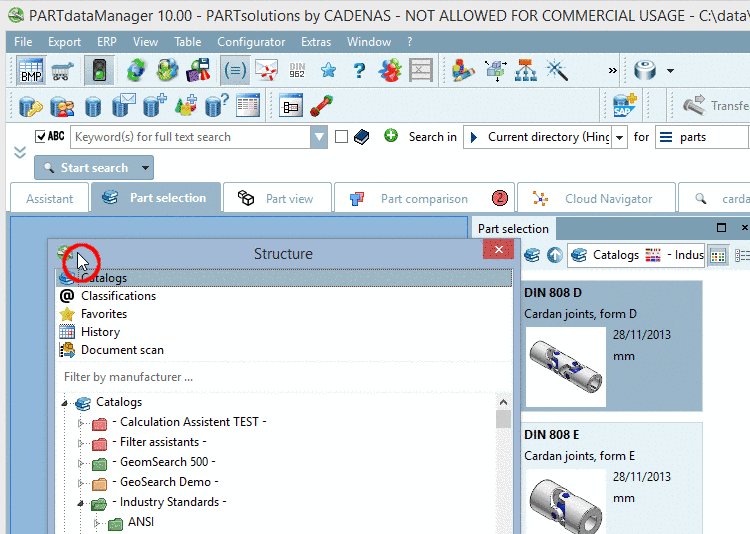
If you move the docking over the title bar of another docking window and release the mouse key there then the window is displayed with its own tab together with the other docking.
The rearrangement with dockings has a lot of advantages:
Docking windows can be tabbed, e.g. to combine Technical details and 3D view.
Only boundaries between windows can be changed or you can tab the windows.
The Part view has its own tabbed page now so that you can easily switch from part view to other tabs.
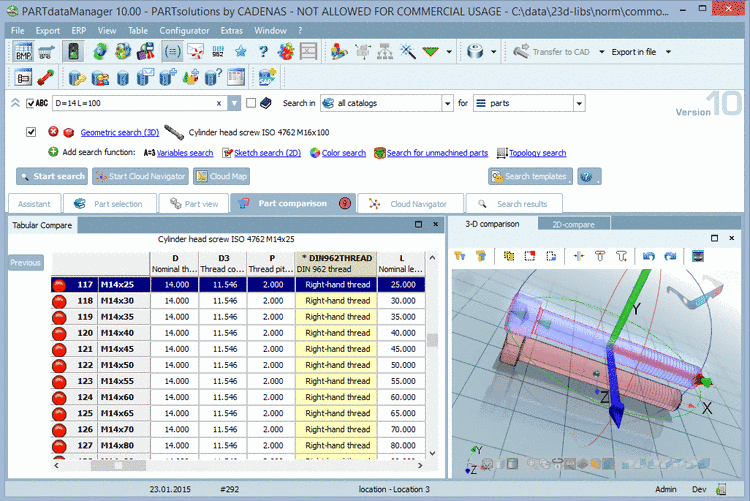
Furthermore the Part comparison is placed on a tabbed page so that the full width and height can be used, both for the dialog area Tabular Compare and 3D comparison. The number of opened parts is displayed on the Part comparison tab.
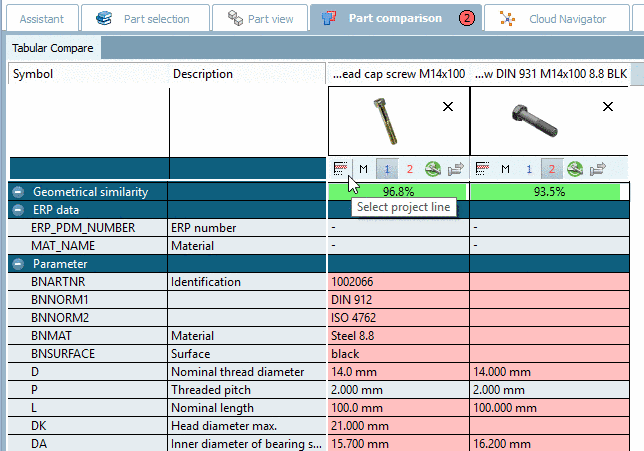
Calling up the table (in order to possibly change the characteristic) happens by clicking on the icon Select project line
 .
.In the Part selection view the index can be hidden, because it is a separate docking now.
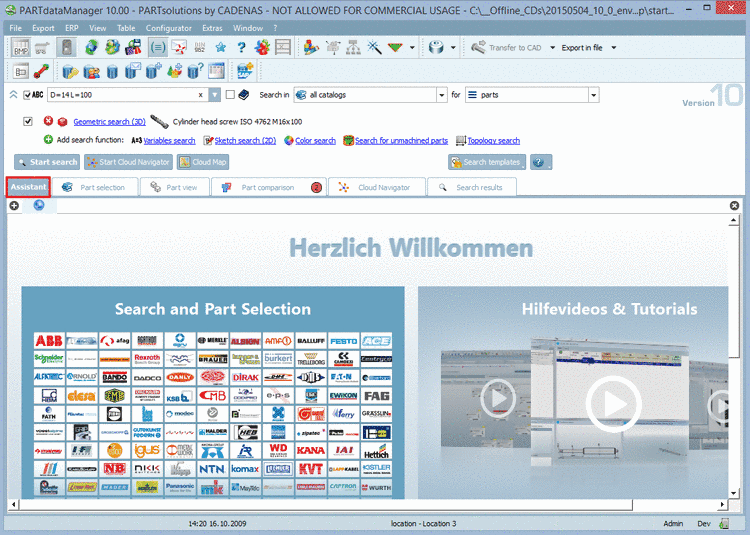
Assistant window (browser) appears as tab now.
In V10 for assistants it can be specified whether they should be opened in the Assistant tab or in the Part view.
The V9 style has been updated and shows a clear structure without color gradients now.
The main tabs have a different style than the docking tabs, what makes them clearly distinguishable (see figures above).
New colors in Part comparison: Blue and red have become lighter and more transparent so that the differences are even more clearly (compare Fig. „ Part comparison with "Tabular Compare" and "3D comparison"“).