

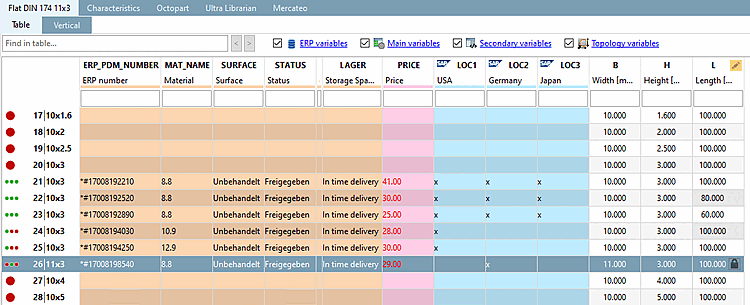
La seguente illustrazione mostra un pezzo con intervalli di valori (prodotto semilavorato) in PARTdataManager. Alle diverse lunghezze viene assegnato un proprio numero ERP, vengono utilizzati materiali diversi e viene impostata una variante geometrica "reale" per la variabile "B".[10], [11]
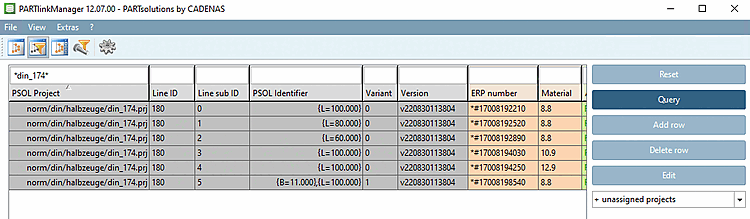
La seguente illustrazione mostra come vengono mappate le varianti in PARTlinkManager.
Tutte le righe sono basate sullo stesso ID di riga [Line ID] e differiscono per il subID di riga [Line sub ID]. Le varianti "reali" (modifica in un campo non a valore) hanno la voce 1 nella colonna Variante.
La tabella spiega in dettaglio le differenze:
[10] La possibilità di utilizzare un numero separato per le diverse lunghezze viene definita amministrativamente in PARTadmin -> Category -> Configuration files -> CADENAS_SETUP -> plinkcommon.cfg -> Block PARTdataManager -> Key LockDimRange=0/1. Nell'esempio, è stato impostato LockDimRange=1.
Si possono trovare informazioni dettagliate su questo punto in Sezione 5.18.2, “ Attivazione/disattivazione della funzione di dimensione del pin / plinkcommon.cfg -> Block [PARTdataManager] -> Key "LockDimRange" ” in ENTERPRISE 3Dfindit (Professional) - Amministrazione.
[11] Un esempio di importazione di varianti con PARTdataCenter si trova in Sezione 1.1.7, “ Ricerca per dimensione - Assegnazione automatica in base a informazioni standard come numero standard, dimensione, materiale, ecc. ” in PARTITA