|
With V11 topological features are marked in search results.
The following
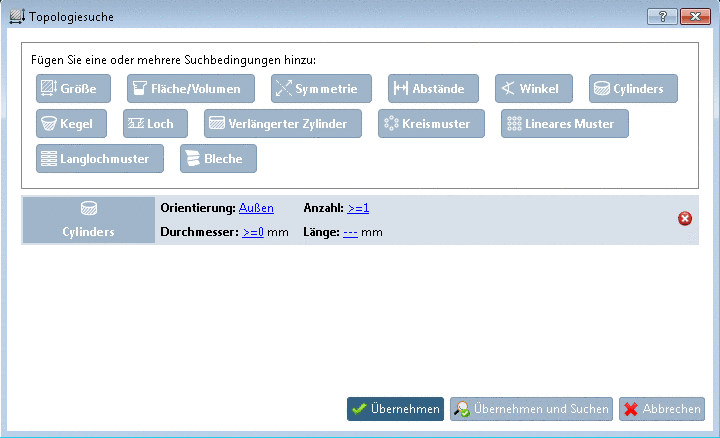
figures show the results of a combined search for "hexagon bolt" (Full-text search  ) and the topological feature Cylinder.
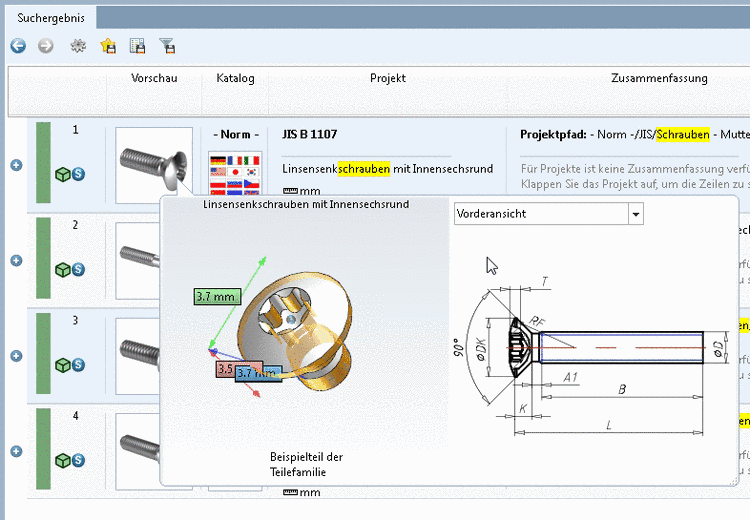
Features such as cylinder, cone, etc., where Topology search is searching for, are colored in the 3D search result.
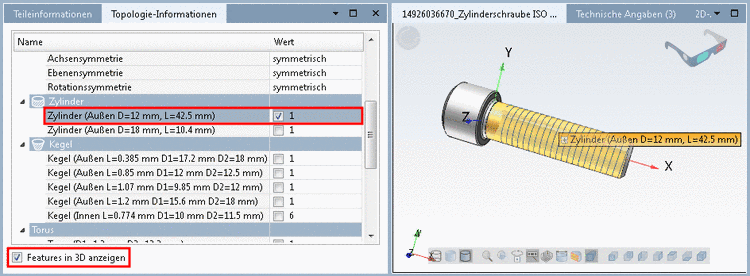
In the docking window Topology information you can find categories for the single topological features.
At mouse over the respective feature is marked in the 3D view.
When enabling a checkbox the respective feature is permanently marked in the 3D view.
When enabling the option Show features in 3D, you can directly mark a feature in 3D view by clicking on it and so display topology information in the label (open by clicking on the plus sign). When clicking again the marking is removed. The checkmark in the docking window Topology information is automatically set accordingly.
Benefit: Quicker access to additional information such as sizes without need of opening the part comparison.
Full comparability options are given in Part comparison.
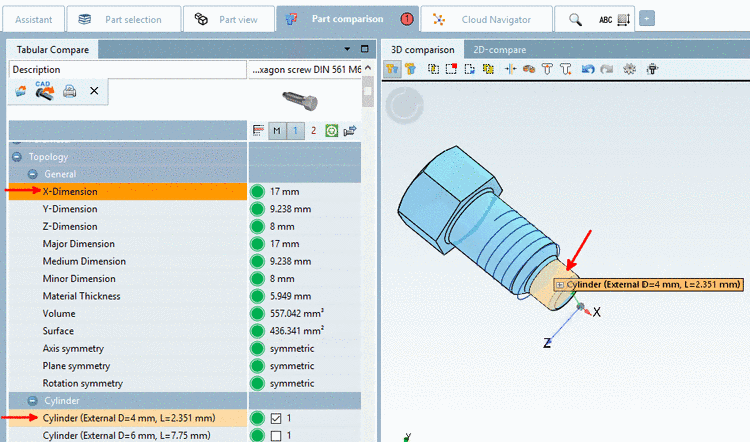
If a Topology search had been performed before, the searched topological attributes are color-marked in the Tabular Compare dialog area, the respective checkboxes already enabled and the respective information is also displayed in 3D comparison.
Otherwise attribute display can be enabled or disabled anytime by activation/deactivation of the respective checkbox.