7.9.
Finestra di aggancio "Sketcher"
7.9.5.
Finestra di aggancio "
Modifica elemento"
|  |
| Indietro | Avanti |
![[Nota]](https://webapi.partcommunity.com/service/help/latest/pages/it/partwarehouse/doc/images/note.png)
![Finestra di aggancio "Strumento [Tool]" (qui con l'attuale dicitura "Modifica elemento [Edit element]")](https://webapi.partcommunity.com/service/help/latest/pages/it/partwarehouse/doc/resources/img/img_9e7d7a6979fc4a7a8fde697c3b599ab2.png)
Figura 7.924. Finestra di aggancio "Strumento [Tool]" (qui con l'attuale dicitura "Modifica elemento [Edit element]")
Non appena viene eseguita una fase di costruzione nello Sketcher (ad esempio, l'aggiunta di una linea), i campi di input corrispondenti vengono visualizzati nella finestra di aggancio dello strumento [Tool] (qui con l'etichetta corrente Modifica elemento [Edit element] ).
È inoltre possibile selezionare manualmente un elemento nella cronologia degli schizzi [Sketch history] o nello Sketcher in qualsiasi momento per richiamare il dialogo e modificare i parametri, se necessario.
Con Fare clic sul
 le modifiche non vengono prese in considerazione.
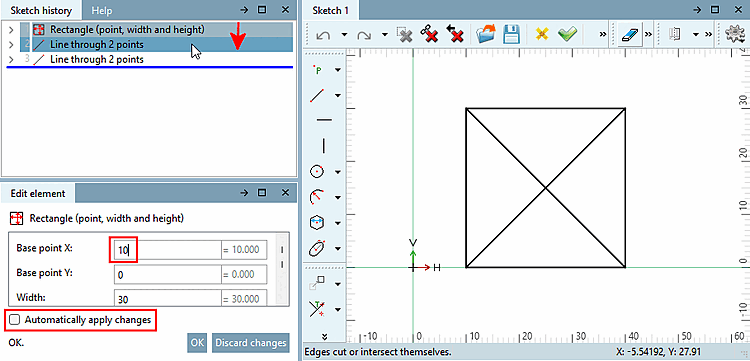
Se è selezionata la casella Applica Modifiche Automatiche [Automatically apply changes] Qualsiasi modifica valida viene salvata automaticamente (ma può esserlo può ancora essere annullato [ Elimina l'ultimo passaggio [Delete last step]
 o Annulla [Undo]
 ]).
]).
Se la casella di selezione non è selezionata, in caso di modifiche nella sezione " Modifica elemento [Edit element]" viene visualizzato un pulsante e le modifiche vengono applicate solo dopo aver premuto il pulsante.
Esempio: quando avete selezionato " Rettangolo [Rectangle] ", avete modificato il punto di riferimento [Base point] X da 0 a 10. Se ora, ad esempio, selezionate un altro elemento nella cronologia, la modifica andrà persa.
![[Suggerimento]](https://webapi.partcommunity.com/service/help/latest/pages/it/partwarehouse/doc/images/tip.png)
La posizione predefinita della finestra di aggancio degli strumenti [Tool] è in alto a destra, nella stessa area del Gestore delle variabili [Variable Manager]. Un'altra posizione pratica è quella sotto la cronologia degli schizzi [Sketch history] (anche se potrebbe richiedere lo scorrimento). Determinare la posizione più comoda.
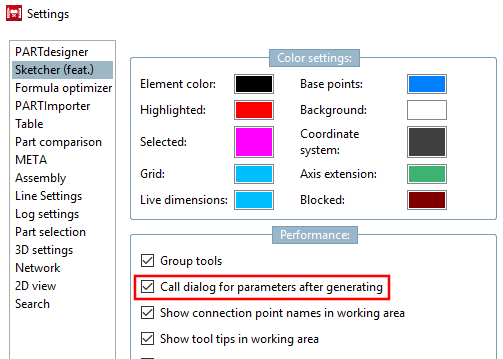
Se si desidera ripristinare il vecchio comportamento della V11, è possibile farlo in PARTdesigner nel menu Extra [Extras] -> Impostazioni [Settings...]... -> Sketcher (hist.) [Sketcher (feat.)] -> Comportamento [Performance], attivando l'opzione Chiama dialogo parametri dopo la creazione dell'oggetto [Call dialog for parameters after generating].