![[Note]](https://webapi.partcommunity.com/service/help/latest/pages/en/partwarehouse/doc/images/note.png)
!["Tool [Tool] " docking window (here with the current label " Edit element ")](https://webapi.partcommunity.com/service/help/latest/pages/en/partwarehouse/doc/resources/img/img_a13f576fab3d4a6a8c15f4f96e6f8b4d.png)
As soon as a construction step has been carried out in the Sketcher (for example, adding a line), the corresponding input fields are displayed in the Tool docking window (here with the current label Edit element ).
You can also manually select an element in the sketch history [Sketch history] or in the Sketcher at any time to call up the dialog and change parameters if necessary.
Clicking on the button
 button, changes are not taken into account.
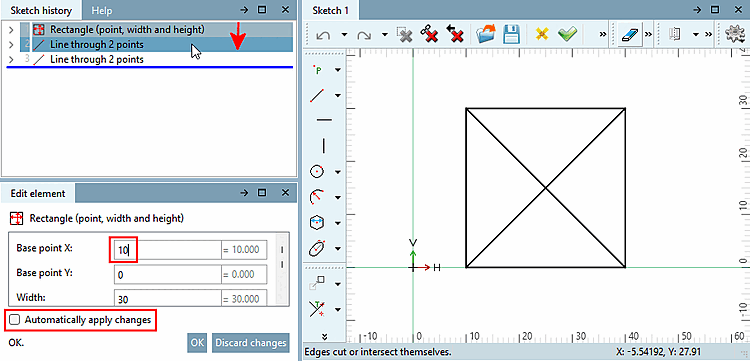
If the Automatically Apply Changes [Automatically apply changes] checkbox is selected any valid change is automatically saved (but can be can still be undone [ Delete last step
 or Undo
 ]).
]).
If the checkbox is not selected, when changes are made under " Edit Element [Edit element]," an button appears, and the changes are not applied until the button is clicked.
Example: When you selected " Rectangle," you changed the base point [Base point] X from 0 to 10. If you now select another element in the history, for example, that change will be lost.
![[Tip]](https://webapi.partcommunity.com/service/help/latest/pages/en/partwarehouse/doc/images/tip.png)
The default position of the Tool docking window is top right in the same area as the Variable Manager. Another practical position is below the sketch history [Sketch history] (although this may require scrolling). Determine the position that you find most convenient.
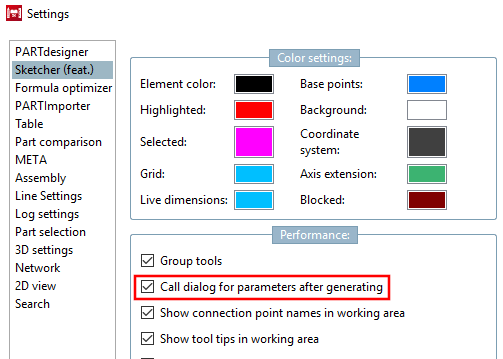
If you would like to restore the old V11 behavior, you can do this in the PARTdesigner under Extras menu [Extras] -> Settings [Settings...]... -> Sketcher (hist.) [Sketcher (feat.)] -> Behavior [Performance] by activating the option Call parameter dialog after object creation [Call dialog for parameters after generating].