
 |
As of V9.08 searching with preferred rows condition (with ERP integration / LinkDB) has been simplified.
As of V9.08 the
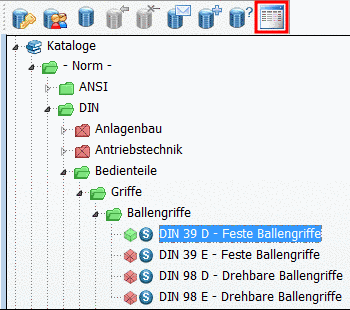
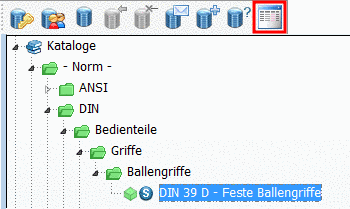
Preferred rows on/off  button is only available in the ERP toolbar. It
controls both the display of catalogs, directories and projects in the in
the index
tree and the display of characteristics in the table.
button is only available in the ERP toolbar. It
controls both the display of catalogs, directories and projects in the in
the index
tree and the display of characteristics in the table.
Furthermore, when activating the function search results are filtered. These also have to meet the preferred rows condition.
Standard definition: A part is a preferred part when it has an ERP number. In principle every other definition is possible as well. E.g.: A part is a preferred part, when it has an ERP number AND the value in the ACTIVE_STATE column is "released". Details on this are found under Registerseite Allgemein.
How preferred parts show up in Part selection and Part view?
In the Part selection, in the index tree, a directory is only then displayed in green[43], if it (or one of its sub-directories) contains at least one preferred part.
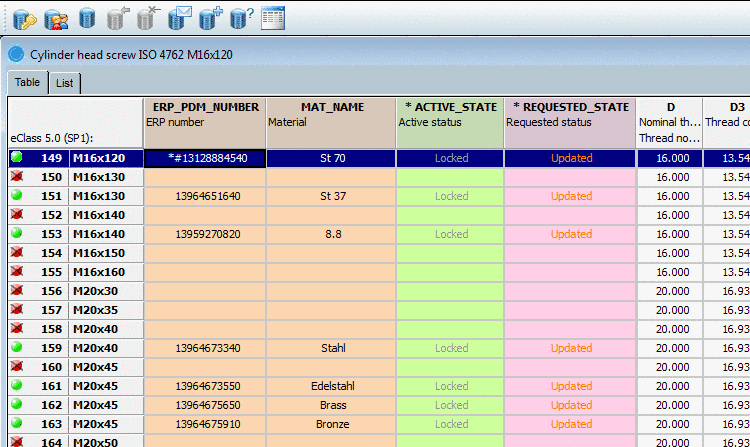
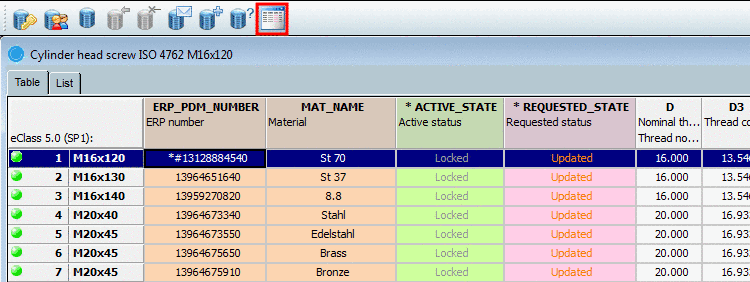
In the Part view, in the characteristic attribute table, a characteristic (line) then will show a green status light, if it represents a preferred part.
What is the function of the button Preferred rows on/off when searching?
If the function
Preferred rows on/off is activated, then in the Search result only those projects are shown, which contain at least on
characteristic, which is according to the preferred rows definition or only
characteristics, which are according to the preferred rows
definition.
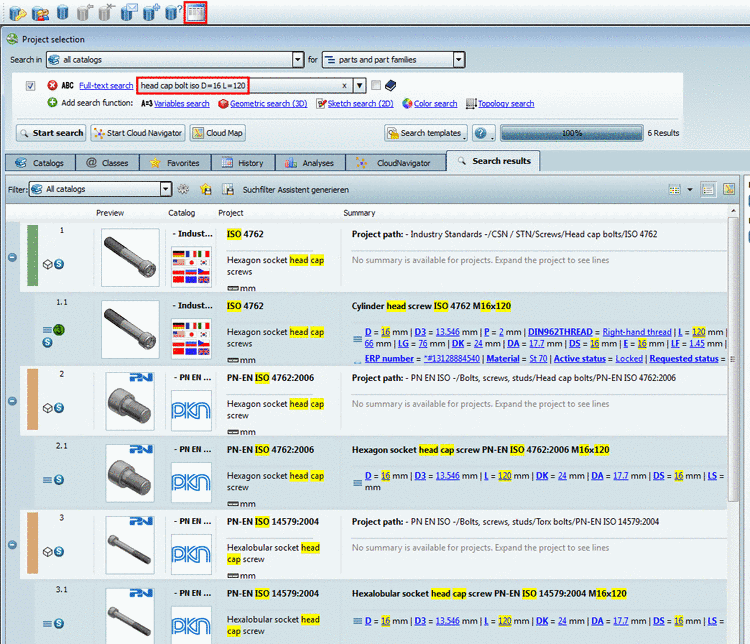
As long as the function Preferred rows on/off is deactivated, in the search results all projects and characteristics (lines) are shown unfiltered. That means, everything is shown what is according to the search condition (in the example in hand "head cap bolt iso D=16 L=120").
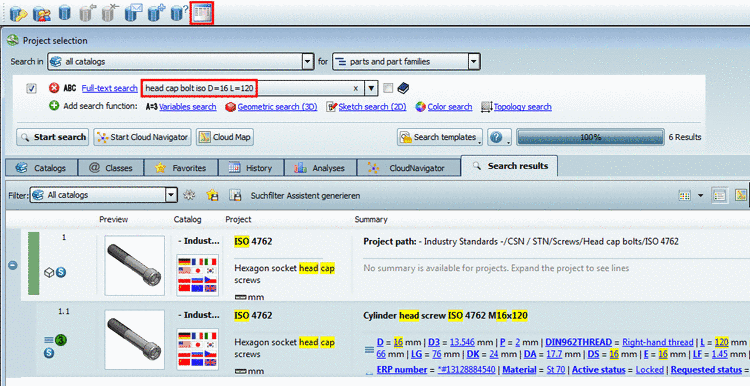
If the function Preferred rows on/off is activated, then in the search results, only those projects and characteristics are shown, which a) are according to the search condition and b) are according to the preferred rows condition.
![[Tip]](https://webapi.partcommunity.com/service/help/latest/pages/it/partwarehouse/doc/images/tip.png)