|
As of V9.08 the Geometric search (3D) is processed with relatively high minimum similarity of 90% by default. However, you have the opportunity to successively enhance the value. Simply click on the respective button at the end of list of search results.
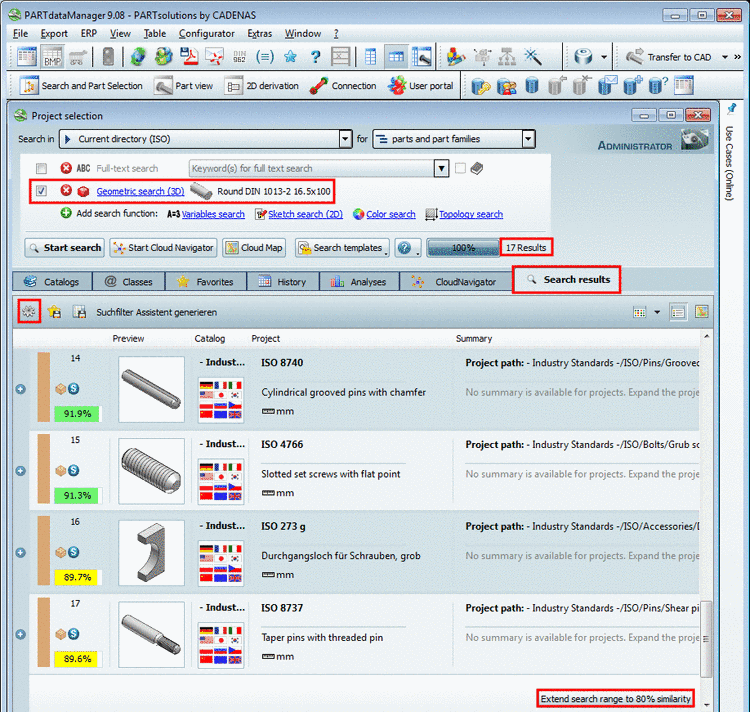
In this figure the button shows the value "Extend search range to 80% similarity". The default value for minimum similarity has been 90%. Using standard settings the percent value is reduced by 10 percent points per click and the search is started again.
In the following you can find an overview on the setting options, which affect the search and thus the displayed buttons:
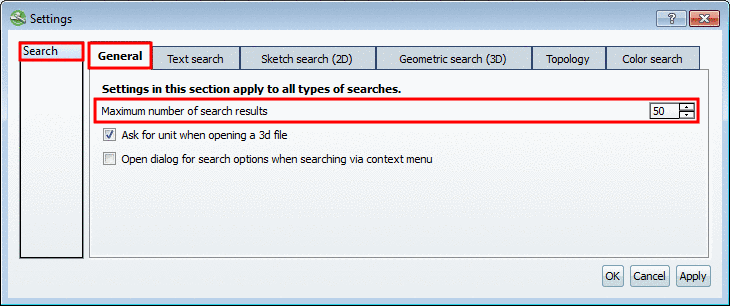
Maximum number of search result:
When, using Geometric search (3D) the number of displayed search results is under the set maximum number of search results (see Fig. „ Maximum number of search result “), due to the requested Minimum similarity of 90%, then at the end of list of search results the button Extend search space to xy% similarity is displayed, otherwise the buttons and . Whether the button is displayed, also depends on the option Maximum number of search result:
Default step size for reducing the percent value of minimum similarity is 10. If you want to change this, in PARTadmin, under
$CADENAS_USER/psolopt.cfg, create the following two keys.[SettingsSearch] GeoSearchHintStepSize=10 GeoSearchHintMinValue=50
The first key specifies the step size, the second key the smallest minimum similarity.
Whether the button Search settings
 is displayed, is configurable in PARTadmin under
 $CADENAS_SETUP/partsol.cfg.[PARTdataManager] INDEX_SHOW_SEARCH_SETTINGS=yes
Even if the button is not displayed, you can access the setting option Maximum number of search result via Extras menu -> Preferences... -> Search dialog -> General tabbed page.